MicroBiz gives the option to export price label tag data to a Excell/CSV file for a desired list of products. This Excel/CSV file can then be uploaded to printers not supported via a direct integration with MicroBiz (such as Dymo printers).
Steps to Export Data
Step One - Instead of printing a tag with a connected printer from the product records, PO, Vendor Shipment or front register Item View, add a product(s) to the Tag Print Queue
Step Two - Go to Catalog->Price Labels and select the items/tags that you would like to export. You can modify the quantities of labels in the table before exporting
Step Three - From the Batch Actions dropdown, click "Export to Excel" option
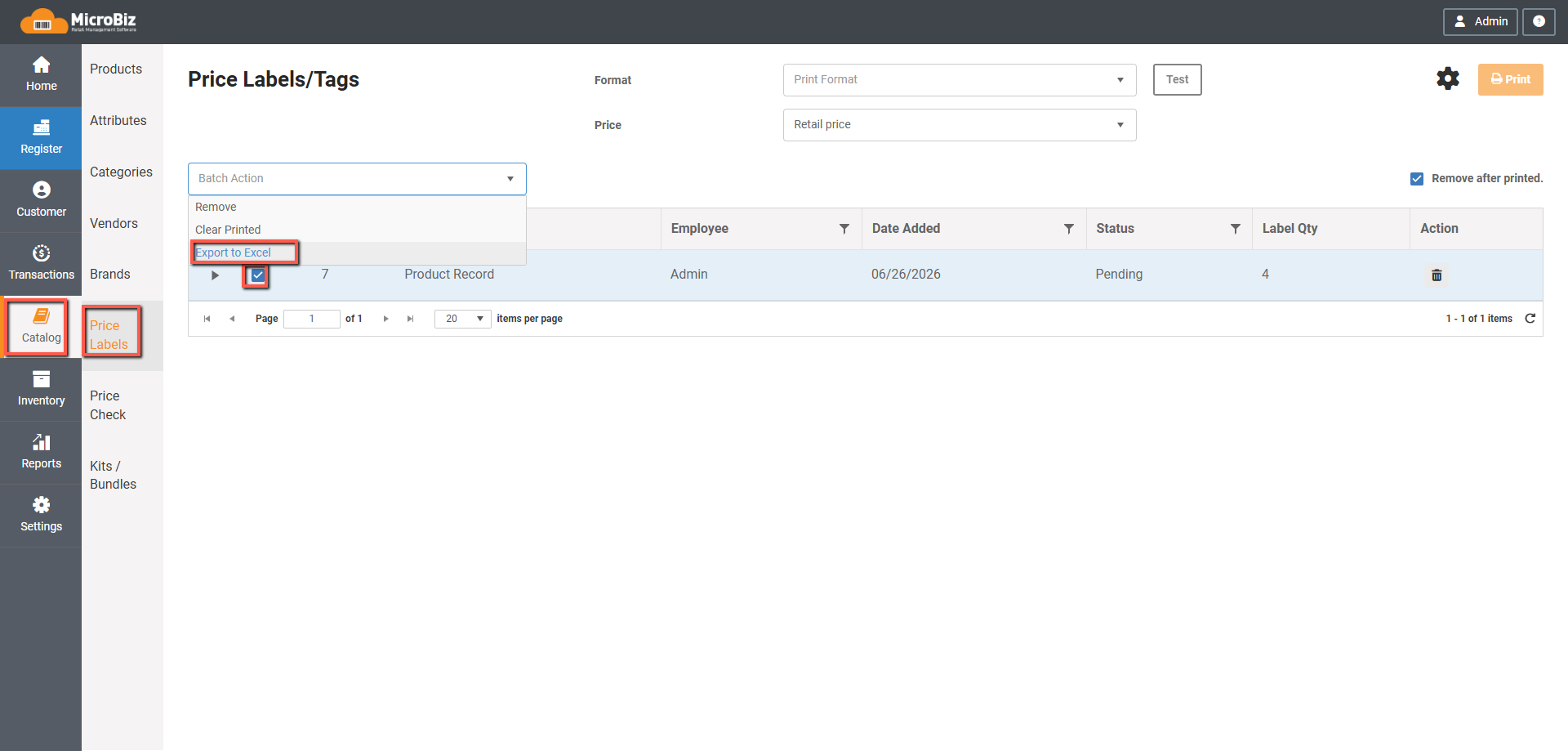
System will prepare the file and download will start shortly.
Fields that are being exported:
Label Qty - What number of the product was added to be printed
SKU - Product SKU
Product Name - Name of the Product
Style/Model - Style of the product/ Model if product is Firearms
Attributes- If it is a Matrix product, all attributes it has
Attribute-1 Code - Attribute Code of the first Attribute
Attribute-2 Code - Attribute Code of the second Attribute
Attribute-3 Code - Attribute Code of the third Attribute
Attribute-1 Name- Attribute Name of the first Attribute
Attribute-2 Name- Attribute Name of the second Attribute
Attribute-3 Name- Attribute Name of the third Attribute
Attribute-1 Label- Attribute List Name of the first Attribute
Attribute-2 Label- Attribute List Name of the second Attribute
Attribute-3 Label - Attribute List Name of the third Attribute
Retail Price - Retail Price of the product
Special Price- Special price of the product (if no Special price is set, returns $0)
MSRP - MSRP of the product if exists
Brand Name - Brand name of the product
Vendor Name - Vendor name of the product
UPC - UPC of the product
Item No - Item no Alternative ID of the product
Vendor Product ID - Vendor Product ID Alternative ID of the product
Alt SKU - Alt SKU Alternative ID of the product
Bin Location
Storage Location