Below are the steps to connect PriceCompare with MicroBiz. This will allow you to:
1) Create product records in MicroBiz with one click using Vendor Catalog data.
2) Build vendor orders in PriceCompare and send to MicroBiz as Purchase Orders. This will automatially create a Purchase order and product records of any products on a PO that were not already in your MicroBiz catalog. You can then use the PO in MicroBiz to receive the items on the orders and add to MicroBiz inventory with one click.
STEP ONE - Activate connection in PriceCompare
First, activate the PriceCompare Integration at PriceCompare>Settings>MicroBiz Sync Settings. This page will display your PriceCompre URL which will be used to connect the app to MicroBiz is Step Two.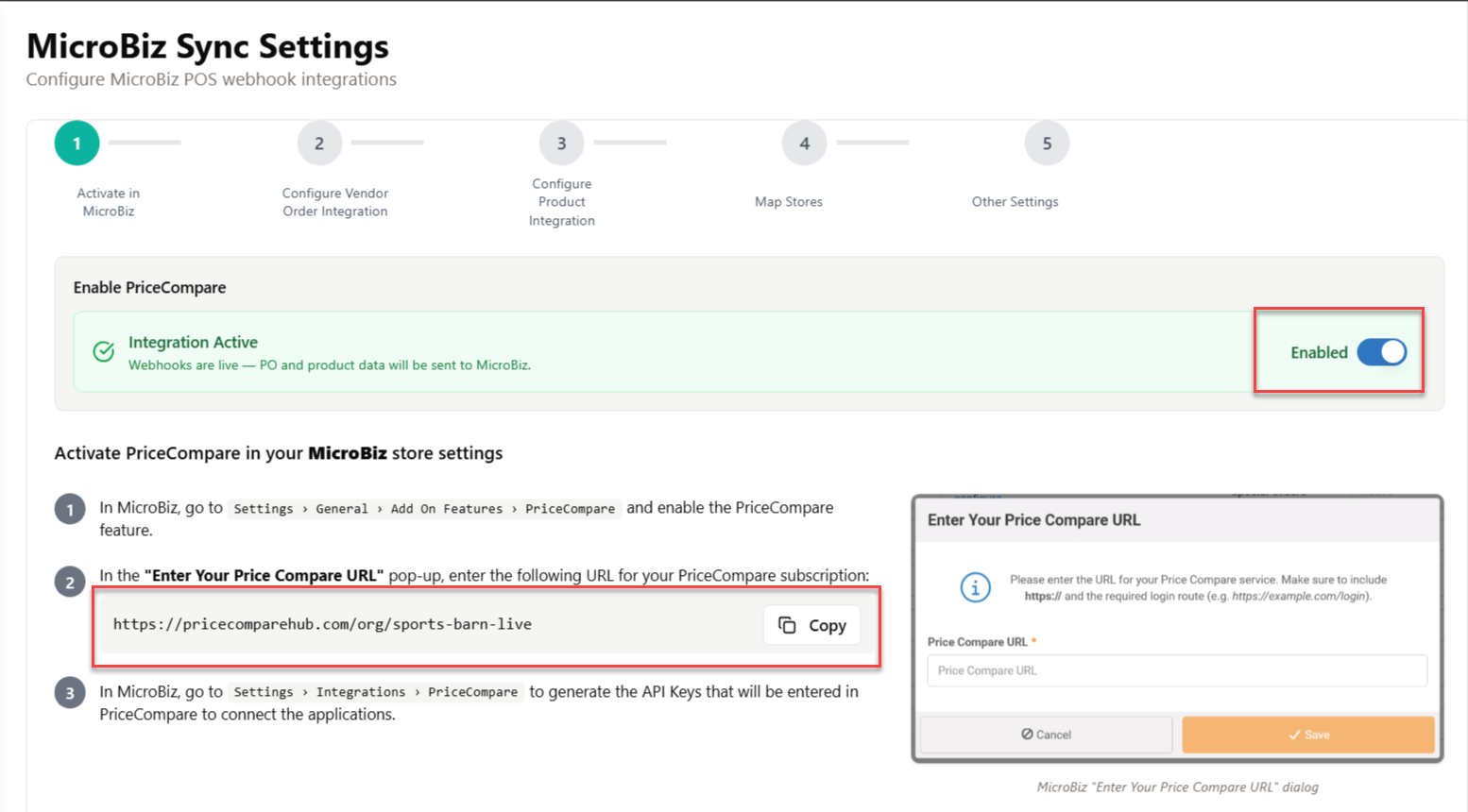
STEP TWO - Activate connection in MicroBiz
In MicroBiz, go to Settings>General>Add On Features>PriceCompare to activate the PriceCompare integration in MicroBiz.
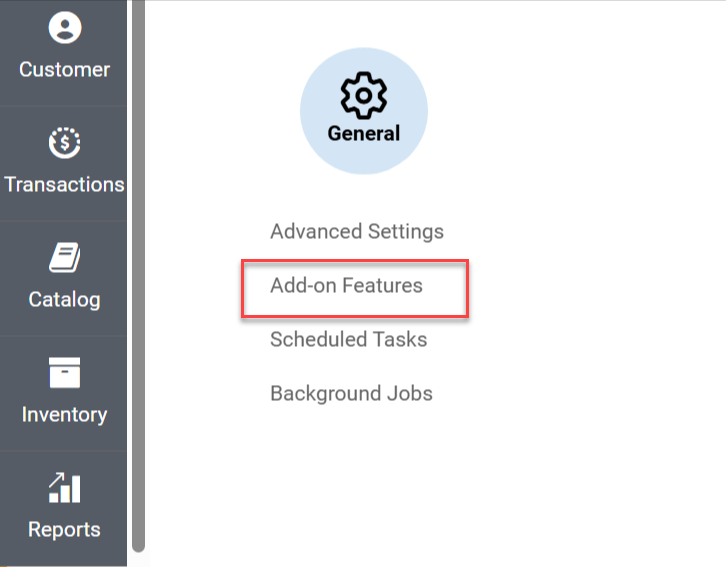
Once you have activated PriceCompare in the MicroBiz Add On Features screen, you will see a field allowing you to enter your PriceCompare URL in MicroBiz.
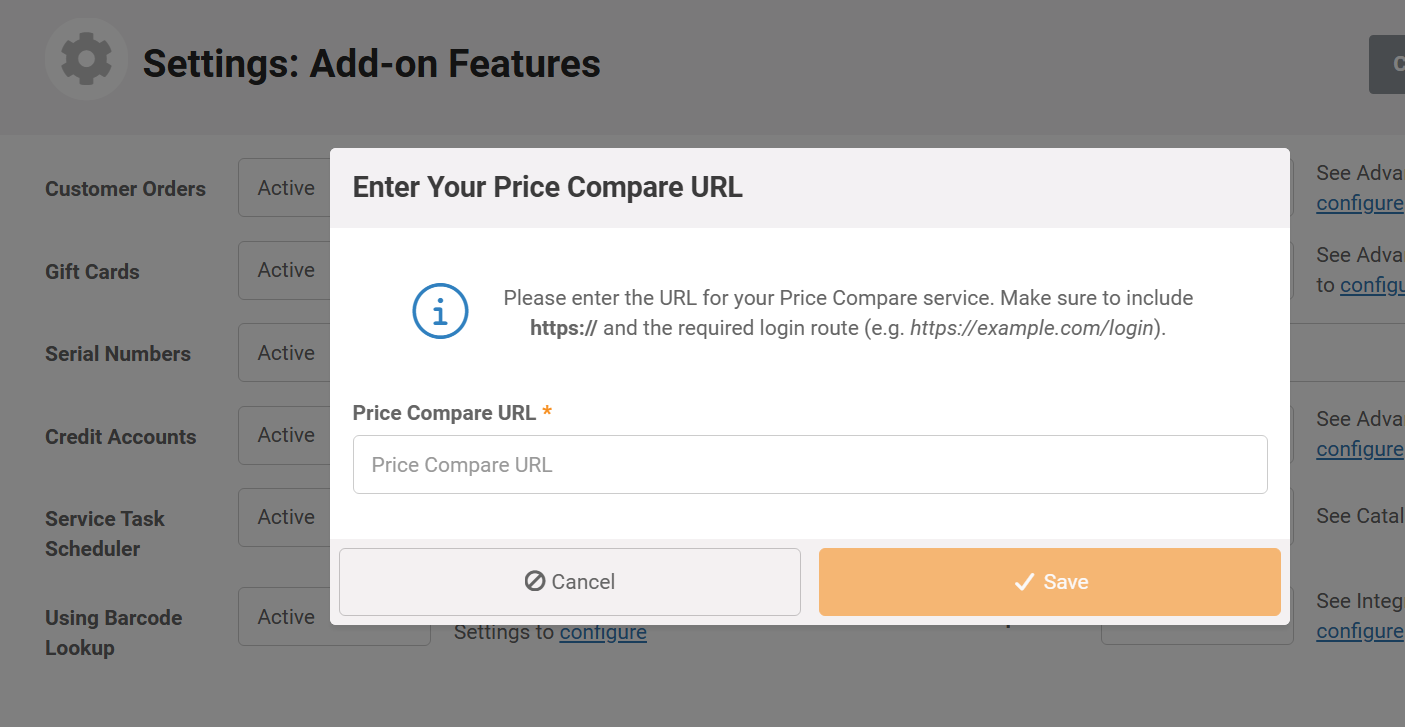
Copy/paste the URL of your PriceCompare store/subscription displayed at PriceCompare>Settings>MicroBiz Sync Settings>(1) Activate in MicroBiz into the corresponding field in the MicroBiz Add On Features page.
Or, this can be copied from your browser. Example: https://pricecomparehub.com/org/test-store. If you do this be sure to copy the base URL for your store.
Correct: https://pricecomparehub.com/org/test-store/
Incorrect: https://pricecomparehub.com/org/test-store /integrations
Incorrect: https://pricecomparehub.com/org/
STEP THREE - Generate API Connection Keys in MicroBiz
Once the PriceCompare integration has been activated in both MicroBiz and PriceCompare, link the two applications by generating 'Connection Keys' in MicroBiz and copying and pasting then into PriceCompare. Either click on the 'Configure' link in Add on Settings or go to MicroBiz>Settings>Integrations>PriceCompare - and then press the 'Generate Keys' button.
This will generate one-time credentials for syncing vendor orders and syncing product records.
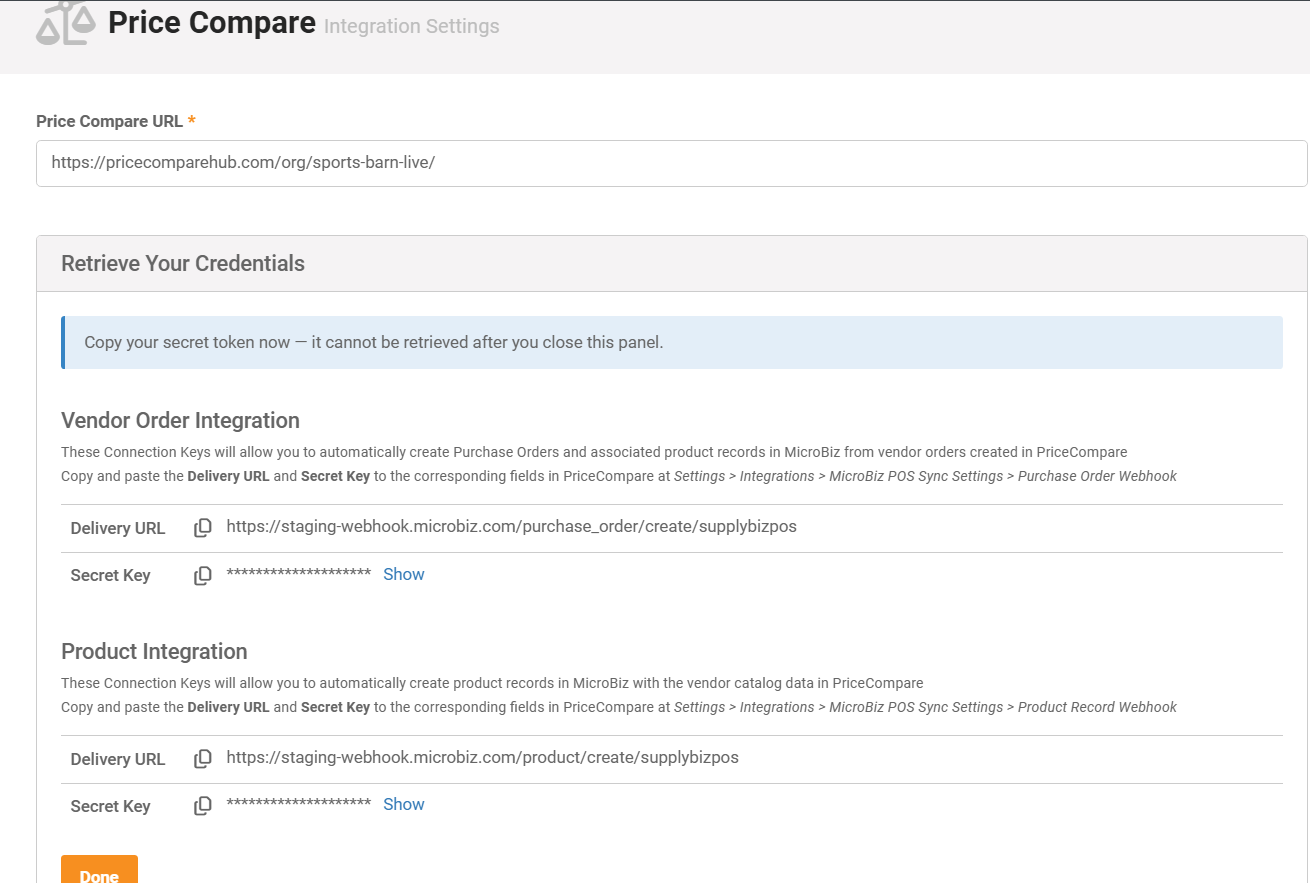
STEP FOUR - Paste Connection Keys into PriceCompare
Once you generate the Connection Keys in MicroBiz, copy and paste the Connection Keys into the corresponding fields in the PriceCompare set up wizard (see below).
Important - Be sure to paste the 'Vendor Order' connection keys from MicroBiz into the 'Vendor Order' integration fields in PriceCompare - and the 'Product' record connection keys from MicroBiz into the 'Product' integration fields in PriceCompare.
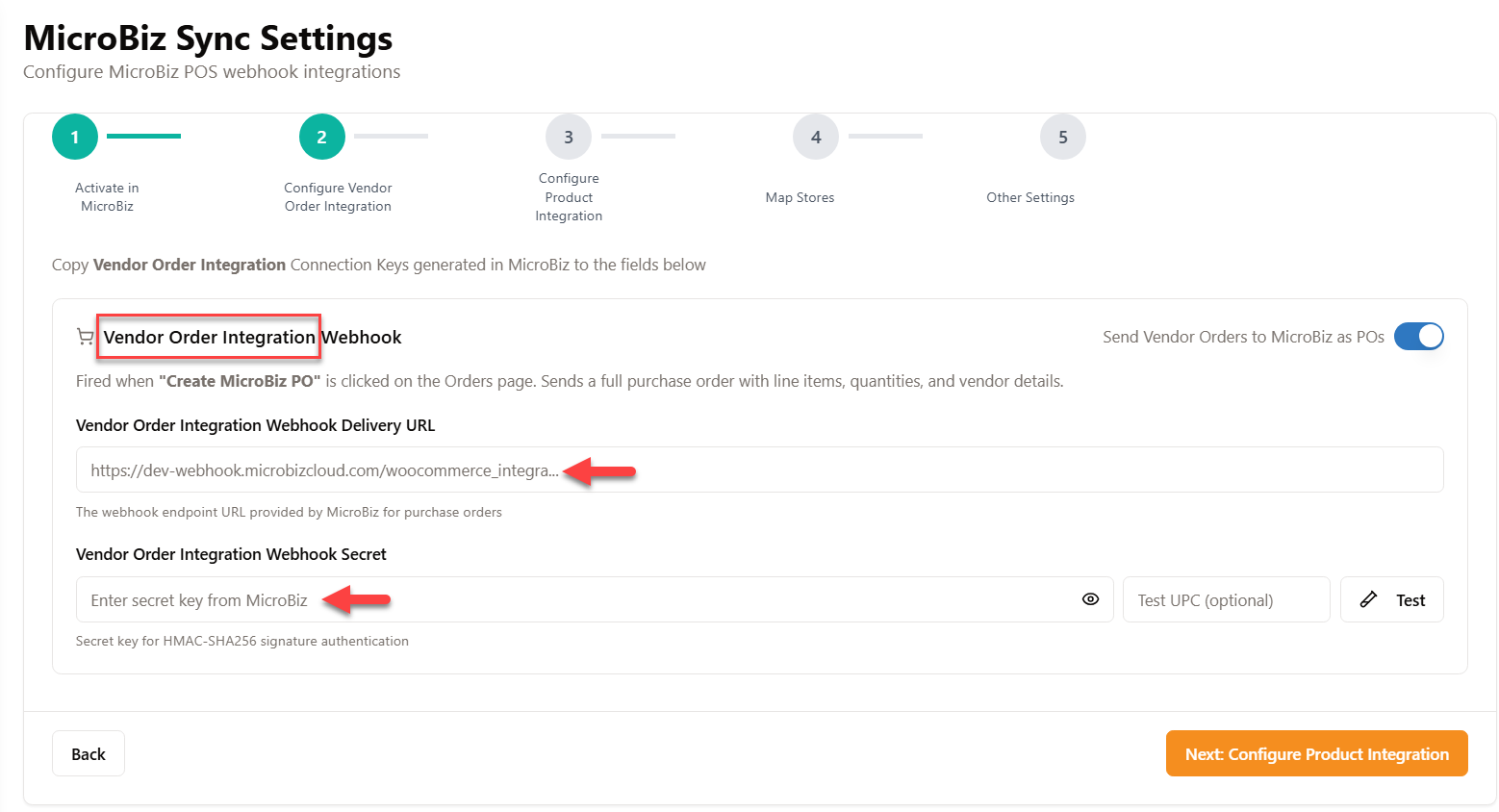
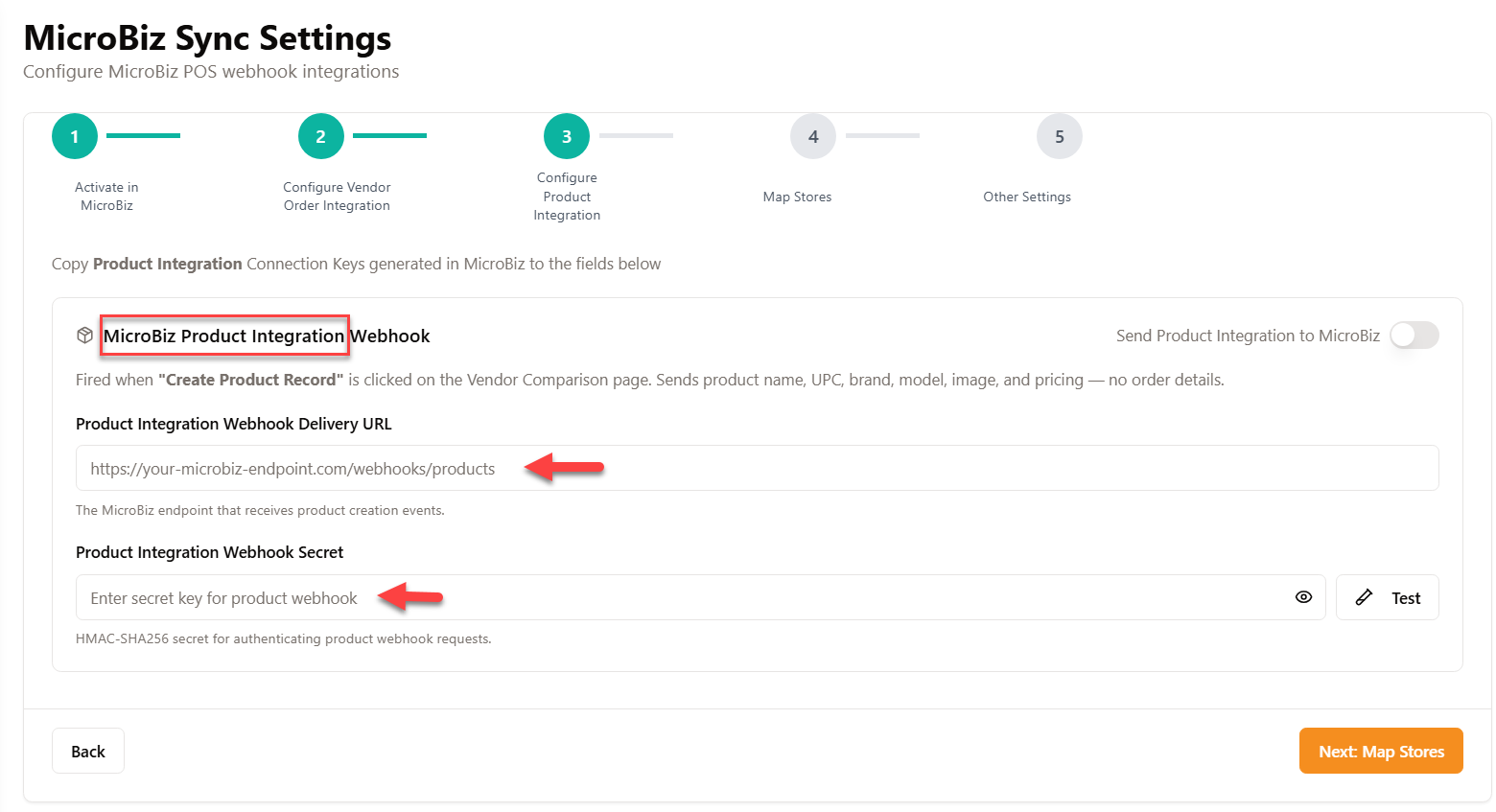
STEP FIVE - Enter MicroBiz store name in PriceCompare
You will need to enter the name of the MicroBiz store in the PriceCompare settings so that vendor orders from PriceCompare are routed to the correct MicroBiz store
You can find your MicroBiz full store name at MicroBiz Settings>Store>Stores.
In the example below, the Store Name that should be copied is 'Staging Firearms' and not the Short Name of 'Main' or the Store Number.
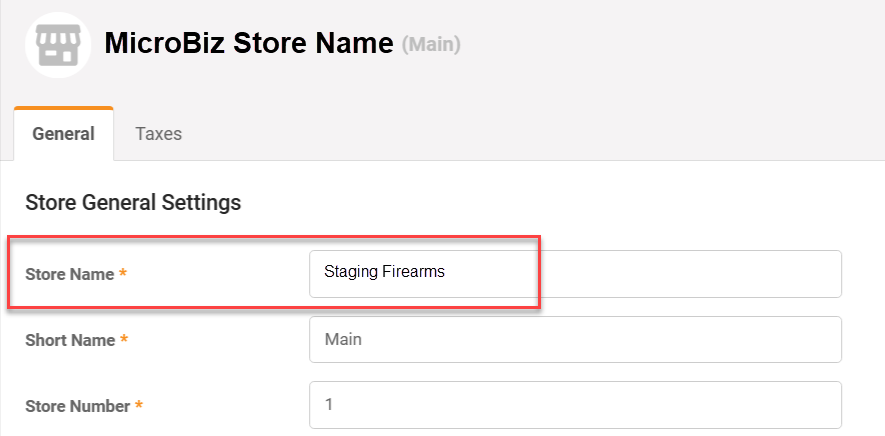
Once you have copied your MicroBiz Store Name, switch back to PriceCompare and paste it into the 'MicroBiz Store Name' field at PriceCompare>Settings>MicroBiz Sync Settings>(4) Map Store.
The store names do not need to match between MicroBiz and PriceCompare. For example, it does not matter that the PriceCompare store is named 'Staging Firearms and More' and the MicroBiz store name is 'Staging Firearms'. But the value entered in the MicroBiz Store name field in the screen shot below needs to exactly match the Store Name in MicroBiz.
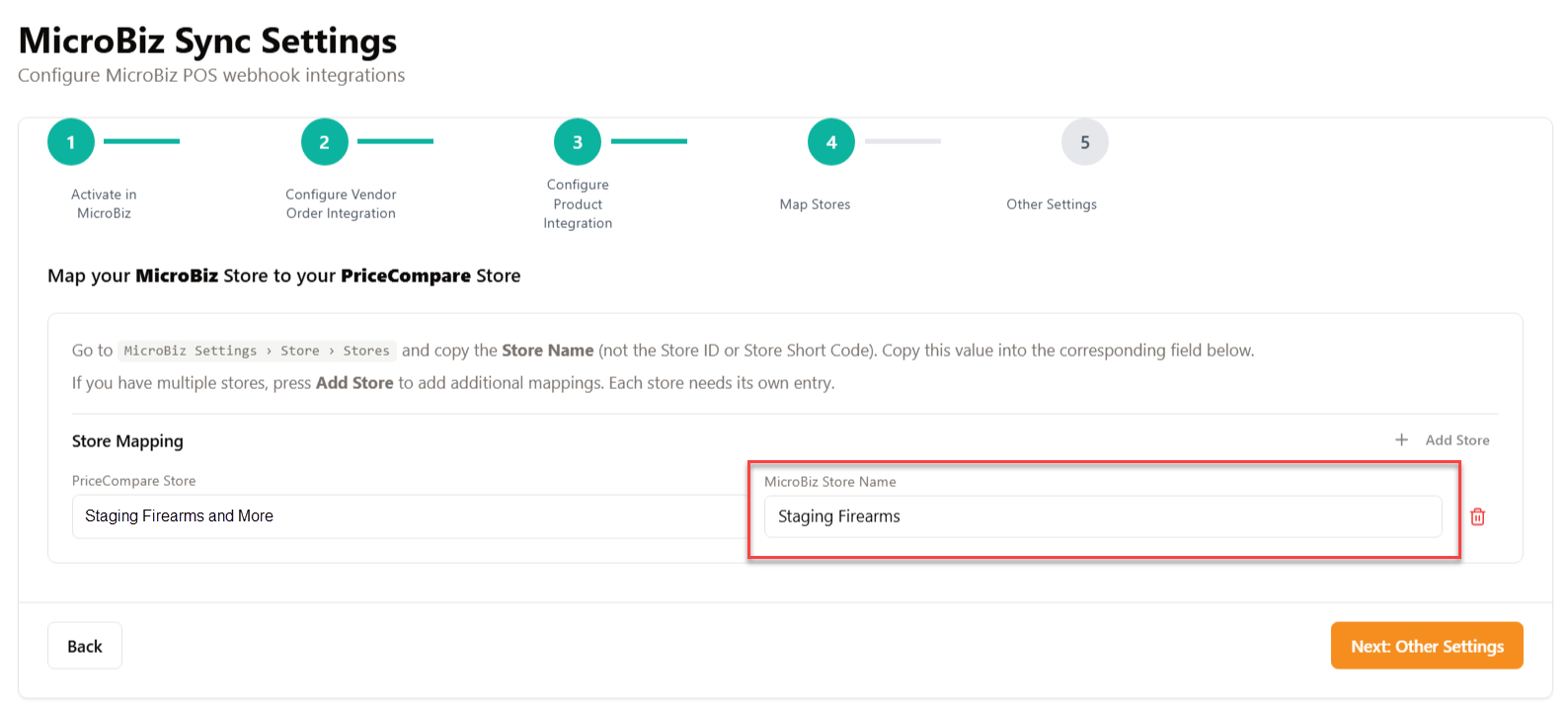
If you have multiple stores, you will need to press the 'Add Store' button at screen (3) in the PriceCompare set up wizard to add fields for multiple stores.
Pro Tip: If you get an error on your first PO synced, double check that the MicroBiz 'Store Name' into the field above. Do not use the MicroBiz store Short Name or the Store Number. In the example above, the Store Name entered in PriceCompare should be 'Staging Firearms' and not the Short Name of 'Main'.
STEP SIX - Configure default statuses on data synced
Configure 'other settings' controlling how PriceCompare data is sent to MicroBiz.
Field used as 'SKU' - This determines what value in PriceCompare will be synced to the SKU field in MicroBiz. This could be the UPC, Manufacturer Part Number or Vendor SKU. Most retailers use the UPC or manufacturer part number.
Categories Included - This setting determine which categories are sent to MicroBiz when syncing Product Records. Options include:
- PriceCompare Categories only: Only the first-level PriceCompare category selected on the vendor order (recommended). This will allow you to sync consistent categories to MicroBiz
- PriceCompare + Vendor Categories: Selected PriceCompare first level category plus subcategories from the product's default vendor
- Vendor Categories only: All categories and subcategories from the default vendor in the Master Product Catalog
Note: there is little consistency across the categories of the various vendors. Therefore, we recommend using the first-level PriceCompare categories and not the categories supplied by the vendors in their catalog feeds.
Initial PO Status in MicroBiz on Order Sync - When syncing a vendor order to MicroBiz as a purchase order, this setting will determine the default status of the new purchase order created in MicroBiz. Options are
- Draft - This status is used to designate that the PO has not yet been submitted to the vendor
- Open (recommended) - This status is used to designate that the PO has been submitted to the vendor
PriceCompare Order Status After MicroBiz Sync - This is the Status applied to the PriceCompare vendor order after successfully sending to MicroBiz (default: Submitted).
OTHER IMPORTANT REQUIREMENTS - Conform vendors and categories between systems
Make Changes so that Vendor Short Names Match Between MicroBiz and PriceCompare
If you use the Create PO feature, your vendor short names in PriceCompare must match your Vendor Short Codes in MicroBiz. Otherwise the PO sync will fail or duplicate vendor records will be created.
Please go to MicroBiz>Settings>Catalog>Vendors and change the Short Codes in MicroBiz to match the Short Codes in the table below.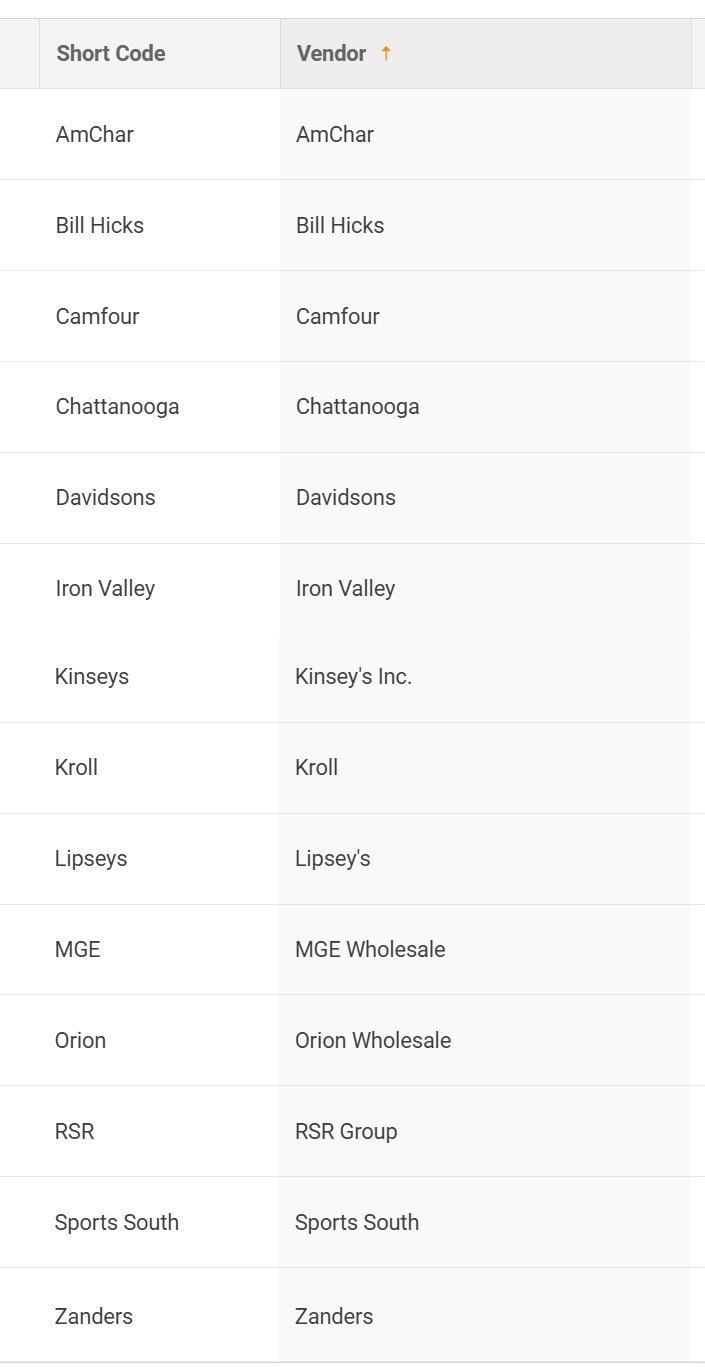
Confirm that your Categories in PriceCompare Match MicroBiz Categories
Below are the default initial categories in PriceCompare. You will have the ability to choose the category for a product before syncing the product record with MicroBiz.
To avoid duplicate categories being created on product syncs, we recommend modifying category 'Names' in either MicroBiz at MicroBiz>Settings>Catalog>Categories or in PriceCompare at PriceCompare>Settings>Product Categories so that the first level categories match between systems.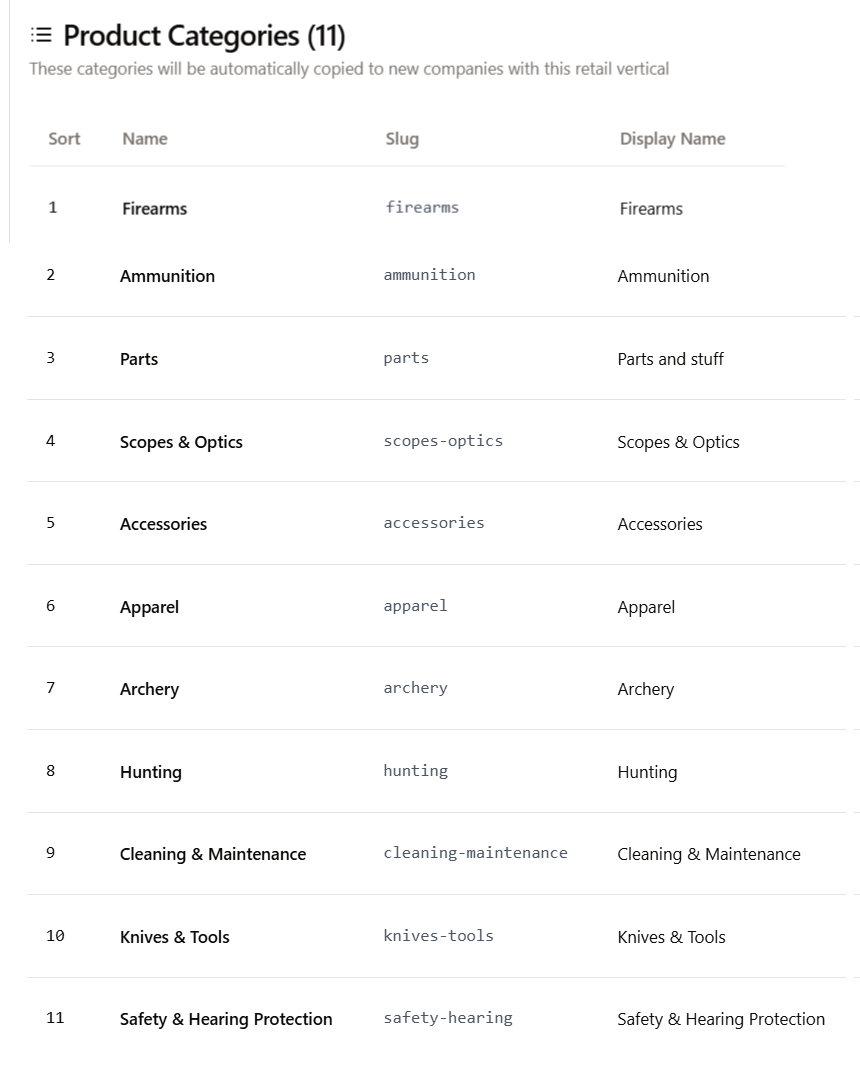
Review Price Rule Settings
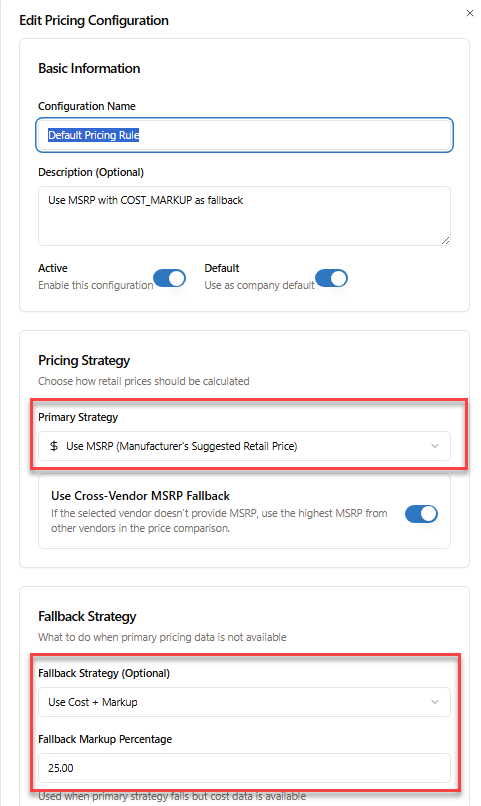
If you import the items on a Vendor Order into MicroBiz as products, MicroBiz requires a Price. Some products have an MSRP or MAP from the vendor, while some products do not. PriceCompare has a Price Rule setting at PriceCompare>Settings>Pricing Rules that allows you to decide what price should be sent to MicroBiz with the other product information.
We suggest using MSRP if available with a targeted margin or mark-up as a fall back. The default settings is (1) MSRP if available, and (2) if not available 25% mark-up over cost.
You can change these pricing assumptions based on your needs.
We also suggest keeping the ‘Cross Reference MSRP’ field enabled, as this will enable the system to use the MSRP from another vendor if the MSRP is not available from the ordering vendor.
FREQUENTLY ASKED QUESTIONS
How do I set up my vendors to obtain my store specific pricing and availability?
We have a separate help article on this. Please see https://cloudv2.microbizcloud.com/support/solutions/articles/9000272880-setting-up-vendor-credentials-in-pricecompare-firearm-vendor-distributor-feeds