Searching for Prices and Vendor Stock
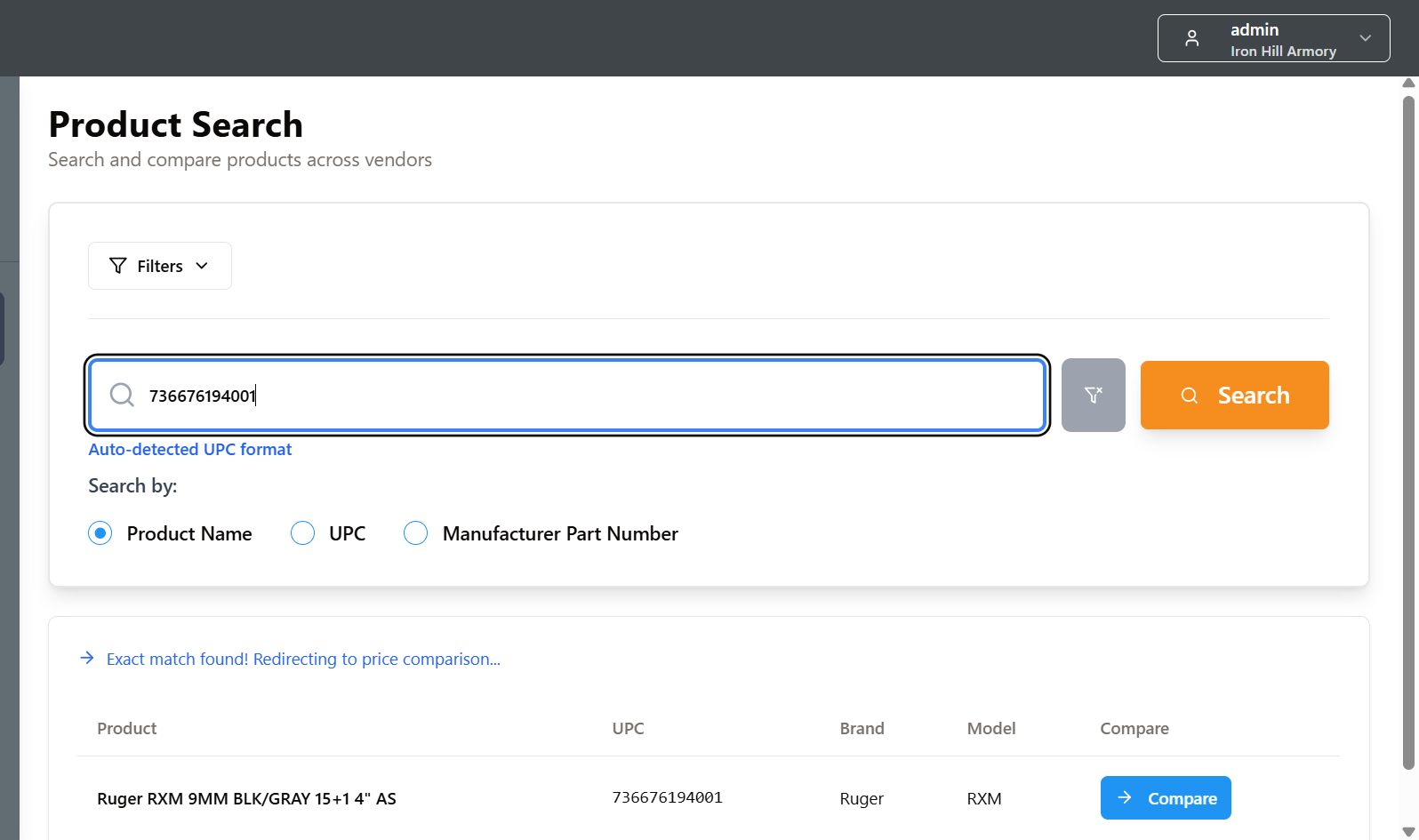
Searching for prices and availability is pretty easy. After logging into PriceCompare, navigate to the Prices page and scan/enter the product name, UPC or manufacturers part number in the search box. Then press the 'Compare' button for the selected product.
The system will the automatically request pricing and availability on all connected vendors. For information on how to enter credentials for desired vendors, click here.
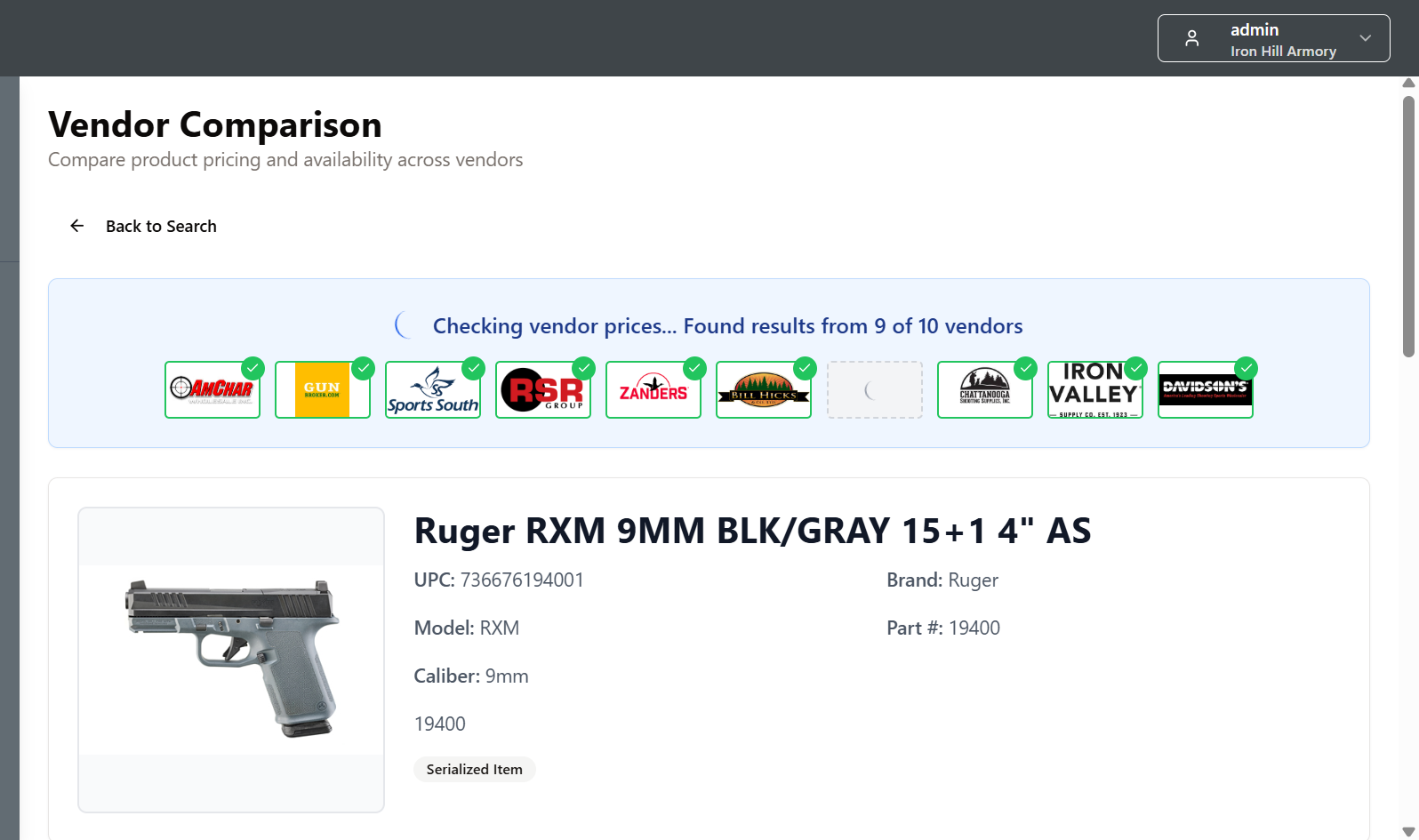
PriceCompare then makes electronic inquiries to all connected vendors using the credentials that you previously saved in PriceCompare.
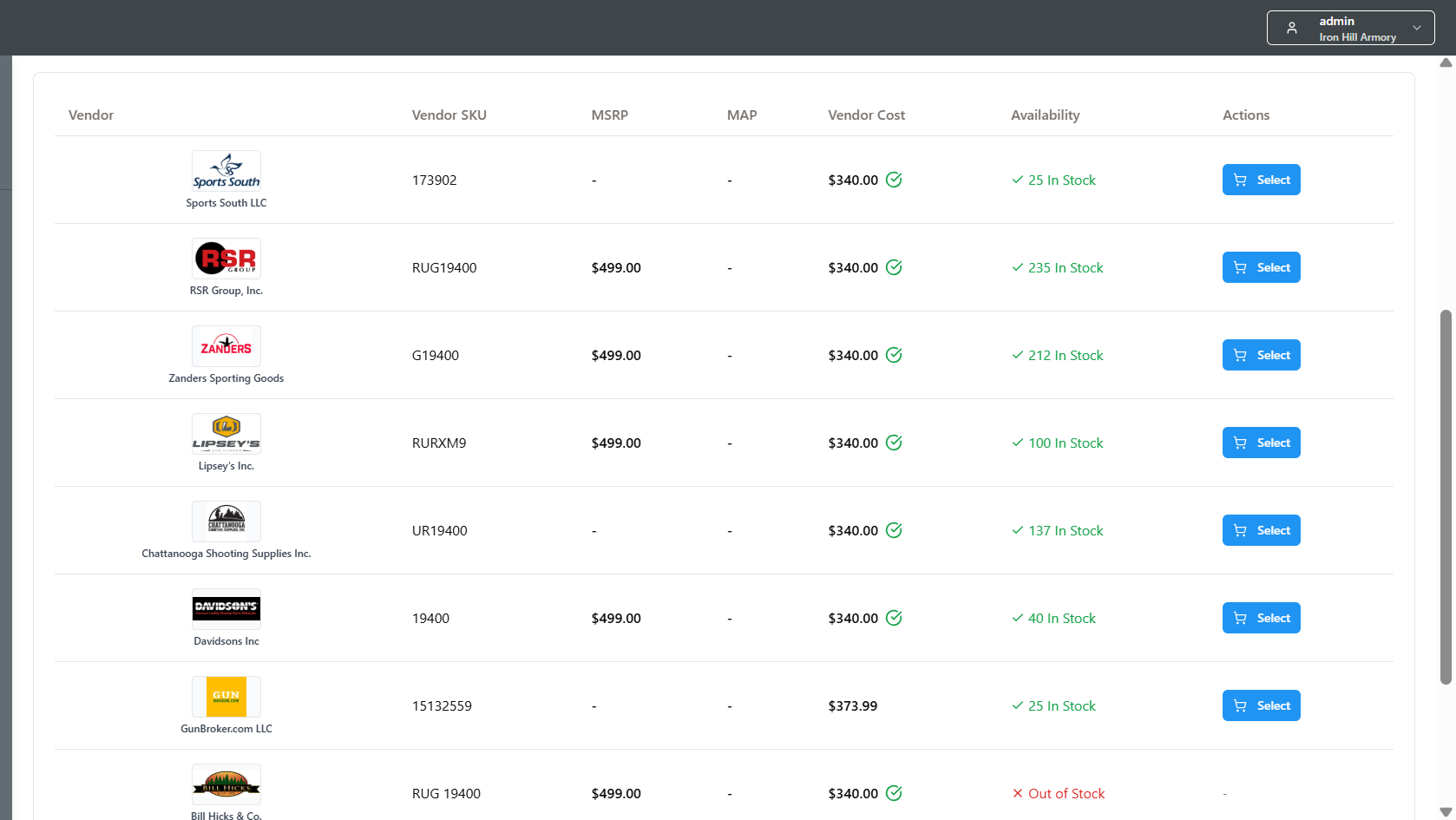
Vendors with the items in stock are displayed with the lowest price at the top of the the page. Vendors with the item not in stock or vendors that do not carry the stock are displayed below vendors with the item in stock.
Pressing the blue 'Select' button will allow you to review and add additional information to the order before adding it to a draft vendor order in PriceCompare.
Creating Vendor Order
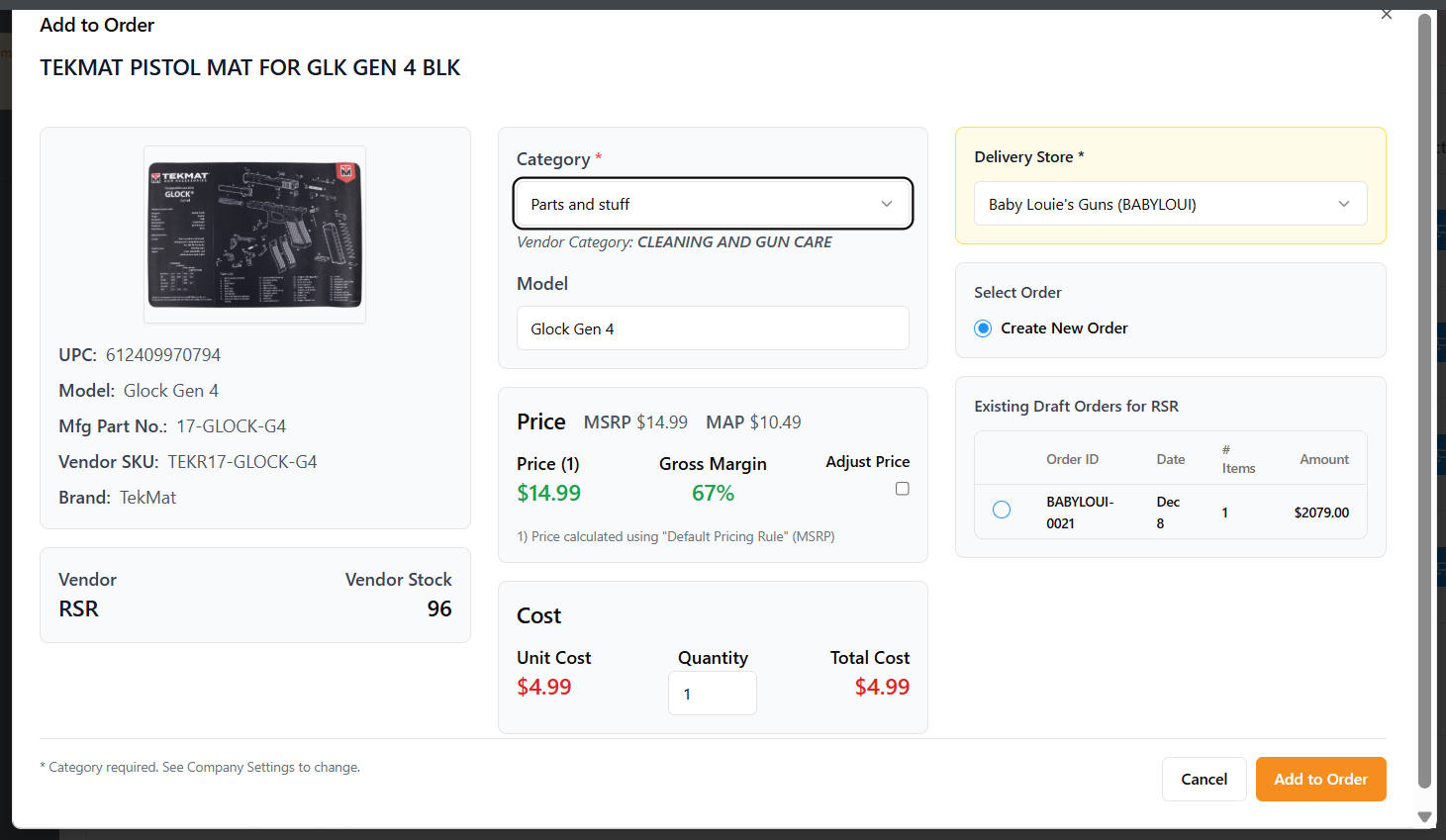
Category - The catalog feeds from the different vendors often include categories and subcategories as determined by the vendors. The issue is that there's no conformity across categories by vendor.
When creating an order and pushing to Microbiz, the goal is to have the items on the order match an existing category in your Microbiz system. Therefore, the Edit Item pop-up includes a field allowing you to select a category for the item that's consistent with your categories in your Microbiz system.
Price - MicroBiz required a price to create a product record in MicroBiz. While some vendors provide a MSRP for an item other vendors do not.
a) PriceCompare has a Pricing Rules set the price based on the MSRP of the selected vendor or another vendors - or calculate a price based on a mark up over the cost of the item. See Pricing Rules setting below.
b) You can change the price manually by selecting the 'Adjust Price' checkbox and then entering a new price or target margin.
Cost - The cost for the order is based on the cost of the item supplied by the vendor in the Vendor Price Comparison.
Delivery store - If you have multiple stores, you can define which store will be attached to the vendor order.
Order - You have the option to add to an existing draft order for the vendor, or to create a new order.
Preparing for Sync with MicroBiz Purchase Orders
You will have the option to automatically create purchase orders in MicroBiz when you build a vendor order in PriceCompare. To optimize the link between PriceCompare and a MicroBiz purchase order, please make sure to take the following steps:
Review Price Rule Settings - If you import the items on a Vendor Order into MicroBiz as products, MicroBiz requires a Price. Some products have an MSRP or MAP from the vendor, while some products do not. PriceCompare has a Price Rule setting that allows you to decide what price should be used or calculated. We suggest using MSRP if available with a targeted margin or mark-up as a fall back. We also suggest enabling the ‘Cross Reference MSRP’ which will use the MSRP from another vendor if the MSRP is not available from the ordering vendor.
Conform Vendor Short Codes in MicroBiz - Go to Supported Vendors>edit Vendor Record and make sure the Short Code for each vendor in PriceCompare matches with the Short Code in the corresponding vendor record in MicroBiz. From MicroBiz, go to MicroBiz>Catalog>Vendors and make sure that the Vendor Short Code in the MicroBiz vendor record exactly match the Vendor Short Codes in PriceCompare. If the codes do not match exactly, then duplicate vendor records will be created in MicroBiz when you start pushing vendor orders with non-matching vendor short codes.
Conform First Level Categories with MicroBiz - Go to Settings>Categories PriceCompare and make sure that the categories listed match exactly with the first level categories in MicroBiz. You can edit the categories in PriceCompare at Settings>Product Categories. If you do not do this, duplicate categories may be created in MicroBiz when you import product files from PriceCompare to MicroBiz (Note: only needed if you plan to import/update products on orders into MicroBiz).
Other Settings
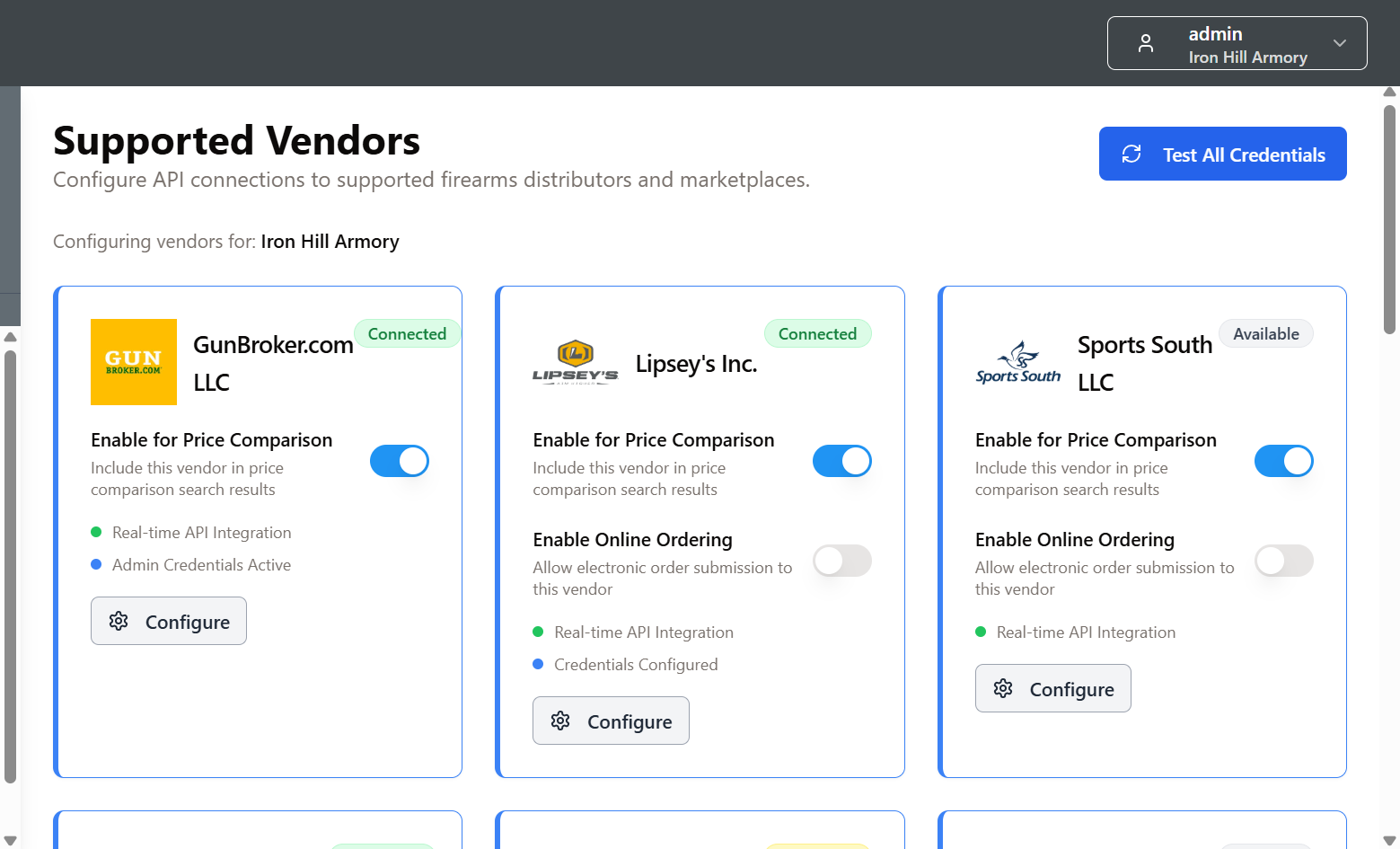
To obtain pricing specific for your store, you will need to set up or enter credentials supplied by your vendor for each supported vendor in PriceCompare. This can be done using the vendor tiles on the supported vendor page.
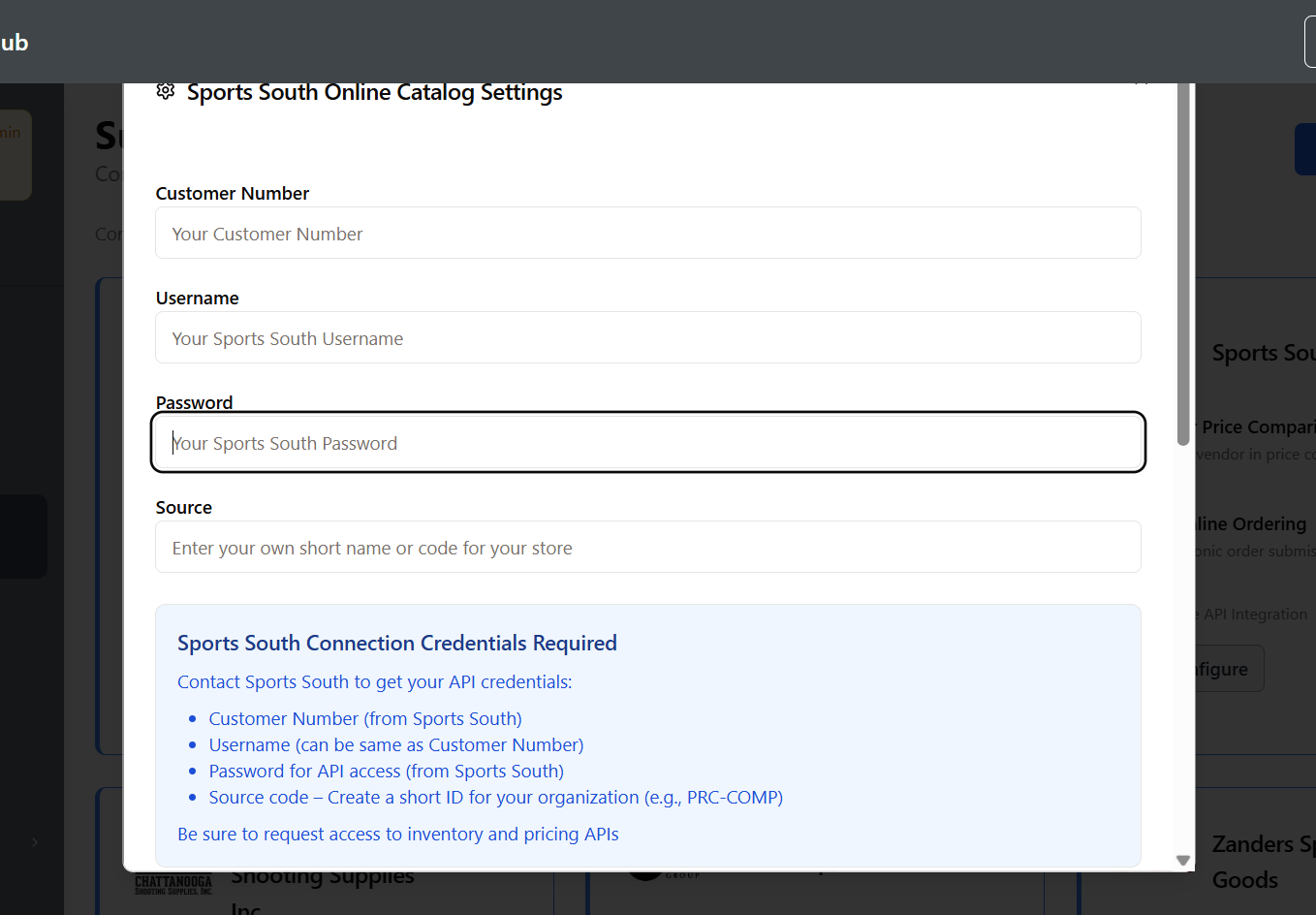
Each vendor has different connection methodologies and credentials. Please see the help article named Setting up Vendor Credentials in PriceCompare Firearm Vendor/Distributor Feeds for more information on how to connect each vendor to PriceCompare.
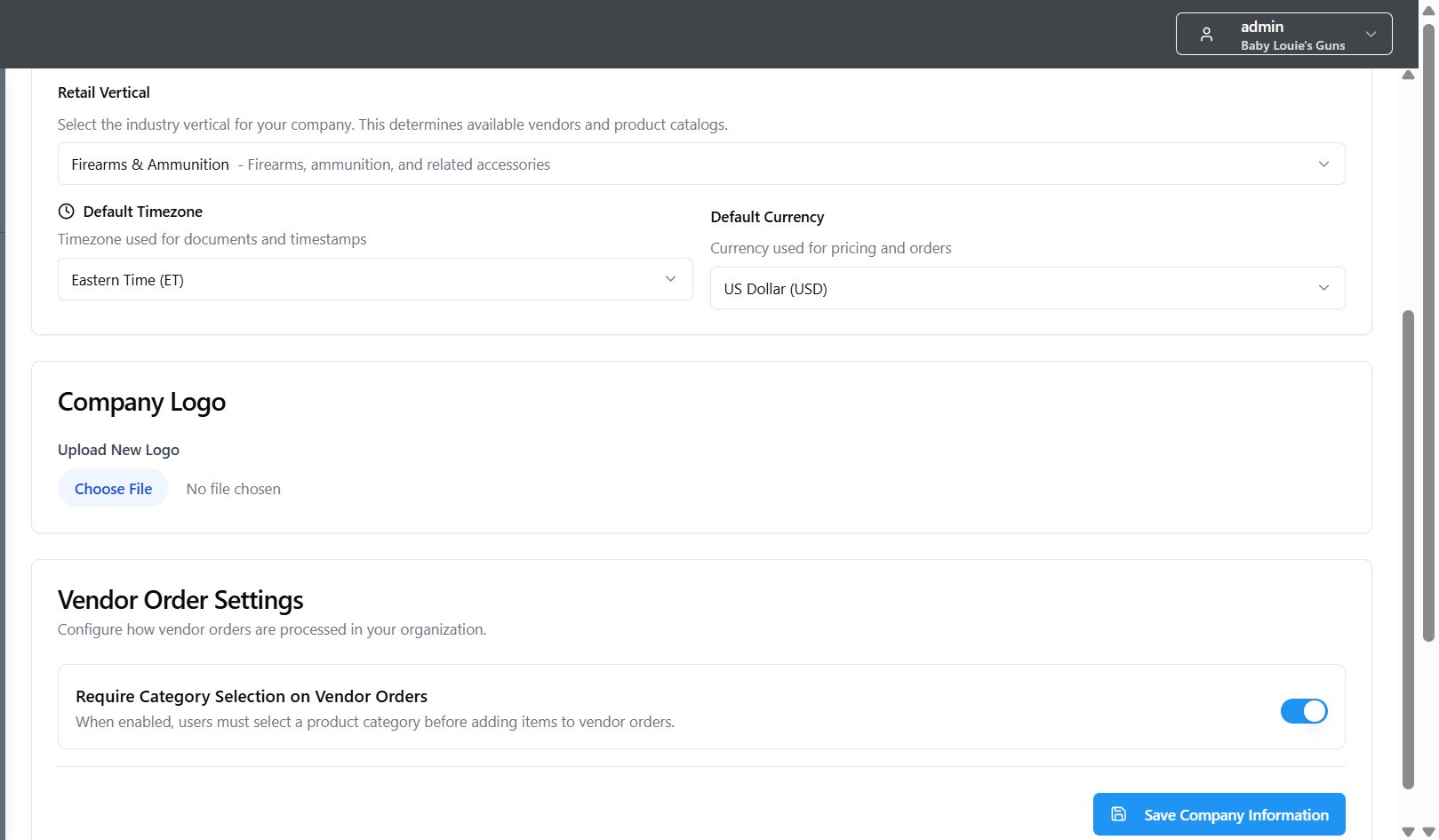
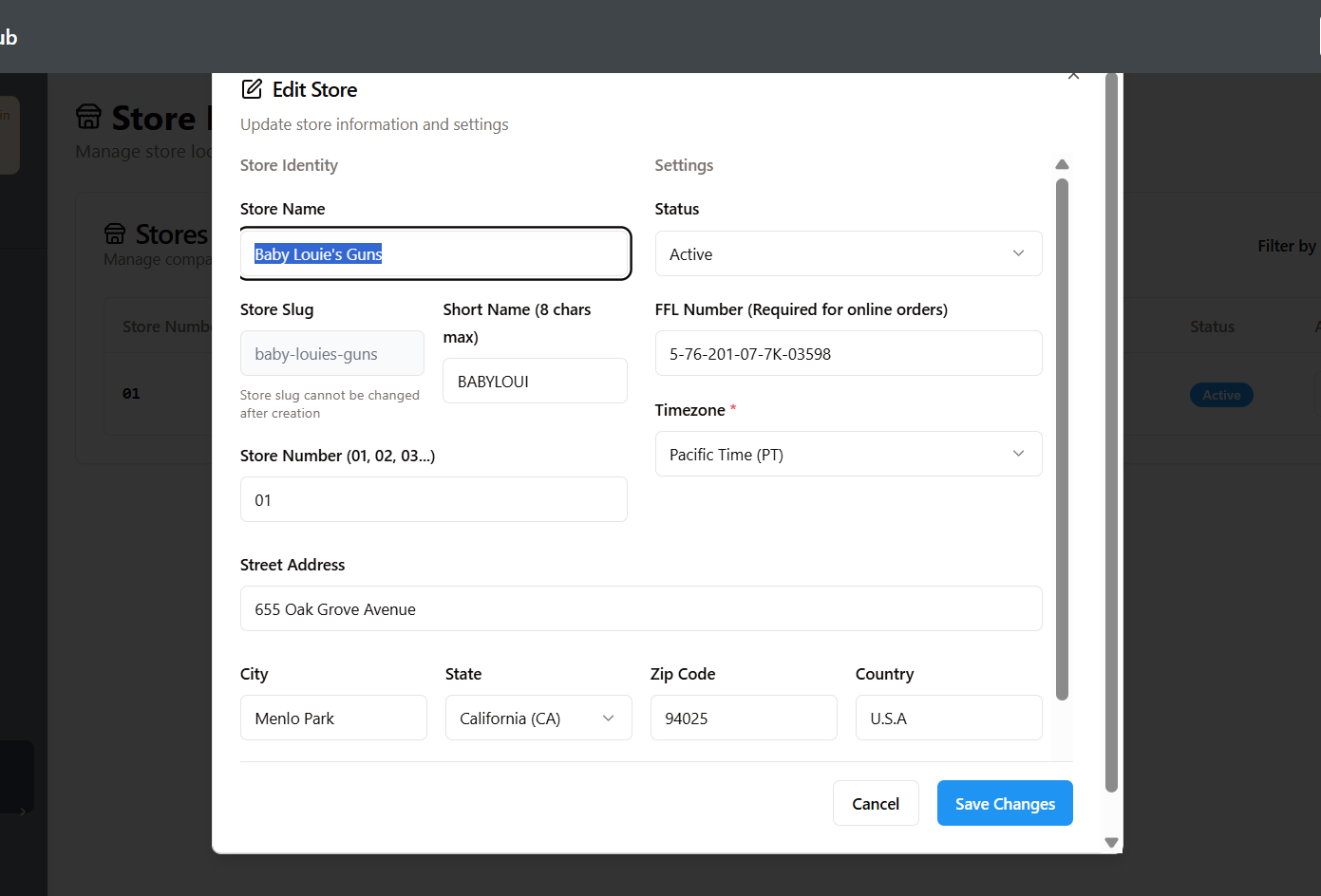
Edit Store - This setting allows you to configure:
1) Store short name
2) Status of store (active/archived)
3) Time zone
4) Contact info for orders.
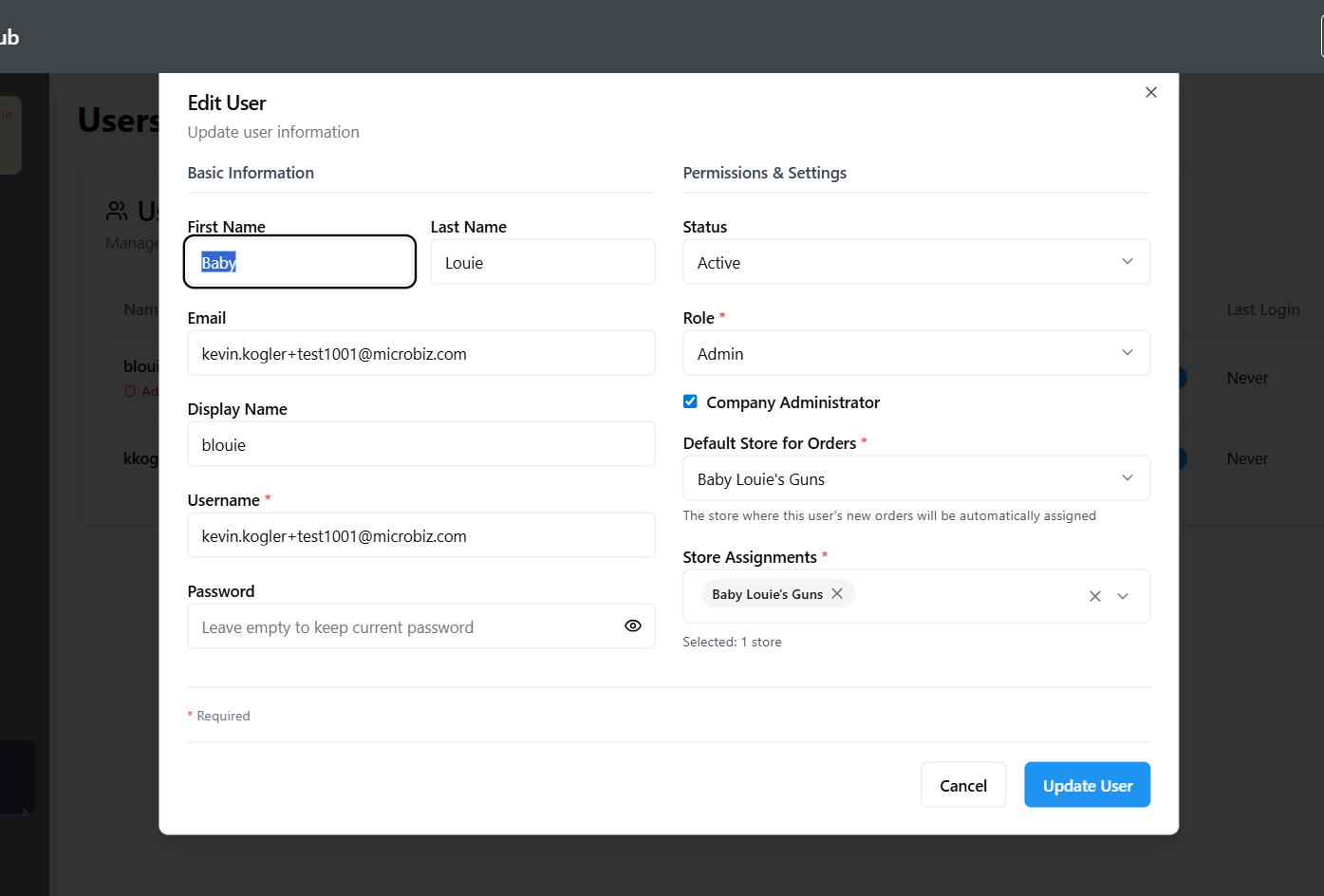
Edit User - This setting allows you to manage:
1) Login credentials
2) Email address
3) Access role
4) Activate of disable the user
5) For multi-store users, which store should be listed as the order store by default on a new order.
6) For multi-store users, which stores the user can access.
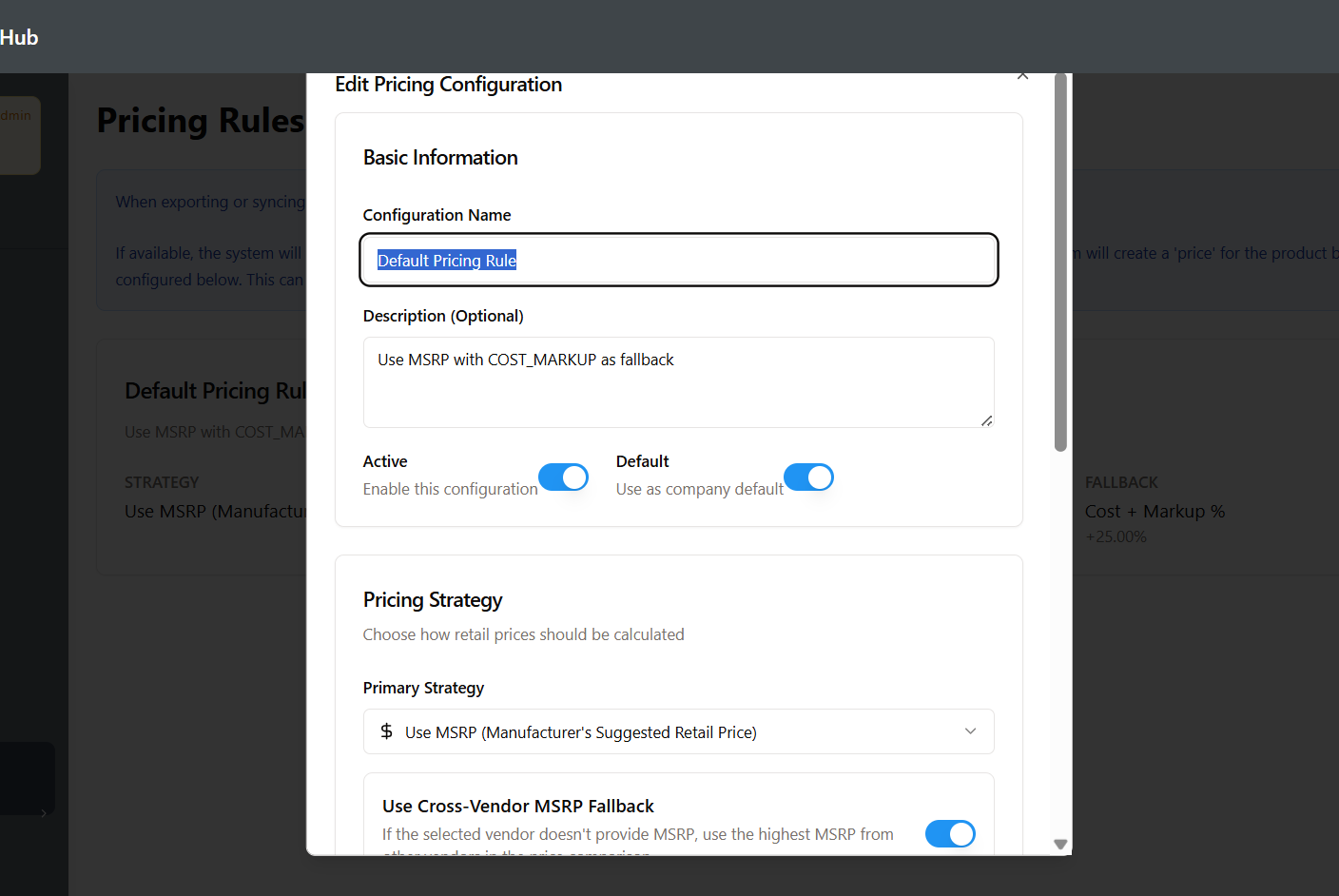
Pricing Rules - MicroBiz requires a price when creating a product record in MicroBiz. The Pricing Rule setting allows you to set up a rule on how prices should be calculated when adding an item to a vendor order in PriceCompare (which may be used to create a Purchase Order in MicroBiz).
Pricing rules allow you set the price of an item as:
1) MSRP
2) MAP
3) Cost plus mark up
4) Cost plus margin
5) MSRP less discount
6) MAP plus premium,
You can set a primary price rule (such as MSRP) as well as a fall back price rule (such as cost plus mark-up). The back up rule is helpful if the product record does not have a MSRP.
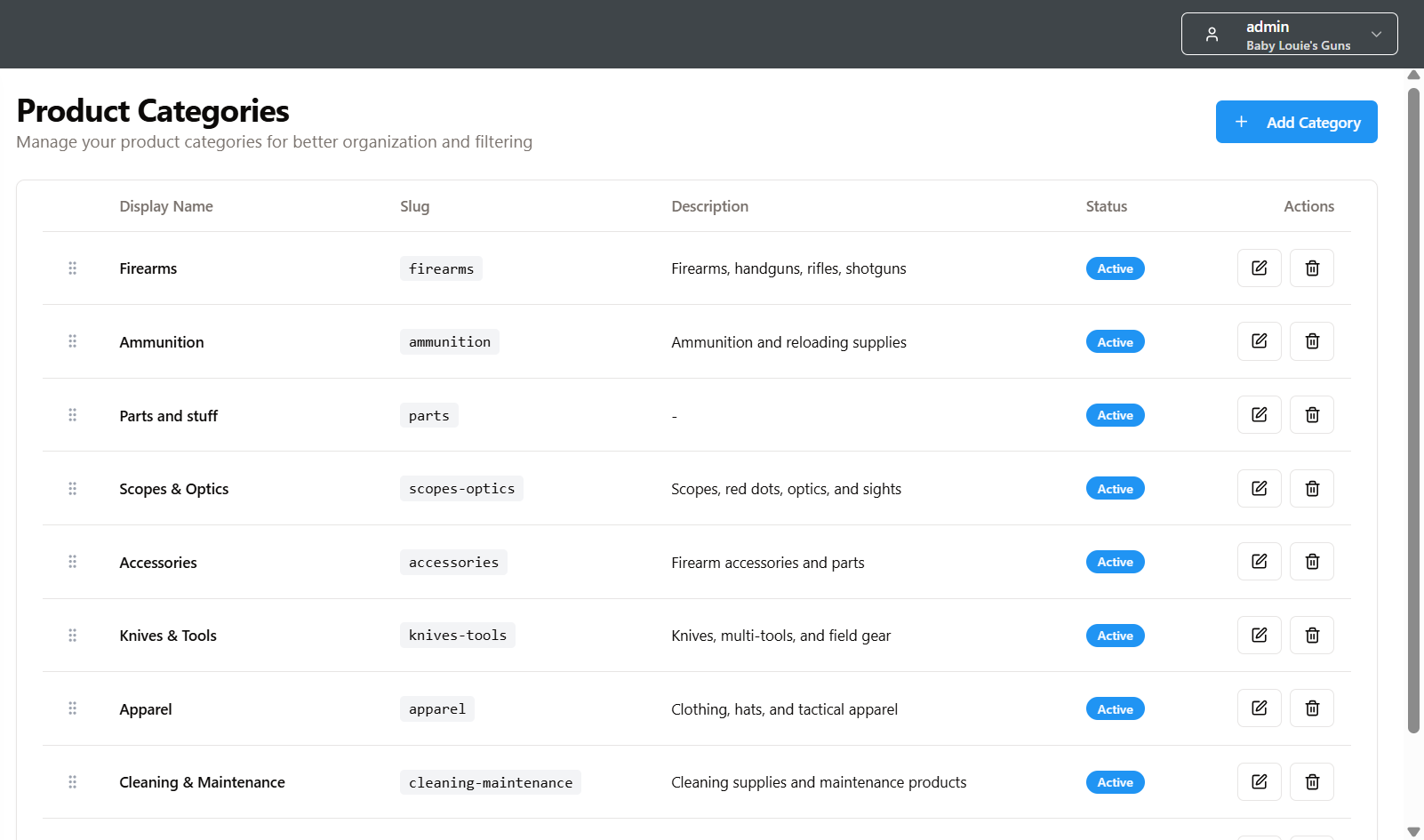
Product Categories - Many retailers assign categories to products in MicroBiz for reporting purposes. In particular, the integration with FastBound allow you to assign categories as (such as Firearms) to items to automatically trigger a prompt to do an acquisition/disposition in FastBound.
The Product Categories settings in PriceCompare are used to assign a category to a product being used on a vendor order.
Important: For best performance, be sure that the categories in PriceCompare exactly match your first level categories in MicroBiz.
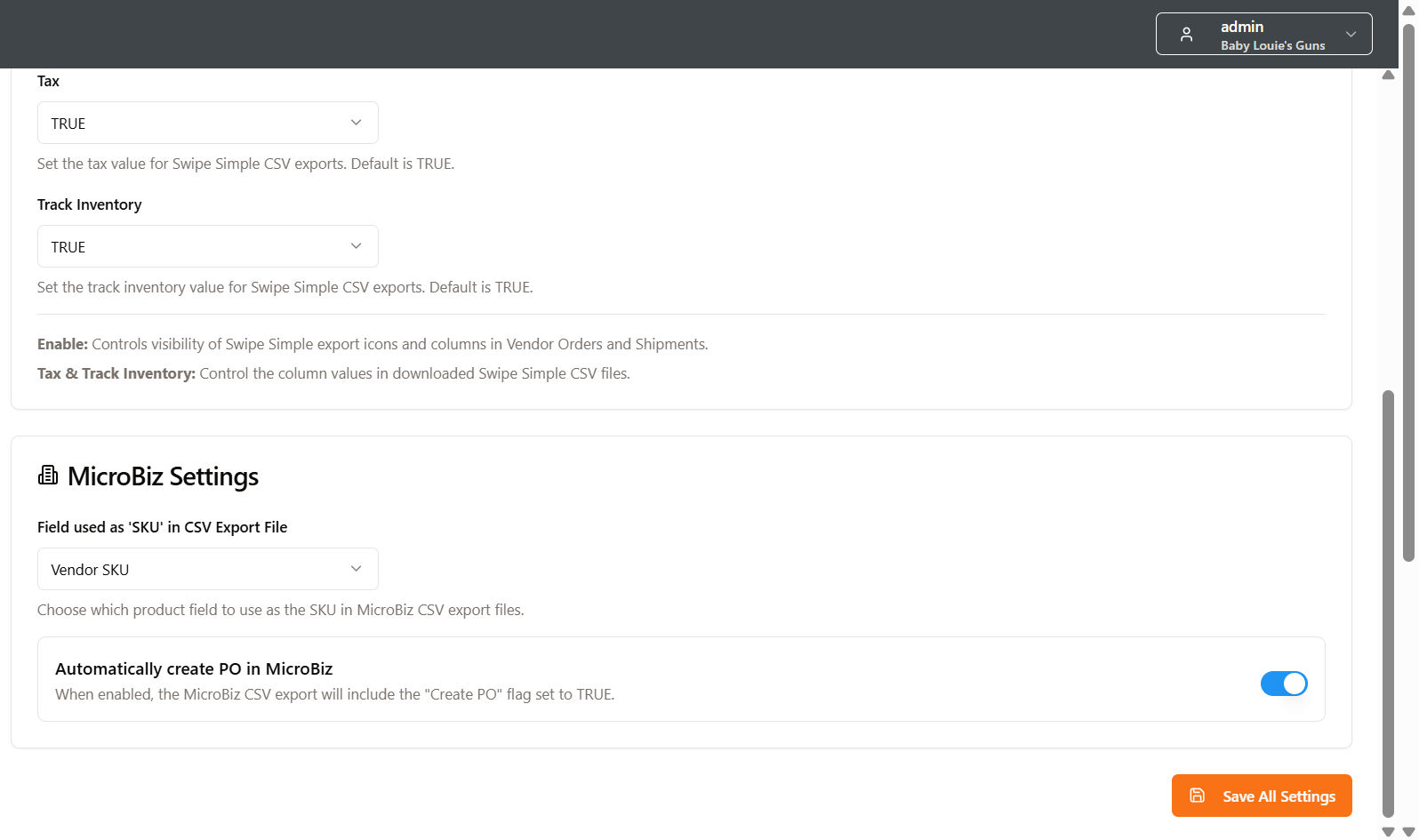
Integrations - When pushing Product information to MicroBiz, MicroBiz requires a value for the SKU field in MicroBiz. You have the option of selecting the 1) vendor SKU, 2) manufacturer part number of 3) UPC to be used for the SKU field in the sync to MicroBiz or CSV export of product information.