Audience: Manager or admin
When the review is done, download the files from Inventory Count and import them into MicroBiz to update your stock.
Before you export
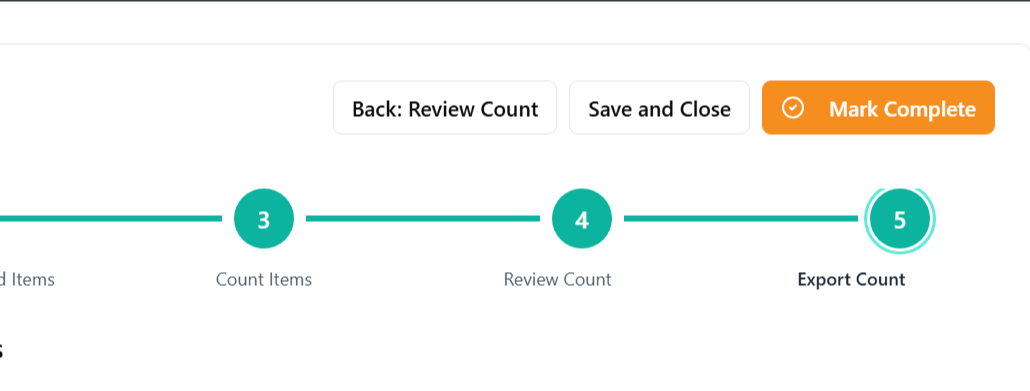
The Export step is available once the count is locked. You do not need to mark the count complete first, so you can download the files and run the import before you finalize the count.
Important: The stock update file replaces your current MicroBiz stock with the counted quantities. Inventory Count does not adjust for sales made after you exported the expected stock. If you sell items during the count, adjust those items in MicroBiz yourself after you import.
Step 1: Download the files
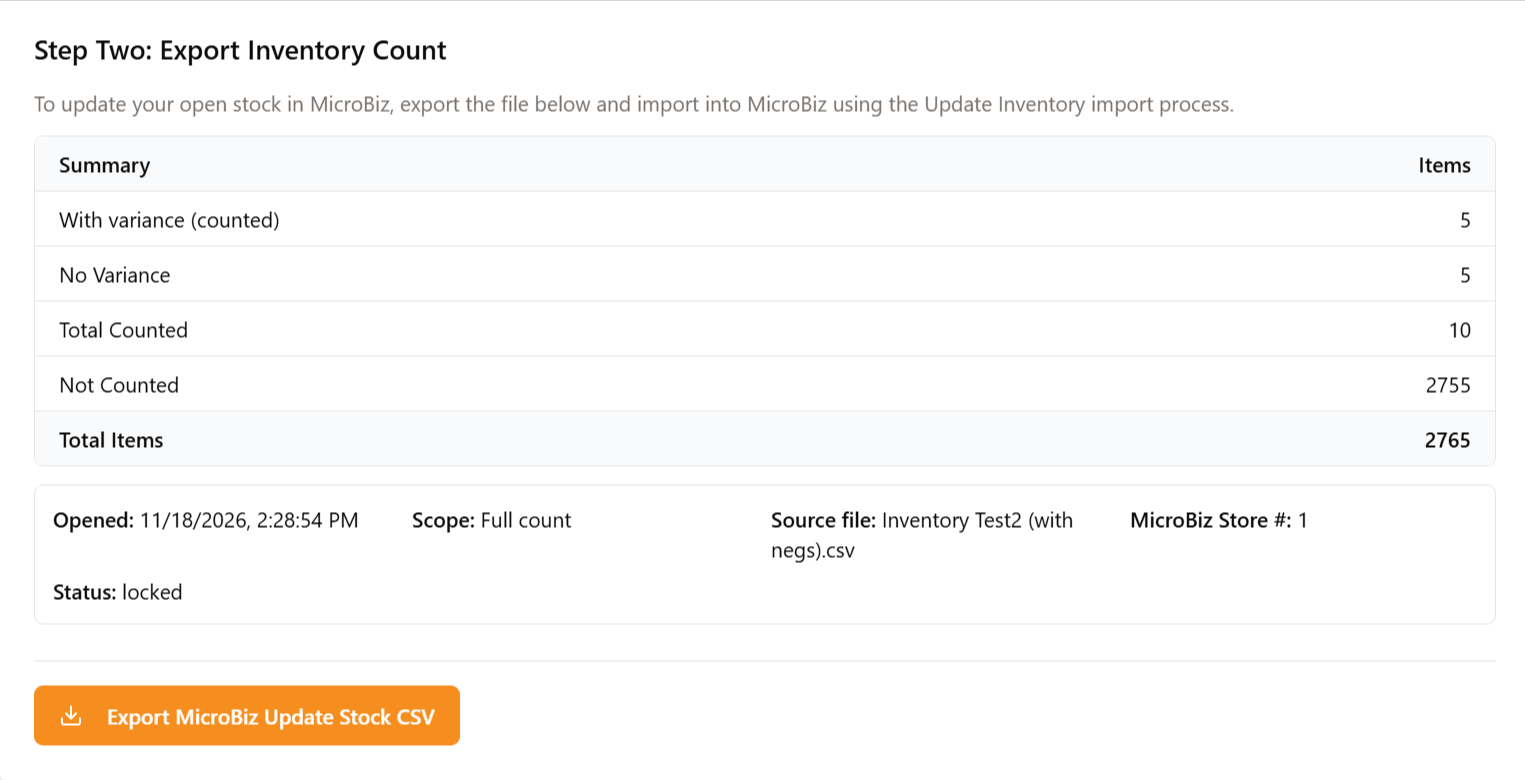
Open Export count. A preview shows how many rows will be included and excluded before you download.
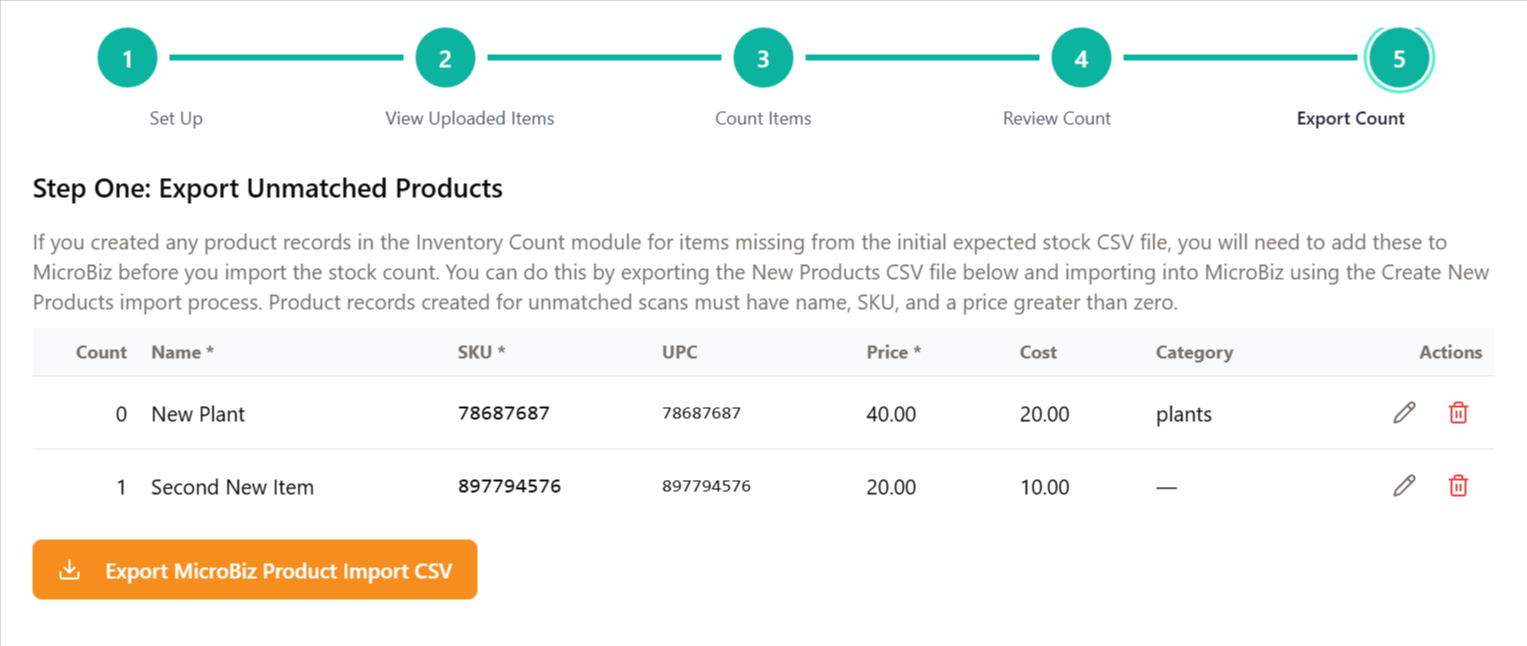
New products file (only if needed)
If you saved uncatalogued items with product details during counting, you can also download a product import CSV in MicroBiz v2.0 format. Items saved as “count only” show a warning because they do not exist in MicroBiz yet. Product imports are limited to 5,000 lines.
Stock update file
- File name: {title}-{store}-{date}-update-stock.csv
- Columns: Sku, Store, New Stock Balance
- Choose whether to export all exportable items or variances only.
- Choose Exclude not counted if many items were never scanned on a full count. By default, uncounted items are exported with a count of zero. Excluding them also keeps the file small. Stock update imports are limited to 25,000 lines.
Step 2: Import into MicroBiz
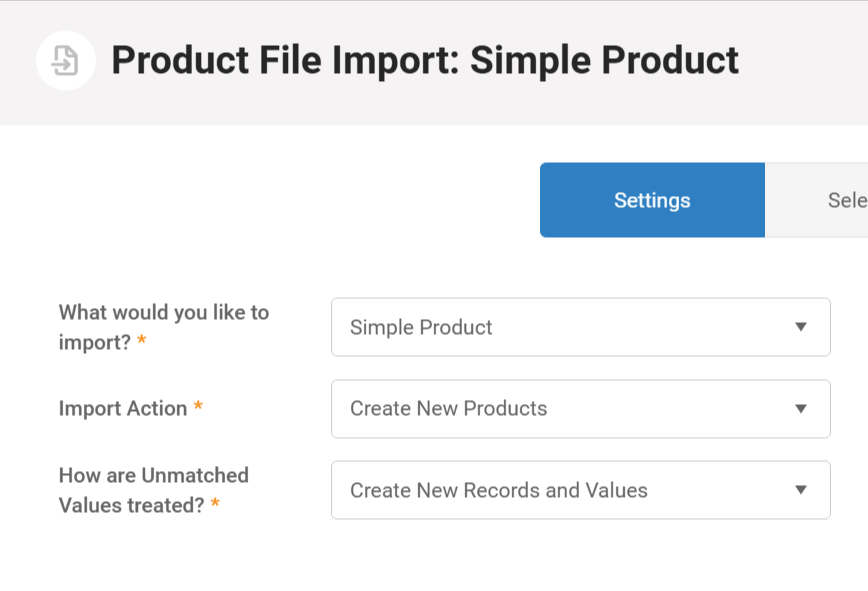
- If you have a new products file, import it first so the products exist in MicroBiz.
- Import the stock update file in MicroBiz at Settings > Imports > Product Imports. For the file format, see the Update Stock Balance Import Template article.
- Serialized items cannot be updated by CSV. Adjust them with the Inventory Adjustment module.
Step 3: Check the MicroBiz error report
After the import, MicroBiz shows a report of lines that failed or were skipped. The most common causes:
- SKU not found: the SKU in the file does not match a product’s matching ID. Check the SKU or UPC and add the product if it is missing.
- Serialized item: use Inventory Adjustment instead.
Fix the items, then re-import only the corrected lines.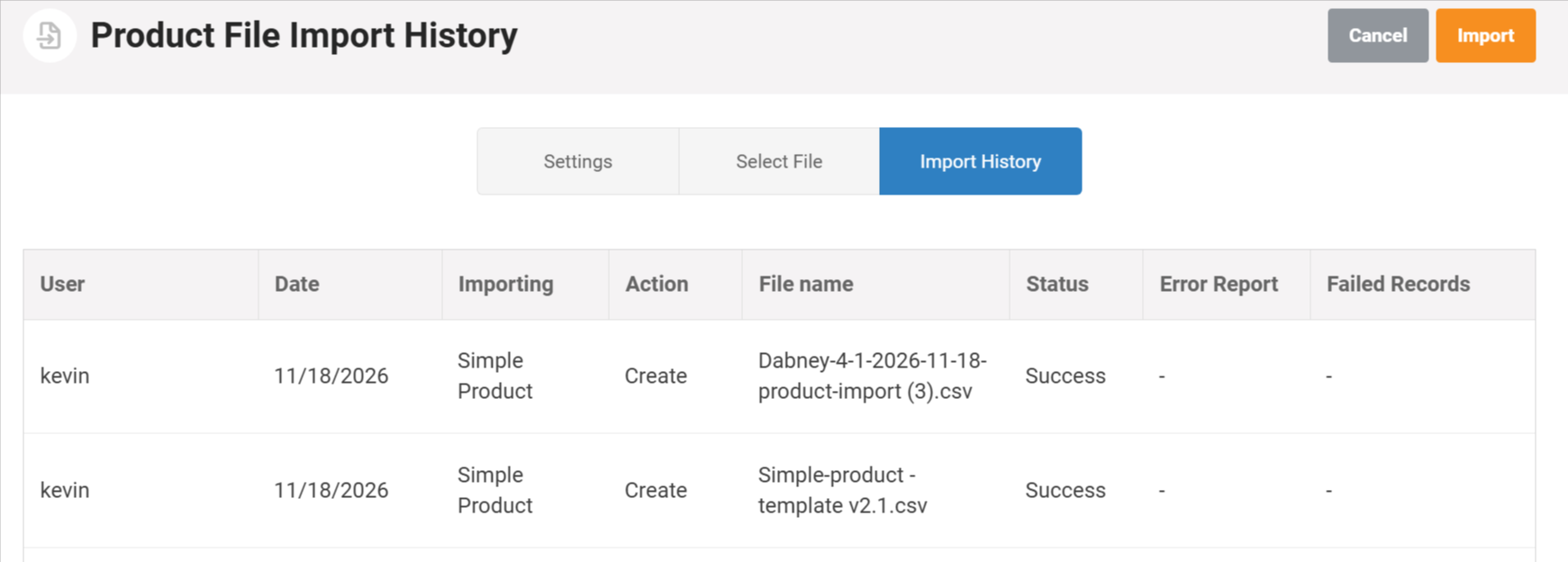
Step 4: Mark complete
When the import is finished, choose Mark complete to finalize the count. This closes counting and review edits. A manager or admin can reopen the count if needed.
The Audit and Results reports stay available from the count for documentation and sign-off.