Audience: Manager
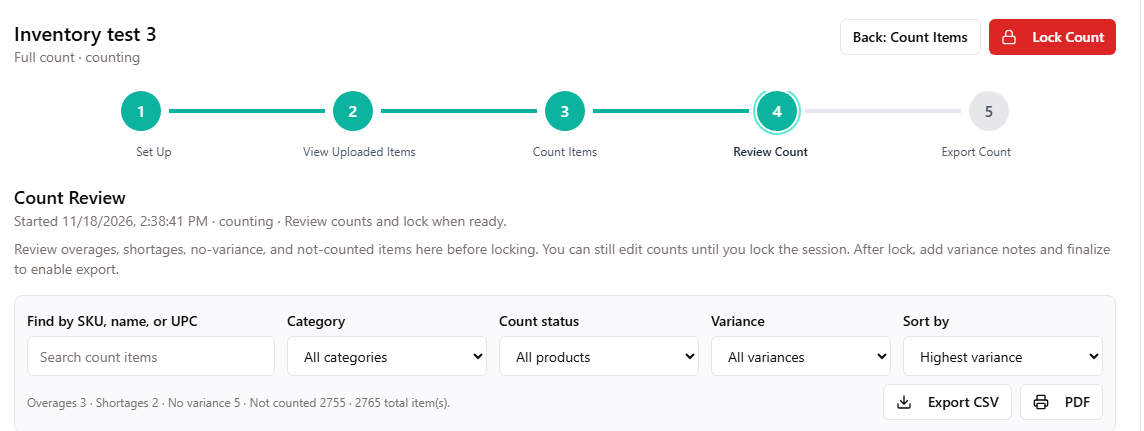
When floor counting is done, lock the count, then review the differences between what you counted and what MicroBiz expected.
Lock the count
- Open the count and go to Review count.
- Choose Lock when you are ready to stop floor entry. (Requires the lock permission, by default managers and admins.)
A locked count does not accept new scans until someone unlocks it. You can open Review while the count is still in progress to check progress, but the variance sections are most useful once most items are counted.
Read the variance sections
Section | Meaning |
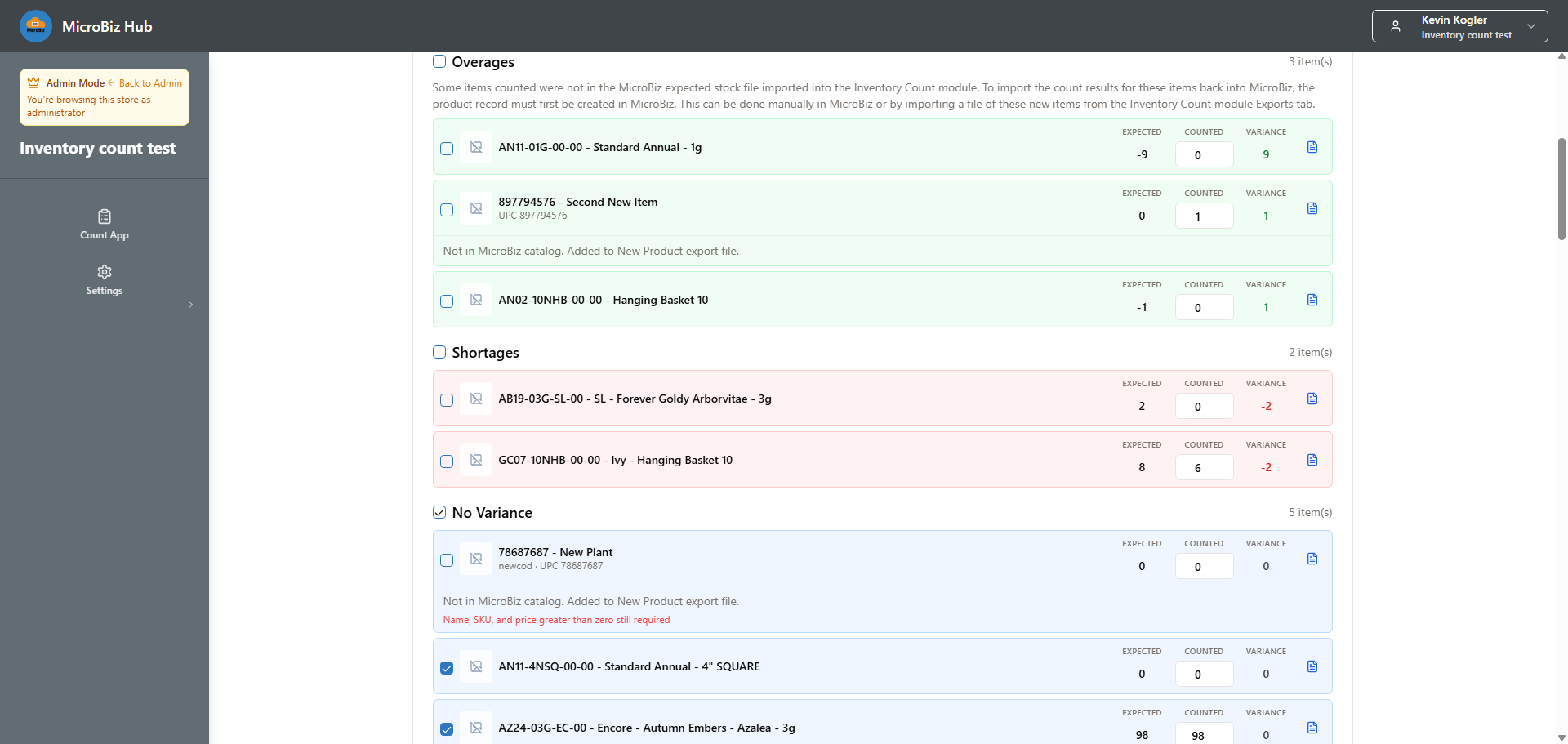
Overages | Counted more than expected |
Shortages | Counted less than expected |
No variance | Counted equals expected |
Not counted | No quantity was saved |
Overages and shortages are only visible if your role can see expected stock. See Use blind counts.
Check Not counted first. On a full count, items that were never scanned are treated as a quantity of zero, so they show up as shortages if you export them. Count anything you missed (unlock the count if needed), or use the setting that ignores uncounted products so they are left out of the export files. By default they are exported with a count of zero. On a partial or spot count, only counted items are included in variance review and export.
Fix quantities and document the reason
- Edit the counted quantity directly in the review grid. The number you enter replaces the saved count; it is not added to it. For example, if the saved count is 10 and you change it to 12, the saved count becomes 12. Scanning works differently: each scan save adds to the total.
- For any item with a variance, you can choose a reason (Damaged, Theft, Receiving Error, Miscounted or Other) and add a note. Reasons and notes stay in Inventory Count. They are not included in any file you import into MicroBiz.
- Use the bulk settings to set selected rows to the expected quantity, or to exclude them from the export.
Serialized items
Items that require a serial number cannot be adjusted by CSV import. Exclude them from the export and adjust them in MicroBiz with the Inventory Adjustment module. Inventory Count does not flag serialized items, so check for them before you export.
Unlock or reopen
If you need more scanning, choose Unlock (or Reopen count). This takes the count back to in-progress. It uses the same permission as locking.
Reports
After the count is locked, two reports are available from the count’s reports link:
- Audit report: every scan or manual entry, with date and employee.
- Results report: expected quantity and variance for each product, with category, SKU, UPC, price and cost. Export as PDF or CSV.