Audience: Counters and floor staff
Use a barcode scanner, your phone or tablet camera, or manual lookup to count each item and save the quantity.
What you need
- A laptop or tablet with a USB or Bluetooth barcode scanner, or
- A tablet or smartphone with a camera, or
- A smartphone with a Bluetooth scanner.
Opening the count screen
- Sign in to MicroBiz Hub. If you use more than one module, open the module switcher and choose Inventory Count.
- Open the count session and go to Count items.
- Choose how you will find items:
- USB scanner: scan into the search field, or use global capture when it is armed.
- Camera: point the device camera at the barcode. Allow camera access when your browser asks.
- Manual: type a SKU, UPC or product name (at least 3 characters).
Counting an item
- Scan the barcode, or find the item by typing.
- Enter the quantity with the number field, the + and − buttons, or the on-screen keypad.
- Press Enter or Save Item Count.
- Move to the next item.
Each save adds to the item’s saved count. If you count 6 of an item, save, then find 4 more elsewhere in the store and save again, the saved count is 10. The quantity you are typing is separate until you save it.
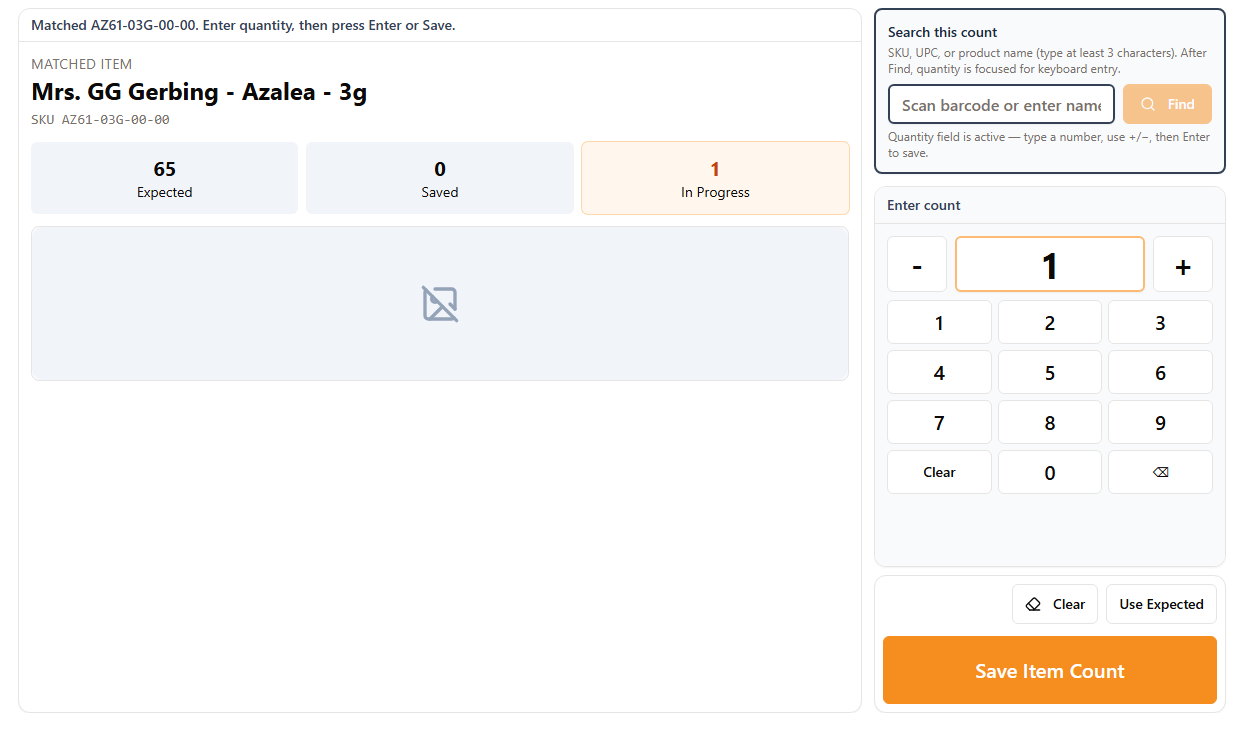
What you see on screen
If the count is not blind (or your role can see expected stock), you see the expected quantity, the saved count for the session, and your most recent scan. You can also use Use Expected to set the count to the expected quantity, or clear the count to start again.
If the count is blind and your role cannot see expected stock, you see only what you have counted. See Use blind counts.
If a barcode is not in the uploaded file
Inventory Count asks what to do:
Choice | What it does |
Ignore the scan | Nothing is saved. |
Add to count only | Saved as an overage on reports. It is not a product in MicroBiz, so create it in MicroBiz before you import stock. |
Add to count and product import | Enter the product details now. Name, SKU and price are required. Everything else is optional. They are saved so a manager can export a new-products file for MicroBiz later. |
Inventory Count can create simple products only. Matrix products with variants are not supported. Create those in MicroBiz.
How barcodes are matched
When you scan or search, Inventory Count looks for a match in this order:
- SKU: exact match (capital letters and spaces are ignored).
- UPC: exact match on the UPC column you uploaded.
- UPC without leading zeros: for example, a scan of 21 can match UPC 000000000021.
If the same UPC is assigned to more than one SKU, every UPC scan goes to the first of those SKUs in alphabetical order, and you are not warned. To count the other item, type its SKU or name in Find. Fix duplicate UPCs in MicroBiz before you export your expected stock.
Counting with more than one person
Several people can count in the same count at the same time, each on their own device, as long as they are counting different items.
- Split the store by aisle, zone or SKU range so two people rarely scan the same item.
- Do not count the same item on two devices at the same time. The saved total may be wrong.
- To see totals that someone else has saved, refresh the page on your device.
Tips
- Count one shelf or section at a time and finish it before moving on.
- If you scan the same item in two places, save each time. Quantities add up.
- If counting is locked, a manager or admin can unlock it so you can continue. See Review variances and lock the count.