Audience: Store admin
The Inventory Count module is a cloud-based physical inventory tool in MicroBiz Hub. You load the quantities MicroBiz expects you to have, count what is actually on your shelves with a barcode scanner or a phone camera, review the differences, and export a file that updates your open stock in MicroBiz.
What you can do
- Import expected on-hand quantities from a MicroBiz stock report.
- Count items with a barcode scanner, a phone or tablet camera, or manual lookup.
- Review overages, shortages and items that were not in your catalog.
- Export files that update stock, and optionally add new products, in MicroBiz.
Before you begin
- The Inventory Count module can be used on its own or together with other modules in MicroBiz Hub.
- An organization admin must enable Inventory Count for your organization.
- Assign Inventory Count permissions under Settings > User Roles (Inventory Count section). See Inventory Count roles and permissions.
- Know your MicroBiz store number (Settings > Store > Stores). Single-store businesses usually use 1.
Step 1: Opening the Inventory Count module
- Sign in to MicroBiz Hub. If your account includes only Inventory Count, it opens automatically and you can skip the next step.
- If you use more than one module, open the module switcher (top left) and choose Inventory Count.
- Choose Inventory Count in the left menu to open the Inventory Count Sessions page, where you can start a new count or continue an existing one.
Step 2: Start a new count
- Open Inventory Count and choose New count.
- Enter a title that tells you what it is, for example “Spring 2026 full store” or “Aisle 4 spot count”.
- Enter your MicroBiz store number (Settings > Store > Stores in MicroBiz). Each count is for one store. If you have more than one store, run a separate count for each one and use that store’s number. The export file uses the number you enter here. If it is the wrong store’s number, MicroBiz imports the quantities into the wrong store. If the number does not exist in MicroBiz, the file is rejected.
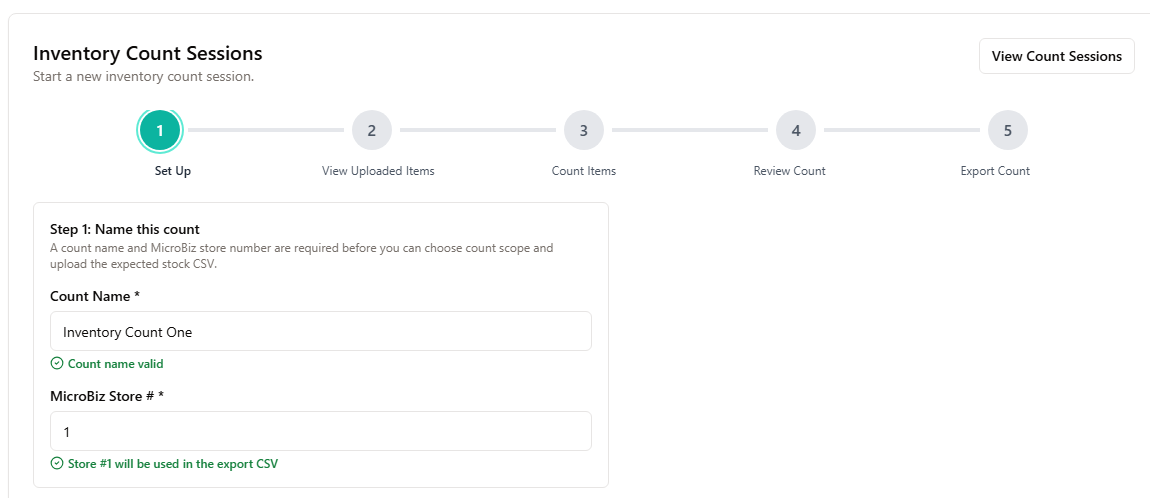
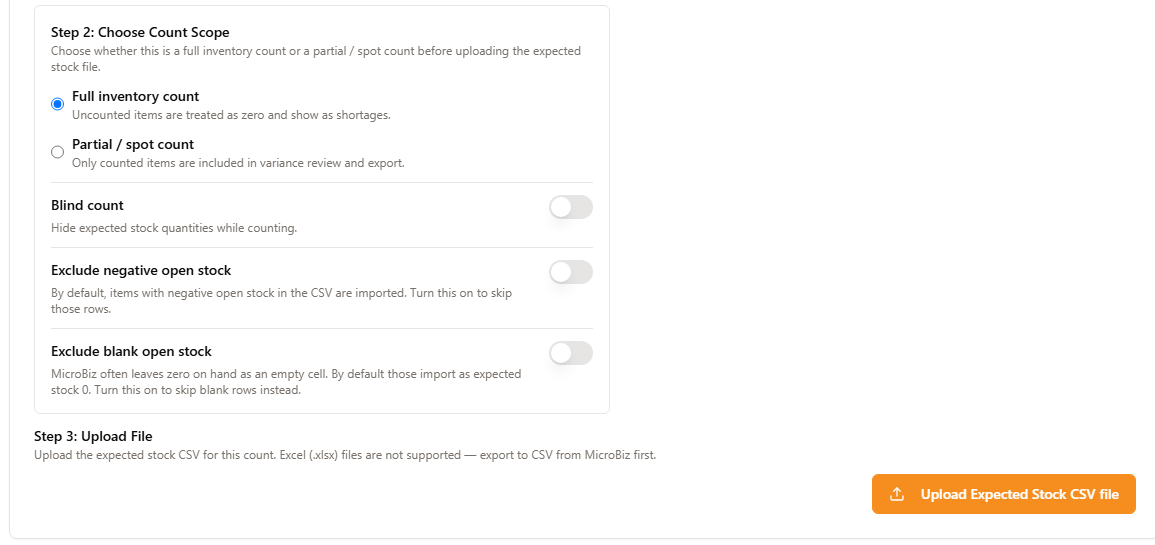
Choose the count scope:
- Full inventory count: uncounted items are treated as zero and show as shortages.
- Partial / spot count: only counted items are included in variance review and export.
- Turn on Blind count if you want to hide expected quantities from staff. See Use blind counts.
- Optionally turn on Exclude negative open stock. By default, items with negative open stock in your CSV are imported. Turn this on to skip those rows.
- Optionally turn on Exclude blank open stock. MicroBiz often leaves zero on hand as an empty cell, and by default those rows import as an expected quantity of 0. Turn this on to skip blank rows instead.
Managing Counts
The Inventory Count Sessions page lists your counts, with the name, whether it is a full or partial count, and its status (for example Draft or Locked).
- Use the All, Active, Completed and Cancelled tabs to filter the list.
- Choose New Count to start a count.
- Choose Open to continue a count, or Reports to see its reports.
- Choose Cancel Count to cancel a count. Cancelled counts stay in the Cancelled tab where you can still view them. They are not deleted.
The five steps of a count
| Step | What you do | Learn more |
| Set up | Name the count, enter the store number, choose full or partial, choose blind or not, upload expected stock | Export expected stock and start a count |
| Uploaded items | Review the imported items and exclude any you do not want counted | Export expected stock and start a count |
| Count items | Scan or look up items and enter quantities | Scan and count items on the floor |
| Review count | Check overages and shortages, fix quantities, add reasons, lock the count | Review variances and lock the count |
| Export count | Download the MicroBiz files, import them, and mark the count complete | Export the count and update stock in MicroBiz |
Tips
- Use a full count to reconcile the whole store. Use a partial (spot) count for specific aisles or categories.
- Counted quantities overwrite your current stock in MicroBiz. Inventory Count does not adjust for sales made while you count, so avoid selling during a count or adjust those items in MicroBiz afterward.
- Lock the count when floor work is finished, then review and export.
- A manager or admin can unlock a locked count if more scanning is needed.
Related articles