This article assume that steps in article https://microbiz.freshdesk.com/a/solutions/articles/9000213580?portalId=9000051454 has been completed and there is or was an active integration between WooCommerce and MicroBiz Cloud. For issues during the first WooCommerce setup please check https://microbiz.freshdesk.com/a/solutions/articles/9000226546?portalId=9000051454
Important: For some users this part might result complicated specially for user not very familiar with the admin panel. If that's the case, we strongly suggest being in touch with your local IT representative in order to get assistance with this section.
If MicroBiz Cloud does not receive the customer orders from WooCommerce the first place to check are the Webhook settings. You can check that following the next steps:
1.- Open your WooCommerce admin panel==> The admin panel URL usually ends in "wp-admin" https://XXXXXX.XX/wp-admin
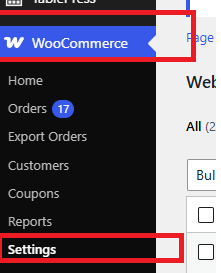
2.-Then go to the right panel and look for WooCommerce | Settings
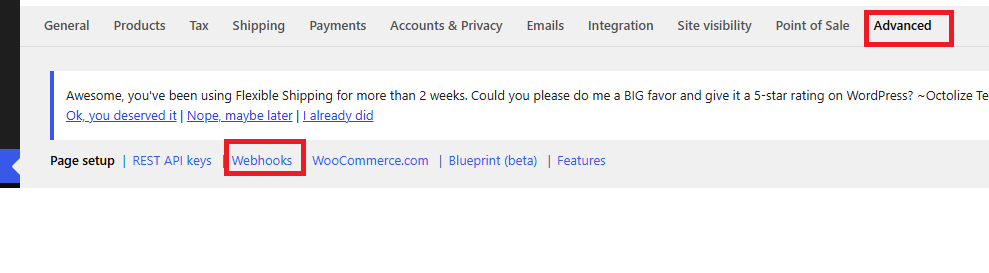
3.-Click in ADVANCE and then in Webhooks
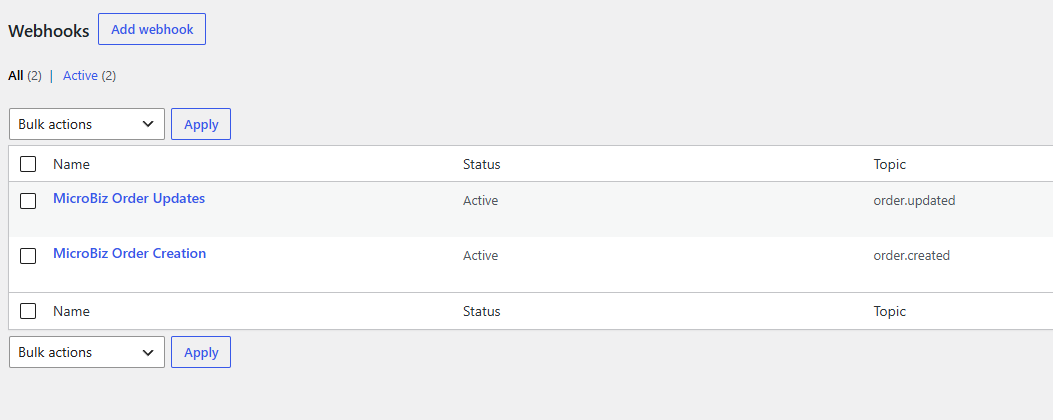
4.- Make sure that both webhooks: MicroBiz Order Updates and MicroBiz Order Creation are present and Active
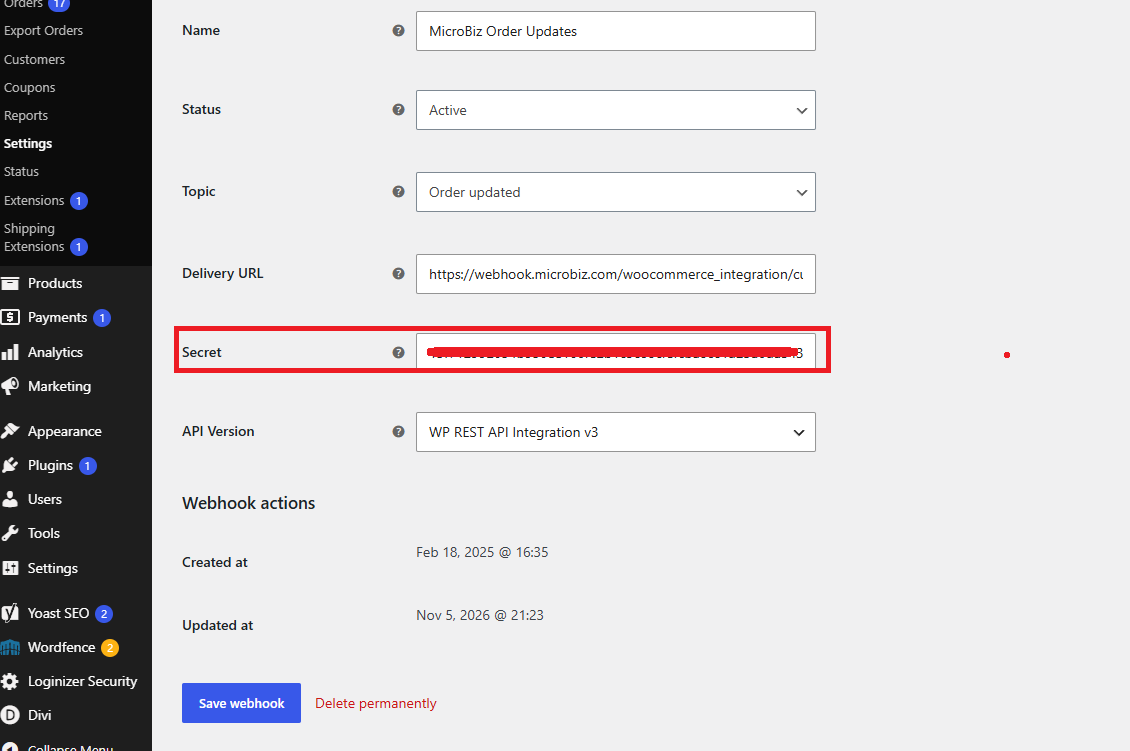
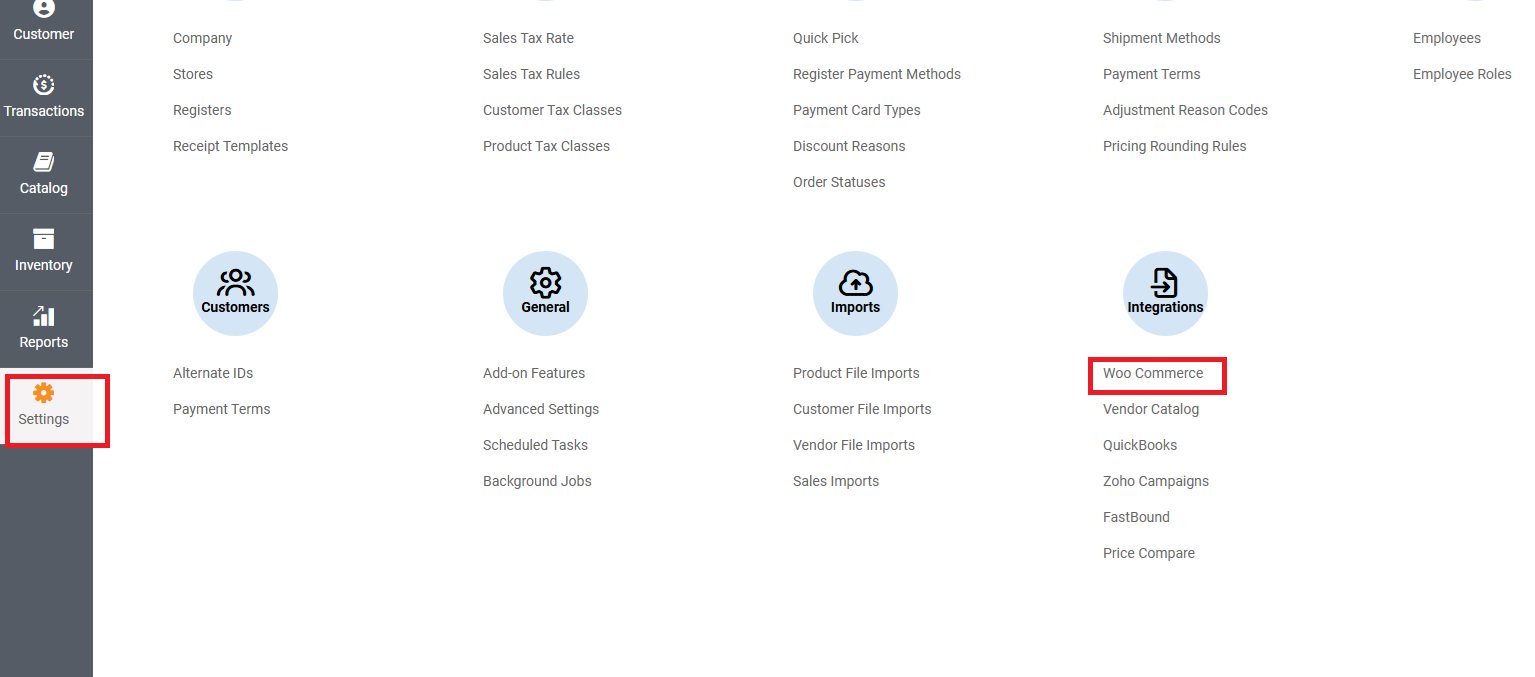
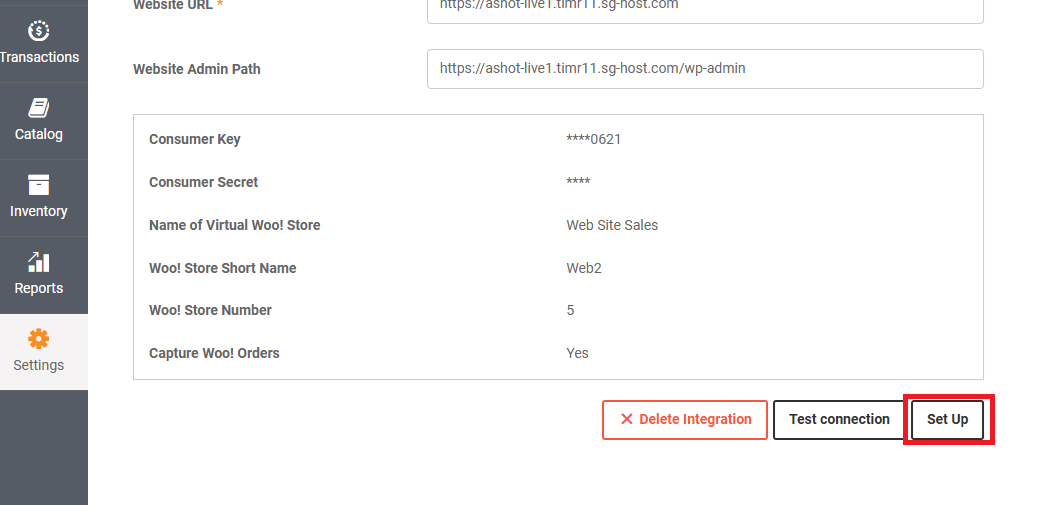
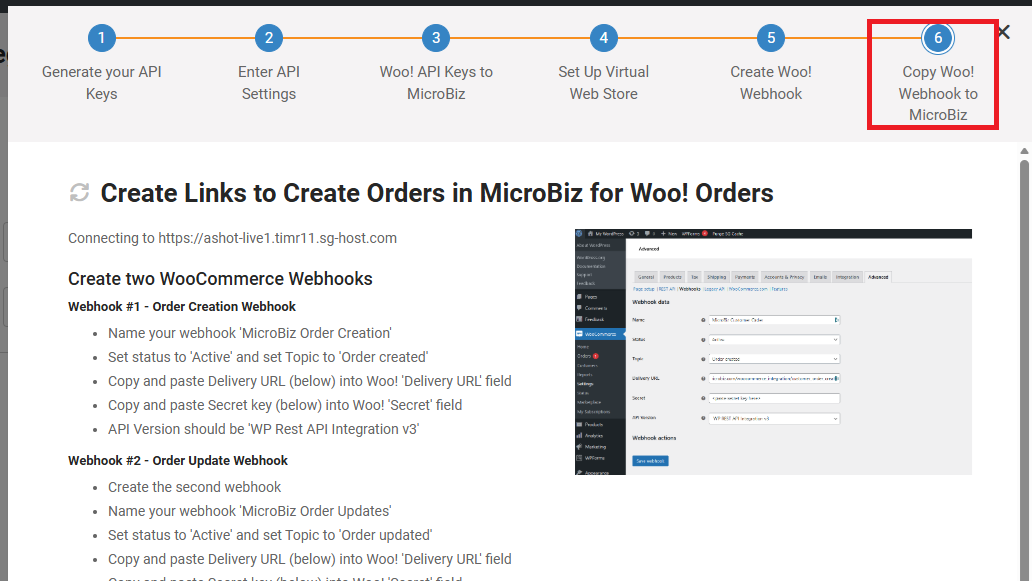
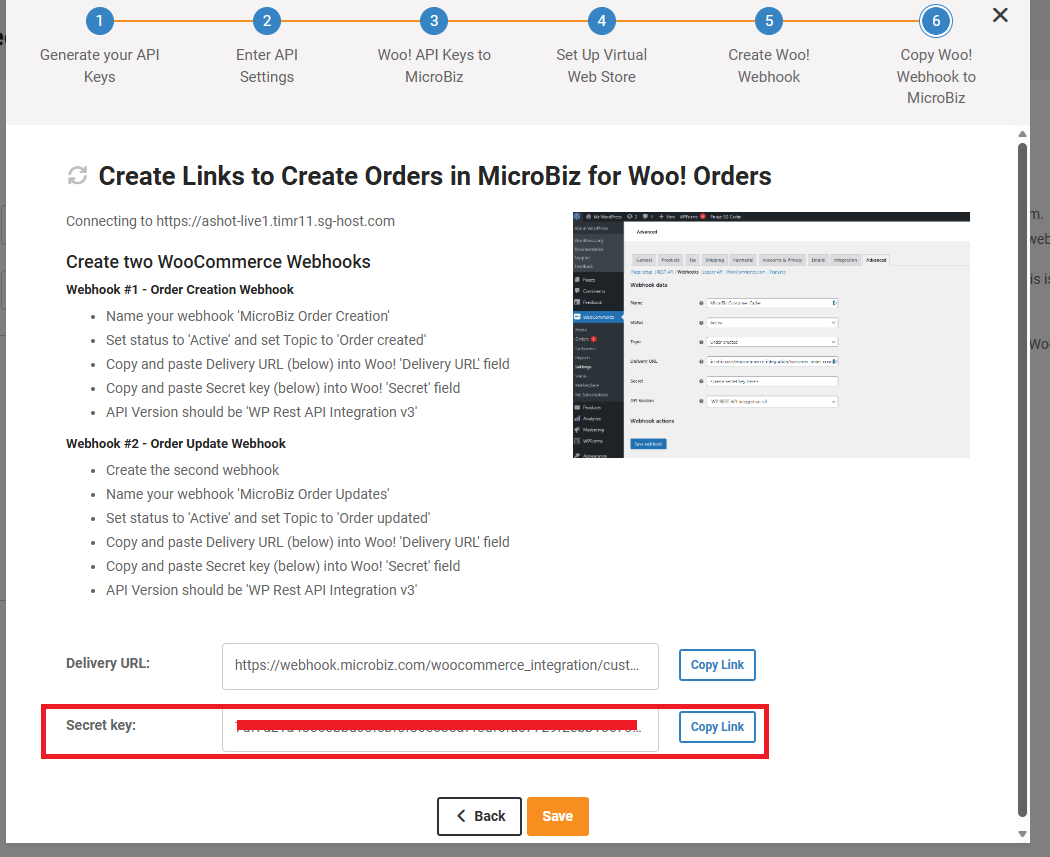
5.- If both Webhooks are present and Active then click on Both and make sure that the Secret Key in Woo match with the Secret Key in the MicroBiz integration. In MicroBiz you can reach the webhook secret key section via Back Office | Settings | Woo Commerce and then clicking on Set Up and then going to the step 6.
If credentials are ok on both sides, then the problem might be different and, in that case, you must enable the debug mode in WooCommerce because by default the debug mode is disabled and regular WooCommerce logs offers generic errors only and no a clear way to find the potential reason for the disconnection between MicroBiz and Woo. Also, we probably will need a temporary admin password to access to your Woo admin panel. In order to enable the debug mode in Woo and generate the temporary Admin password please follow the next steps:
After enabling the debug mode and generating the temporary admin password please contact the MicroBiz support team and provide the new credentials or send the link to generate these credentials to support@microbiz.com
Step 1: Locate
wp-config.phpYou can access it through:
- cPanel → File Manager
- FTP/SFTP (FileZilla)
- Your hosting provider's file manager
The file is usually located in the root of your WordPress installation.
Step 2: Edit the Debug Settings
Find this line:PHPdefine( 'WP_DEBUG', false );Replace it with:PHPdefine( 'WP_DEBUG', true );define( 'WP_DEBUG_LOG', true );define( 'WP_DEBUG_DISPLAY', false );@ini_set( 'display_errors', 0 );Generate a Temporary Admin Login in WOO
- Go to Users → Add New.
- Create a new Administrator account.
- Use Set Password or let WordPress generate one.
- Share the credentials.