The process to pair your Global Payments terminal with MicroBiz is real simple.
We assume on this step that the terminal is fully unboxed and fully connected to the internet. It is not mandatory but recommended to connect these terminal to a reliable internet source with no VPN. If you need help unboxing your terminal and connecting your terminal to the internet please follow the steps here: https://cloudv2.microbizcloud.com/support/solutions/articles/9000304094-unboxing-your-new-global-payments-terminal-internet-connection, also and very important please contact the Global Payments Support and request the Terminal ID, Merchant Key and Merchant Secret, you can also obtain these parameters using your Global Payments Dashboard. For more info please contact Global Payments Support directly at 1-888-249-3220.
Steps to pair the terminal with MicroBiz:
1.- Go to Back Office | Settings | Registers
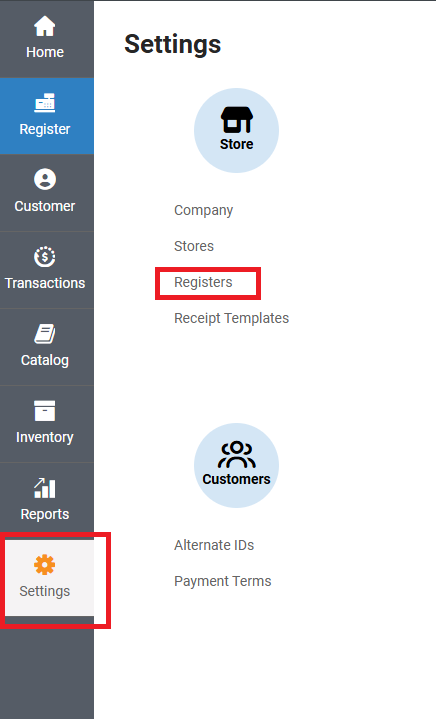
2.- Locate your register and click on the EDIT button (pen icon). If you see a red lock, please make sure that no one is using the register and then click in the red lock and click in OK

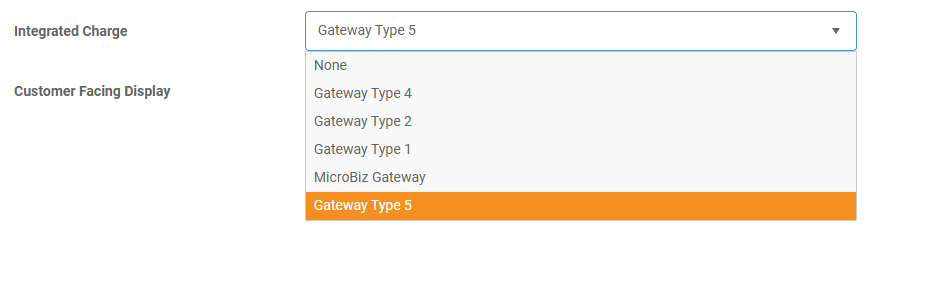
3.- Go to Integrated Charge and choose "Gateway Type 5"
4.- Click on Processing
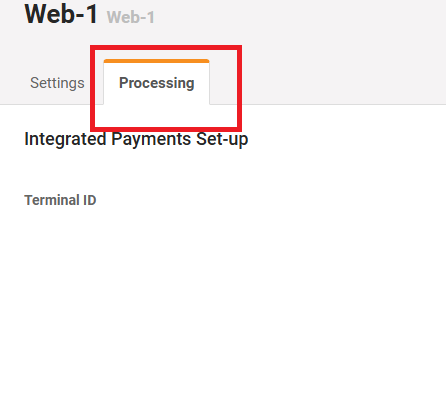
5.- Click on Register Terminal
6.- Enter your Terminal ID, Merchant Key and Merchant Secret
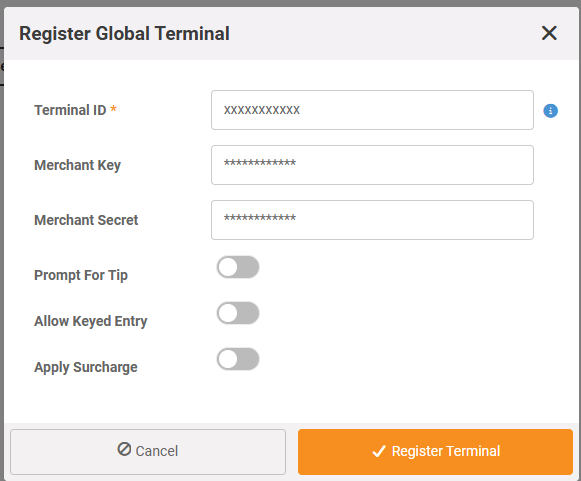
7.- Click on Register Terminal. If everything is ok you will not see an error message. If everything goes well please click on SAVE located in the top-right corner.
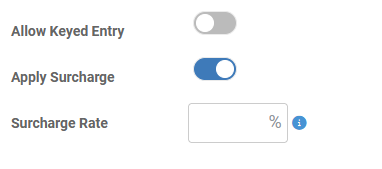
You may activate the APPLY SURCHARGE option if needed however that option requires additional an addendum and additional paperwork. For more details please contact surcharge@globalpay.com
If you need manual entry capabilities please enable the checkbox "Allow Keyed Entry"