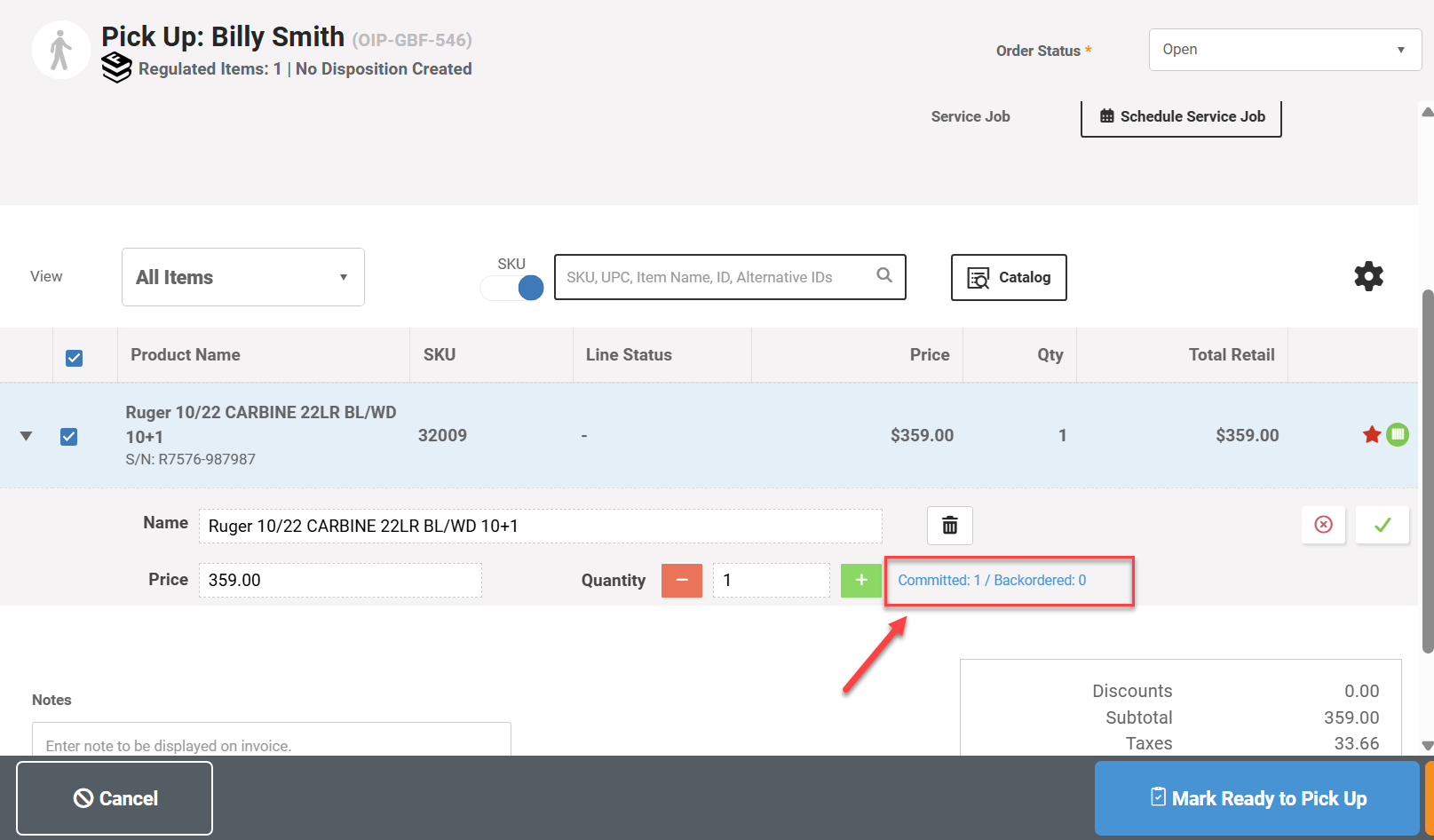
The PriceCompare add on is very helpful in finding the best price for Special Order items, which are defined as an item ordered by a customer that is not currently in stock.
The following workflow can be used to create a customer order in MicroBiz and link it with a vendor order for the lowest cost item created in PriceCompare.
Step One: Create Customer Order in MicroBiz
In MicroBiz, create a customer order with the special order item ordered by the customer. When you add an out of stock item to an order, you will be prompted to choose whether to treat the item as a Backorder or a Special Order. In this workflow, choose the 'Backorder' option. Then save order with an 'Open' status.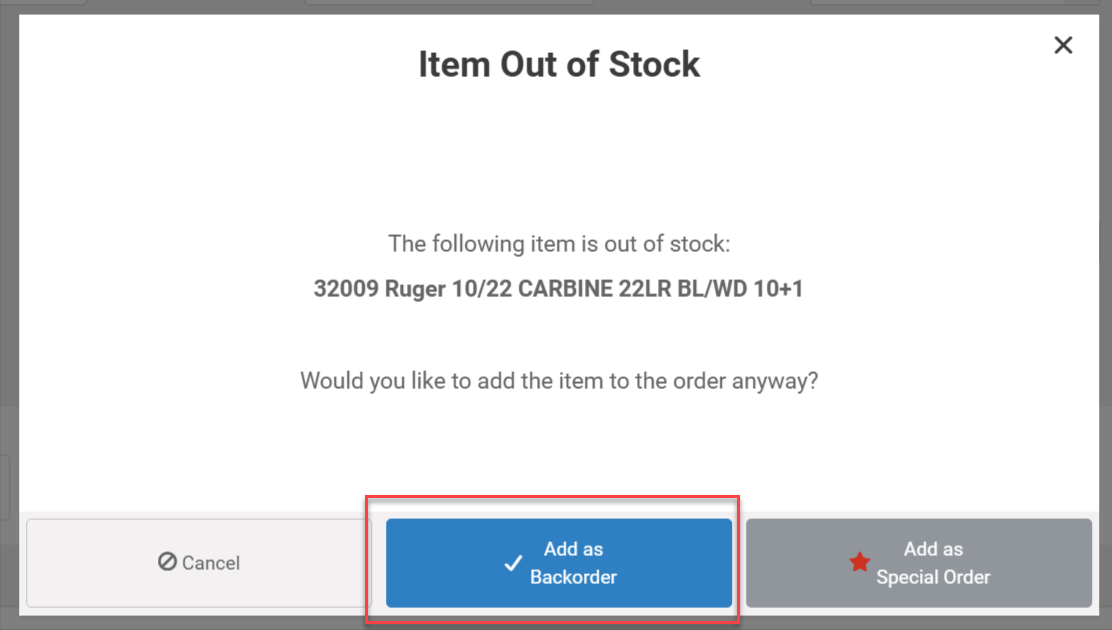
Step Two: Use PriceCompare to Find Lowest Cost Vendor
The next step is to order the item from one of your vendors. You can use the vendor price comparison tool in MicroBiz to find the lowest cost vendor. Once you have selected the lowest price vendor, add the item to a vendor order in PriceCompare.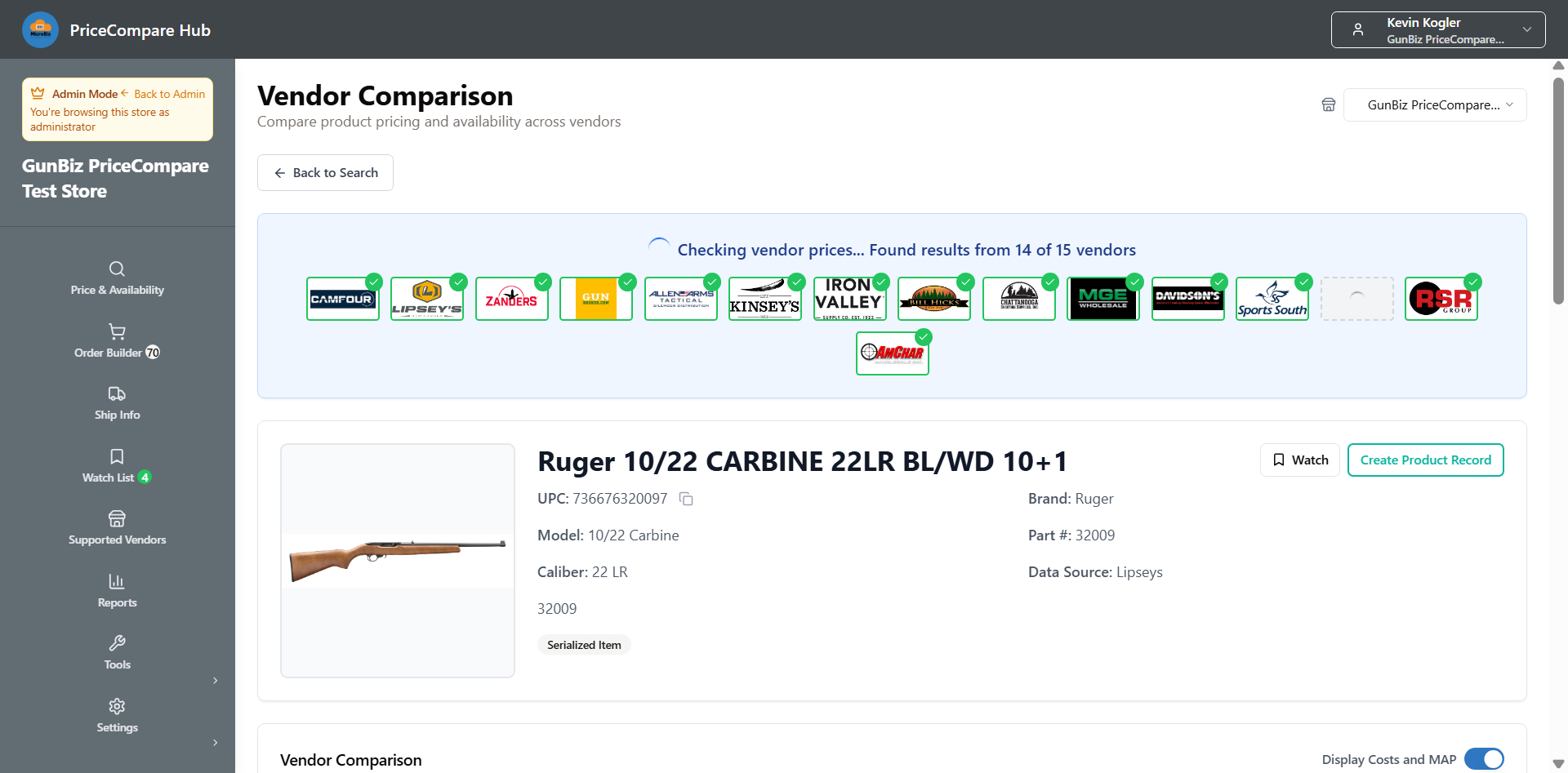
Once you are done building the vendor order, depending on your set up, you can either:
1) Submit the order electronically to the vendor. When you do this, PriceCompare will automatically create the product records on the order in MicroBiz and will also automatically create a Purchase Order in MicroBiz for the items ordered electronically from the vendor.
2) If you order items via a vendor portal, you can still create a Purchase Order in MicroBiz automatically for the items order from the vendor portal. 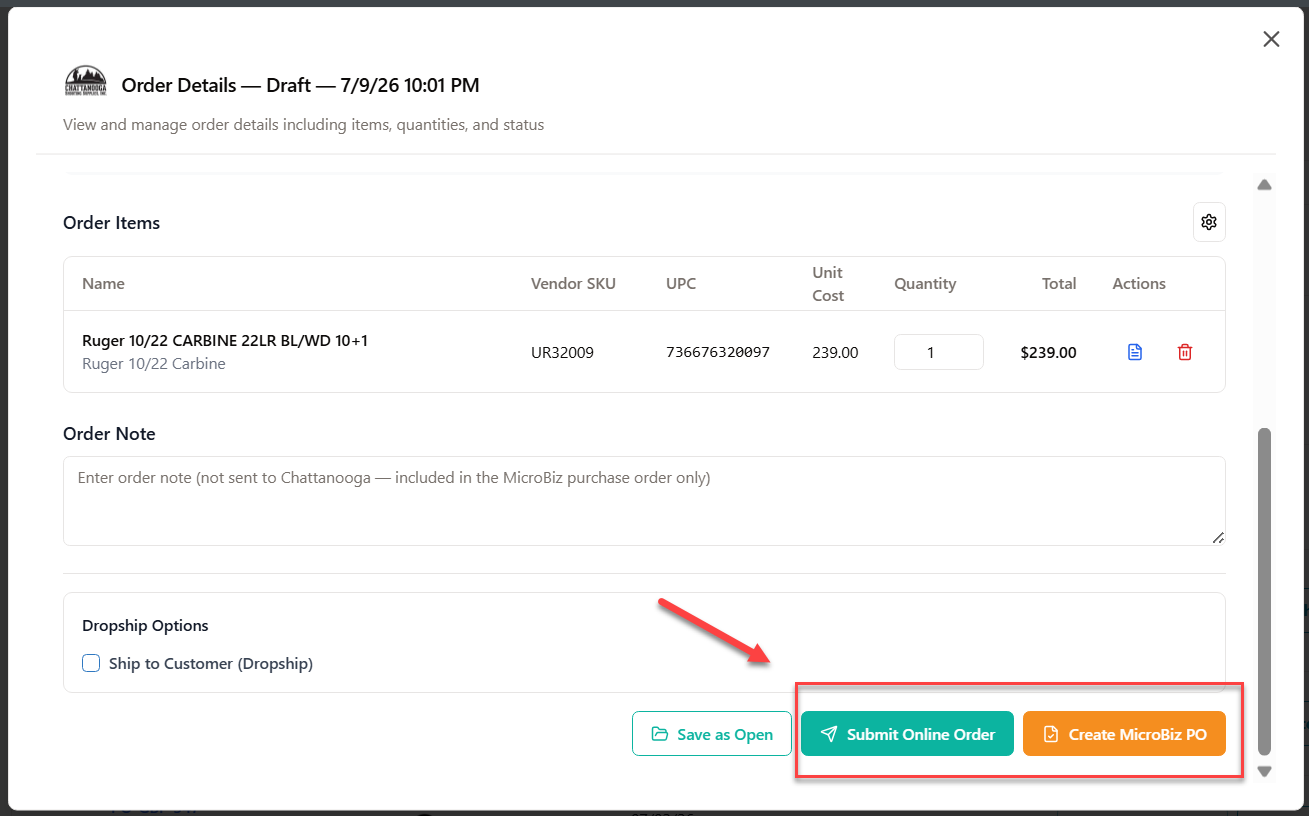
Once PriceCompare automatically create the Purchase Order in MicroBiz, the PO number will be displayed in PriceCompare.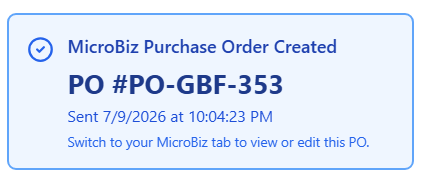
Step Three: Reserve Special Order Item on MicroBiz PO
Once the item has been ordered and the PO has been created in MicroBiz, you can 'reserve' the item for the customer.
To do this, reopen the customerr order with the special order item, select the line with the special order item and click on the Action Menu>Items> Special Order button.
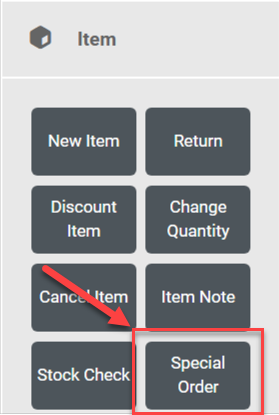
This will convert the backordered item to a special order and display the Special Order management pop-up. As there is already a PO in MicroBiz with the ordered items, you can use the 'Reserve From Vendor Order' option to link the special ordered item on the Purchase Order to the Purchase Order with the item ordered using PriceCompare.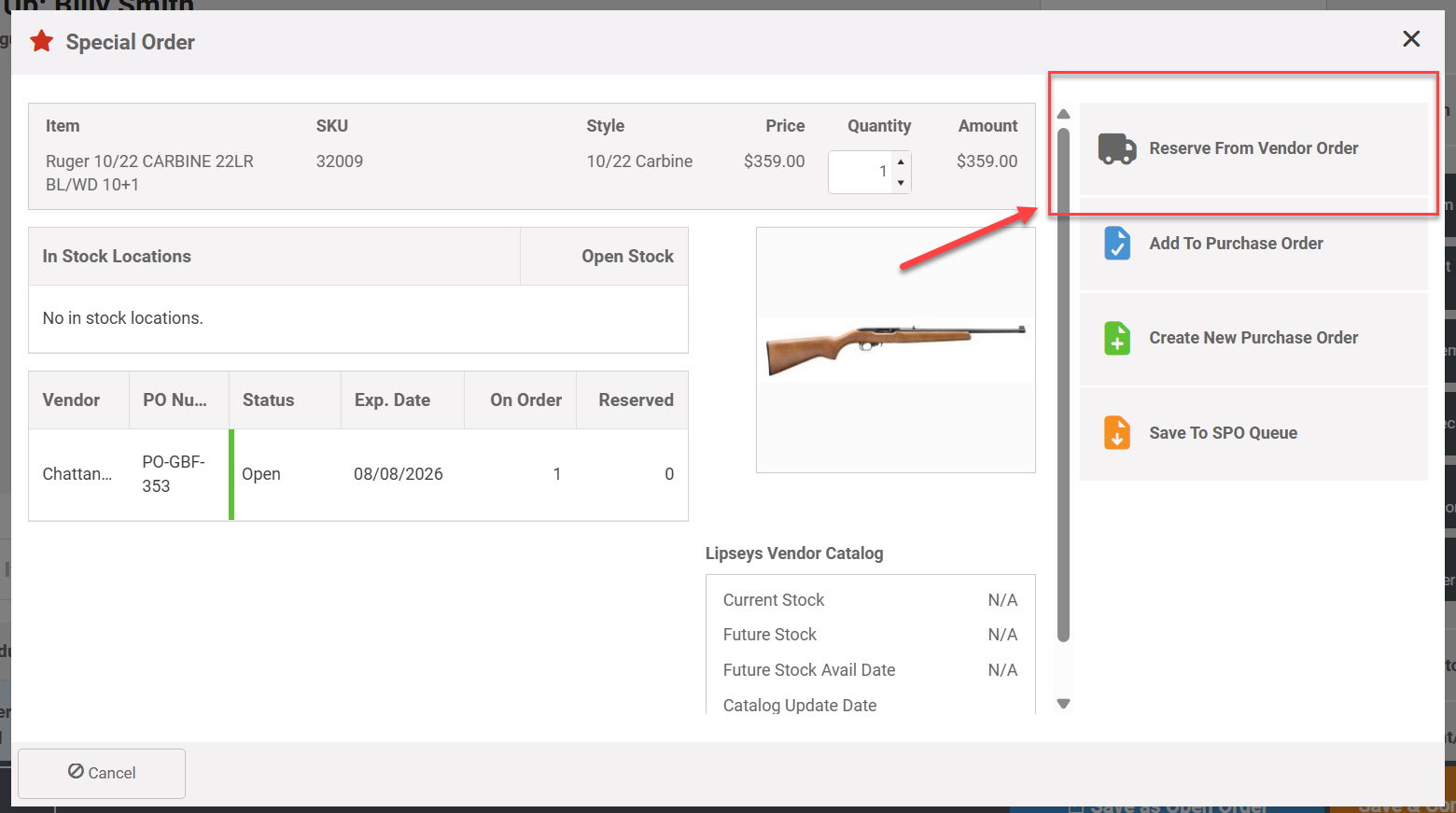
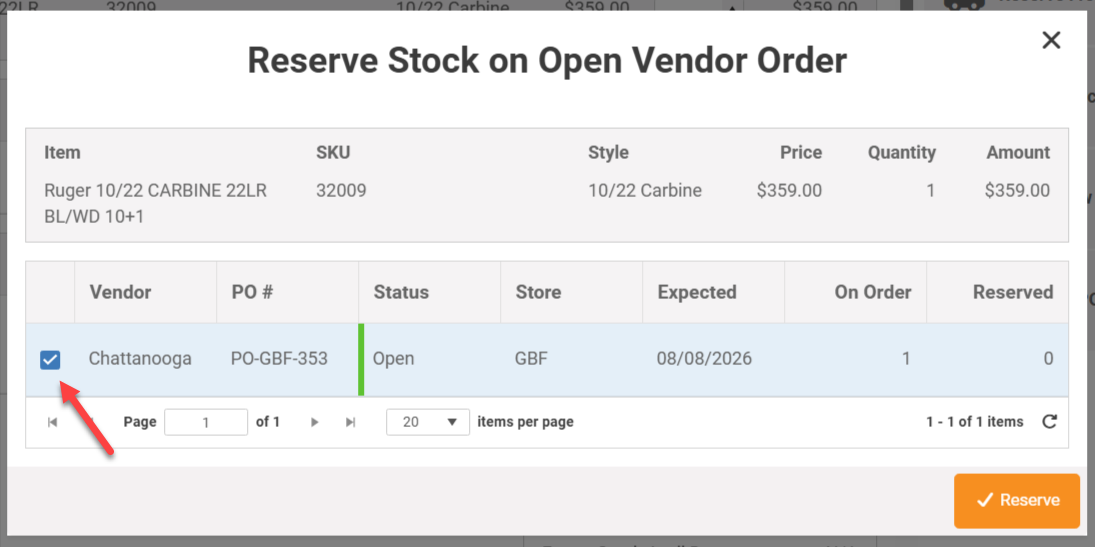
Step Four - Recieve Vendor Shipment with the Special Order Item
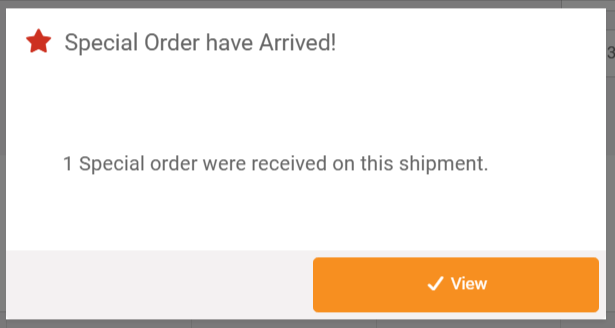
When the item arrives from the vendor, recieve them in a vendor shipment. When you do this, you will see a pop-up alerting you that the vendor shipment includes a special order item.
From the Allocate Shipment pop-up, press the 'Allocate' button to allocate/link the item being received to the displayed customer order.
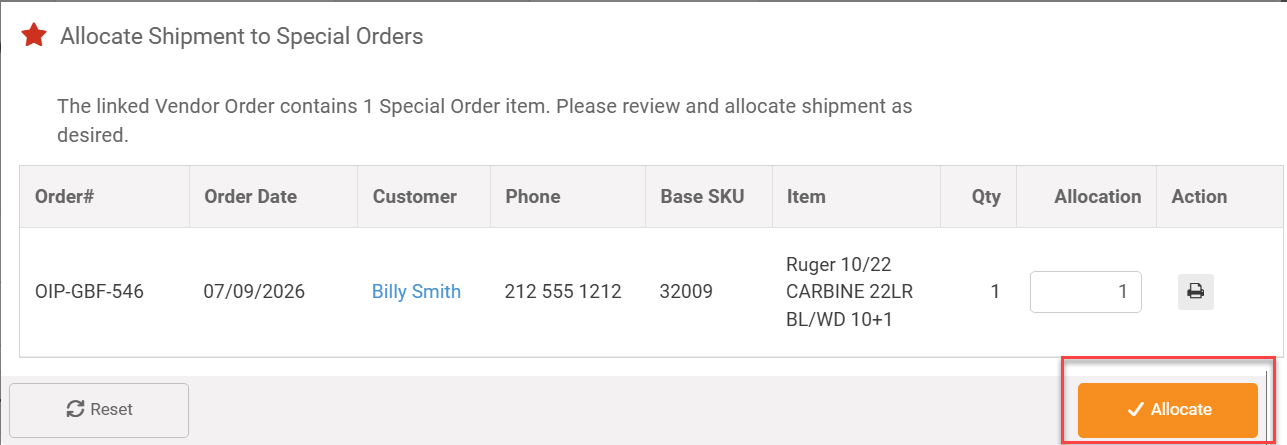
This step commits the item received against the customer order. The item is classified as'Commited' to the order.