Account Settings
MicroBiz allows you to determine how you would like to handle payments on credit accounts. Customer Credit Accounts can be set to either Balance Forward or Open Item.
Balance Forward - This payment allocation method works like a simple credit card account. Purchases and services charged to the credit account are added to a running balance, and payments and credits applied to the credit account are subtracted from the running balance. Statements sent display the amount that the customer owes the account. Payments on account are simply recorded as a payment received and applied against the outstanding balance at the time. There is no need (or ability) to apply the payment to a specific invoice or invoices.
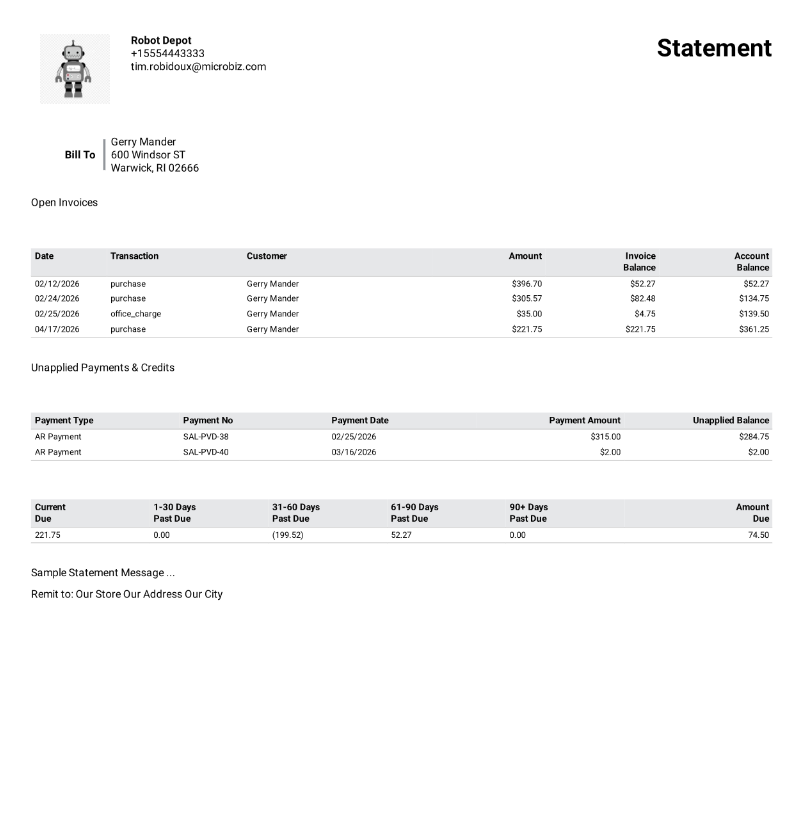
Open Item - This payment method allows a user to apply a payment to a specific invoice or group of invoices or service charges. Activating the Open Item setting adds various new tables and forms to review unpaid invoices, unapplied payments and to apply payments. Open Item statement shows specific unpaid invoices and unapplied payments and credits in addition to the aging.
Key Settings - To switch from the Balance Forward method to the Open Item method, go to Settings > General > Advanced Settings > Credit Account Settings. Use the radio button to switch from Balance Forward to Open Item.
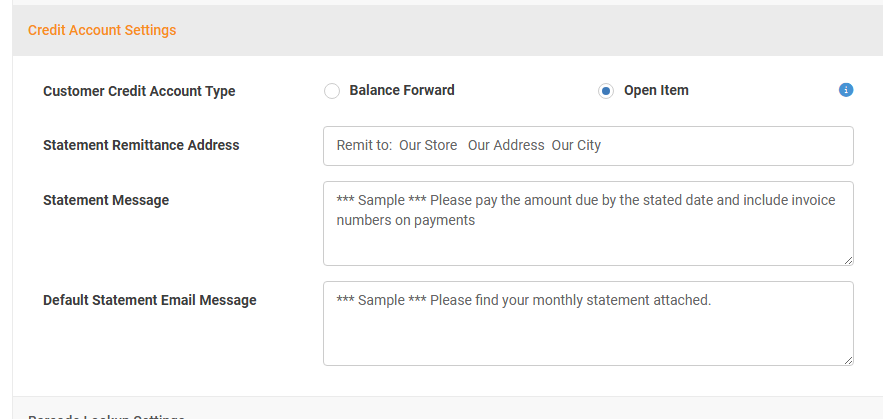
Important Considerations when Changing this Setting
- When you initially change from Balance Forward to open item MicroBiz will automatically apply all previous payments to all open invoices. If uou accidentally hit the "Skip this" button in the pop-up displayed below, you can go back to Advanced Settings > Credit Card Settings and revert switch back to Balance Forward, hit Save, and then switch back to Open Item again. This will re-prompt you to apply the open invoices to all customer accounts.
- Reprinting statements for prior periods may look completely different depending on how you apply the payments.
- If you reverse this change and switch from Open Item back to Balance Forward after using Open Item AR to post payments, the data showing how specific payments and credits were applied will be lost.
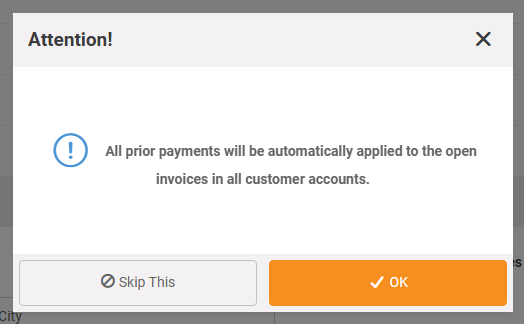
Open Item - Applying Payments
Applying payments can be done in several places in MicroBiz, including the front register and by using the toggle button at the top of the Customer > Accounts page
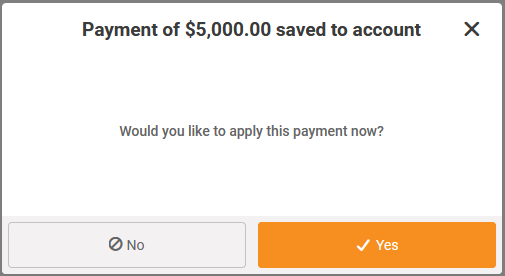
Right after recording a credit account payment a payment at the register (QuickPick panel > Customer panel > Credit Account Payment button) you be presented with a pop-up window asking if you would like to apply the payment (see below).
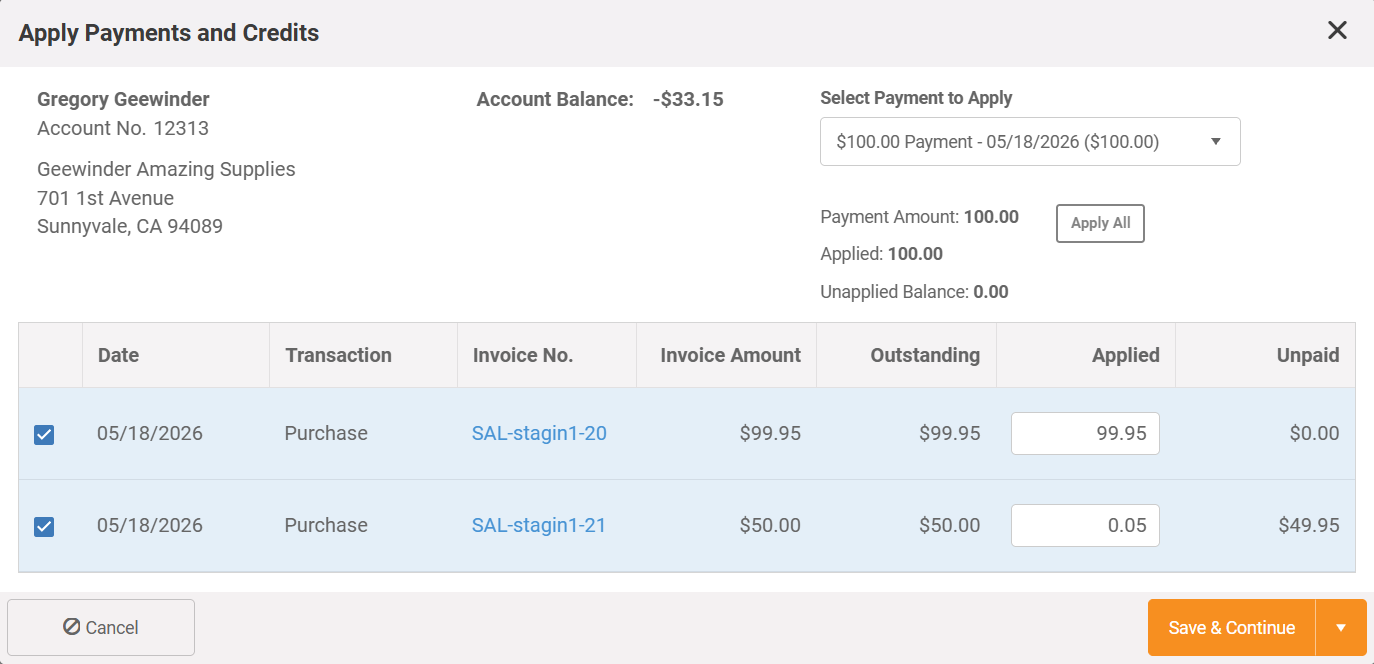
The Apply Payment pop up allows you to select specific invoices and service charges to apply the payment. You can manually select each item or use the ‘Apply All’ button to automatically apply payments. The Apply All button will look for an invoice amount that exactly matches the payment and apply the payment to that invoice. If it can’t find an exact match it applies the payment to the oldest open items first until the payment is allocated.
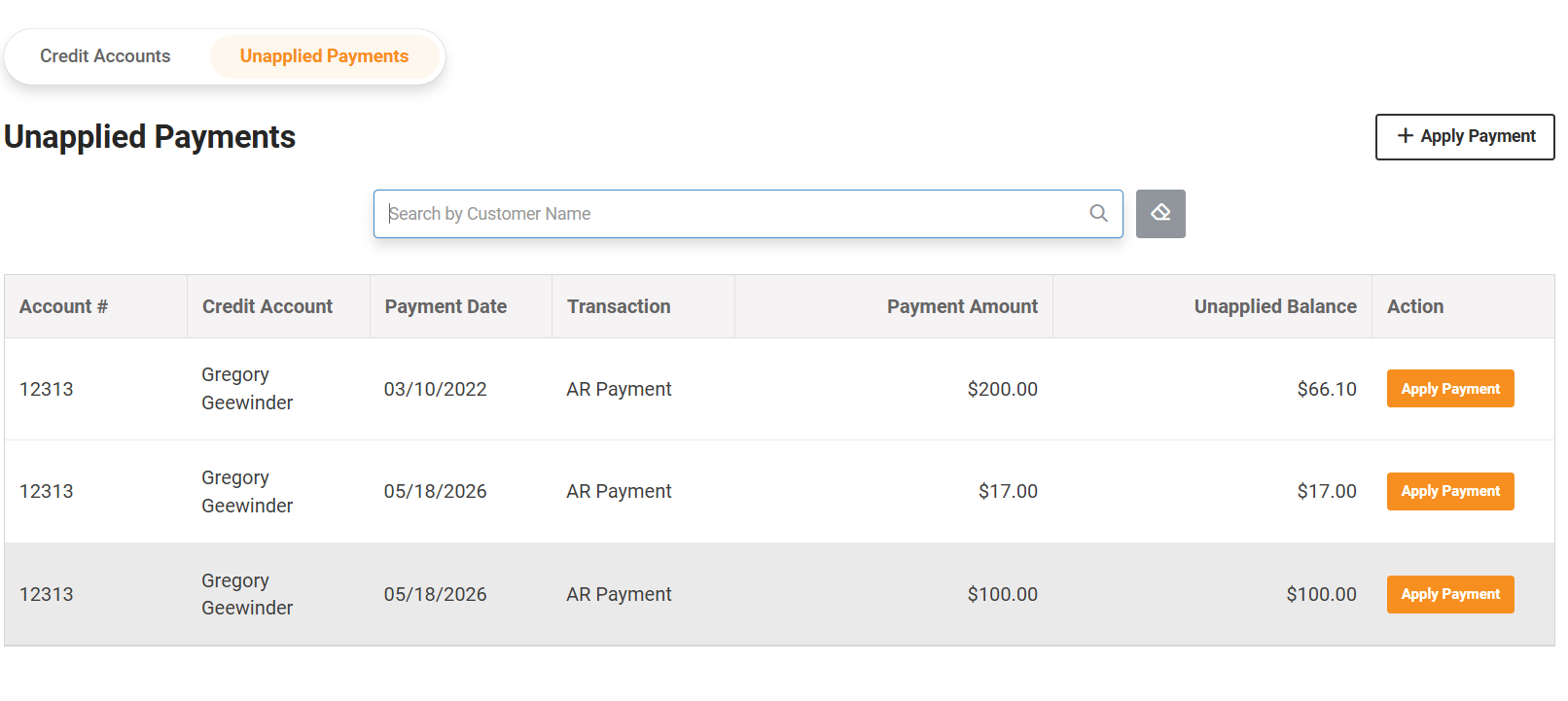
You can also apply payments from the credit account summary table at Back Office>Accounts>Unapplied Payments. All unapplied payments are listed there so you can easily locate them and apply them without working at the register.
Unapplied payments table can also be found in the Customer Record in the Credit Account tab.
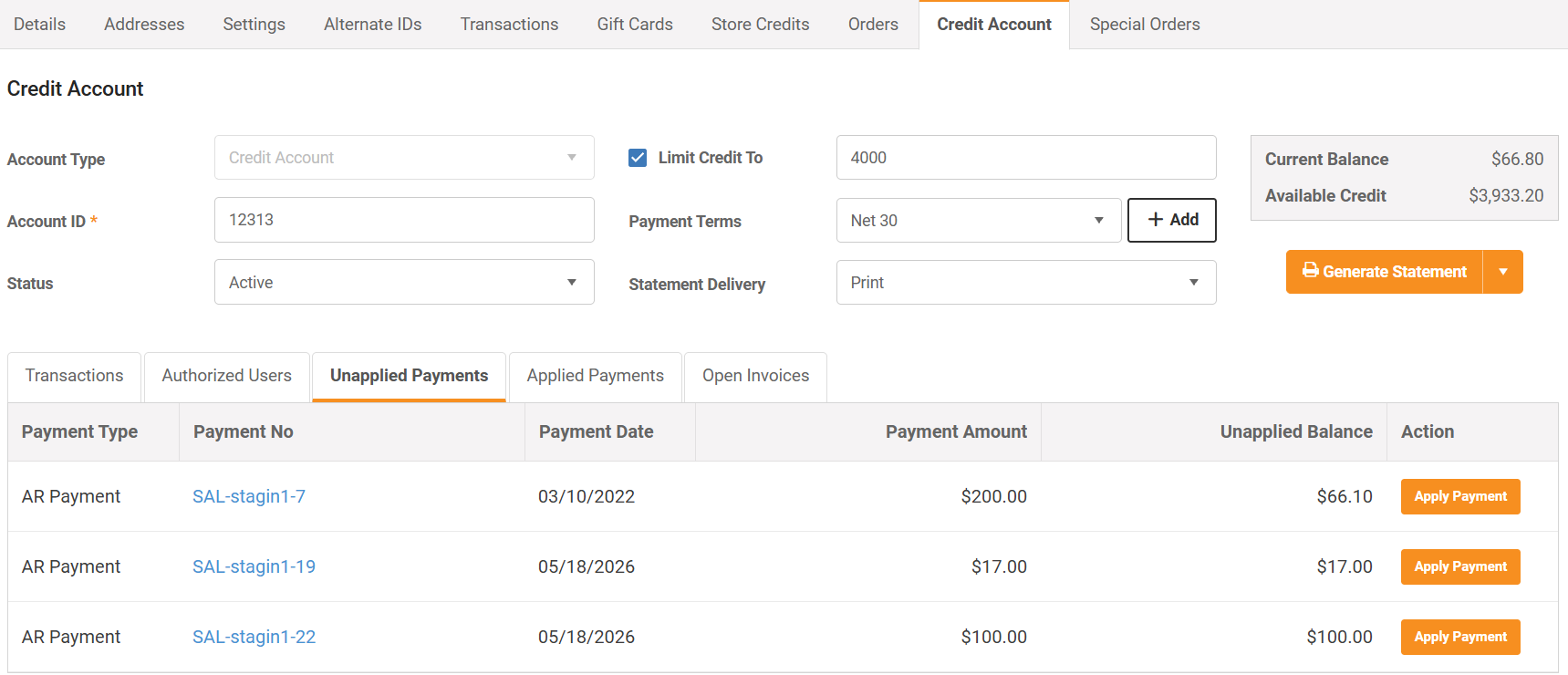
Changes to Customer Record Credit Account Tab
The Credit Account page now displays some additional tabs:
- Unapplied Payments - If a payment is unapplied, the payment is now visible on the Unapplied Payments tab - ready to be correctly applied to an open invoice balance.
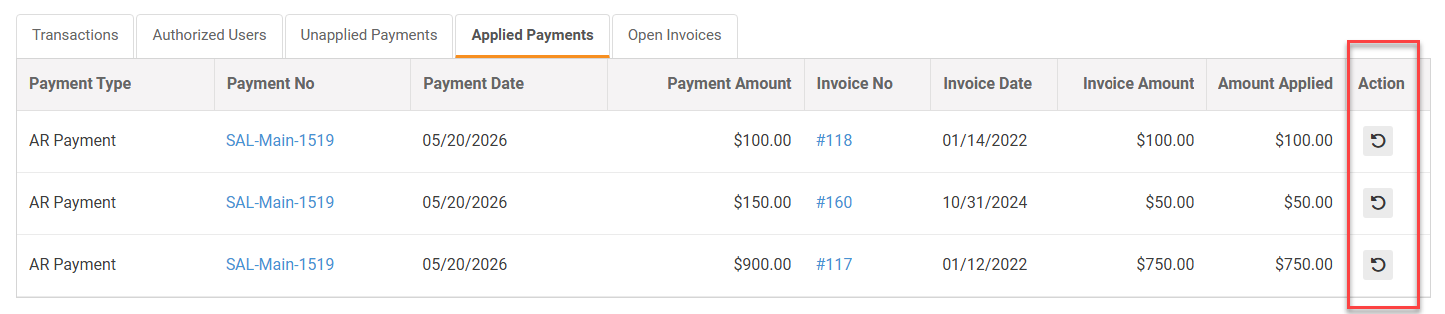
- Applied Payments - Displays payments that have been allocated or applied against invoices.
- Open Invoices - this plays invoices that have a balance due.

Correcting Errors/Un-applying payments
If you wish to apply a payment differently you can go to Customers > Accounts > and select the account - and then go to the Applied Payments tab and click the ‘undo’ button
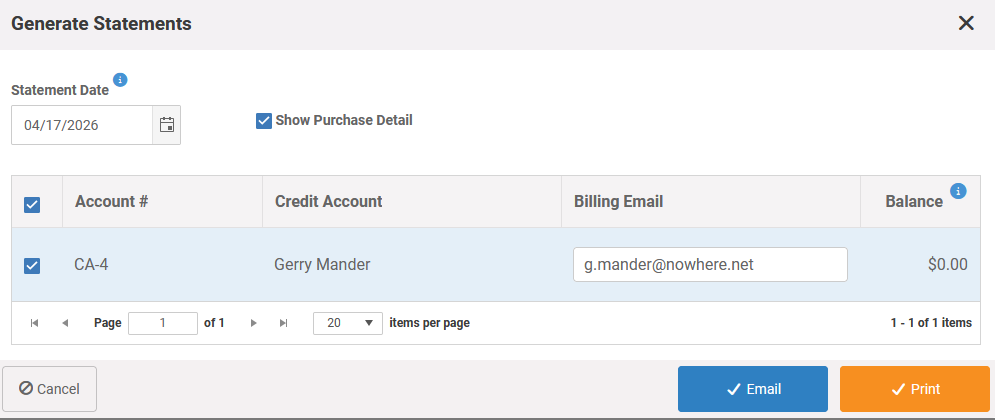
Changes to Statements with Open Item AR
- Open Item statements have no activity date range. Instead ALL invoices with an unpaid balance are returned no matter the date.
- Generate Statements does not show the activity date range when the Customer Credit Account feature is set to Open Item. Instead all invoices and service charges that are unpaid will show in the activity section.
- There is a new section that includes unapplied payments and credits in addition to the aging and account totals.
- This statement is different from the current ‘balance forward’ statement in that:
- There is no ‘period’ date range – instead all activity that is not zero balance is shown
- The transaction detail does not show purchases and service charges with a 0.00 balance.
- Credits and purchases are summed in the aging buckets – but the purchases and service charges are summed using the balance so full or partial payments reduce the amount from the original purchase.
- The running total starts with the oldest unpaid item.
- If there are unapplied payments/credits these are shown in a separate section and their values are deducted from the running total.
- Both unpaid balances of purchases, service charges (and beginning balances) are summed in the aging summary along with unapplied payments and credits.
Common Issues
1) When initially setting this up, the unapplied payment screen shows unapplied payments dating back several years.
A. If this occurs right after you turn the setting on, please give it a few minutes. The payments are being reconciled in the background and may take a minute or two for the system to work through the initial matching process.
If this persists, then go back to Settings > Advanced Settings > Credit Accounts and change the setting back to Balance Forward, hit Save, change back to Open Item AR, and hit Save again. This should trigger the matching process for these remaining unapplied payments.