The 'Watch List' feature will allow you to add out of stock items to a 'Watch List' and be notified when they become available.
Key Settings
Enable WatchList
At PriceCompare>Settings>Watch List you can enable the new Watch List feature

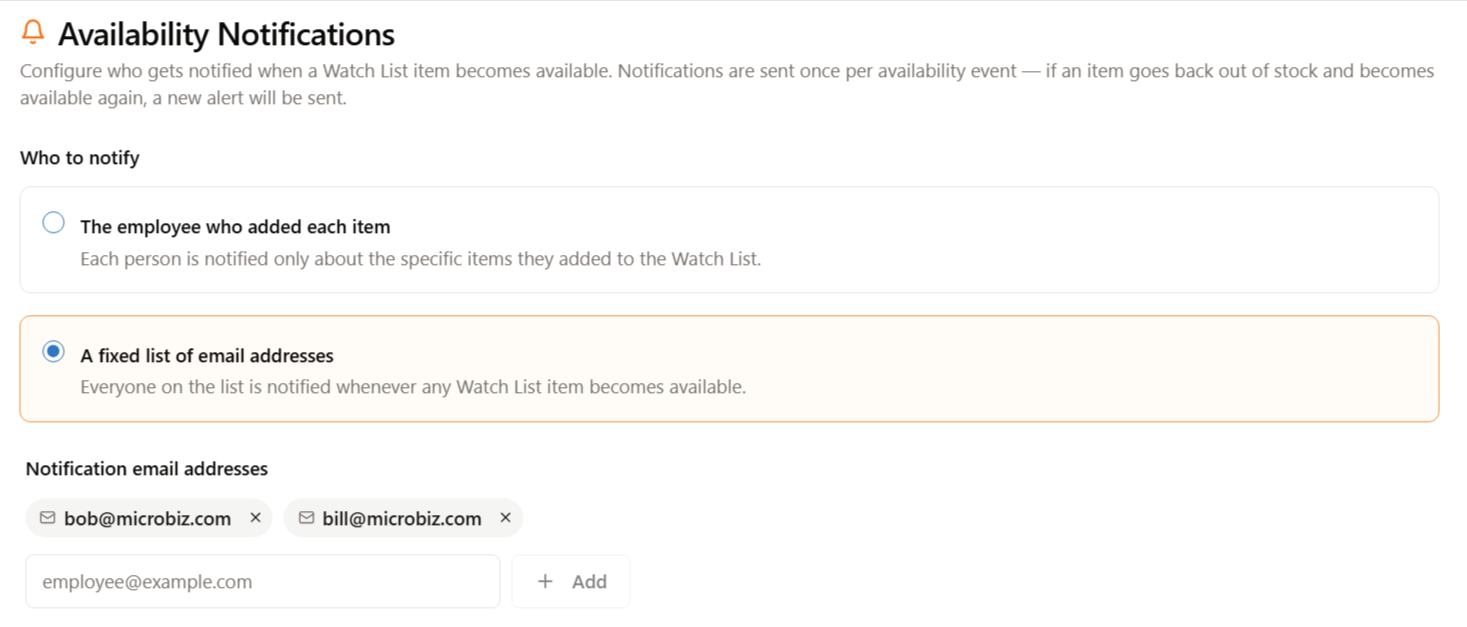
Select Who Receives Notices
You are able to select who receives notices. Options include:
1) Alert sent to employee/user that added item to the watch list.
2) An email or list of emails entered in PriceCompare
Select When Availability Alert is Sent
You can select when the alert is sent.
How to Use
| Add items unavailable from vendors to a 'Watch List' |
|
|
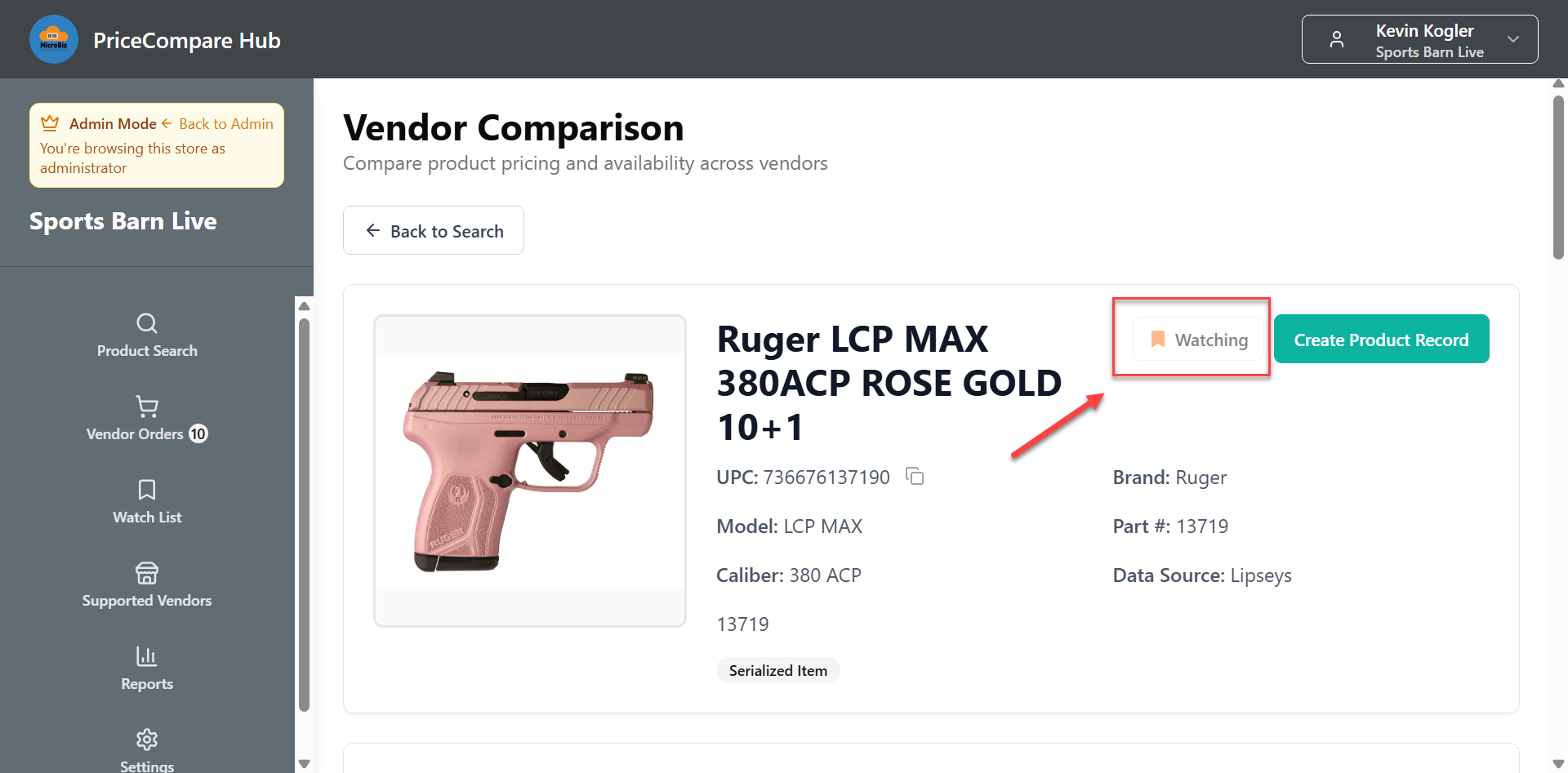
From the Vendor Price Comparison results screen, you can place items that you want to purchase but are out of stock onto a 'Watch List' by clicking on the 'Watching' button.
|
|
|
| The new Watch List table displays the items that you are monitoring |
|
|
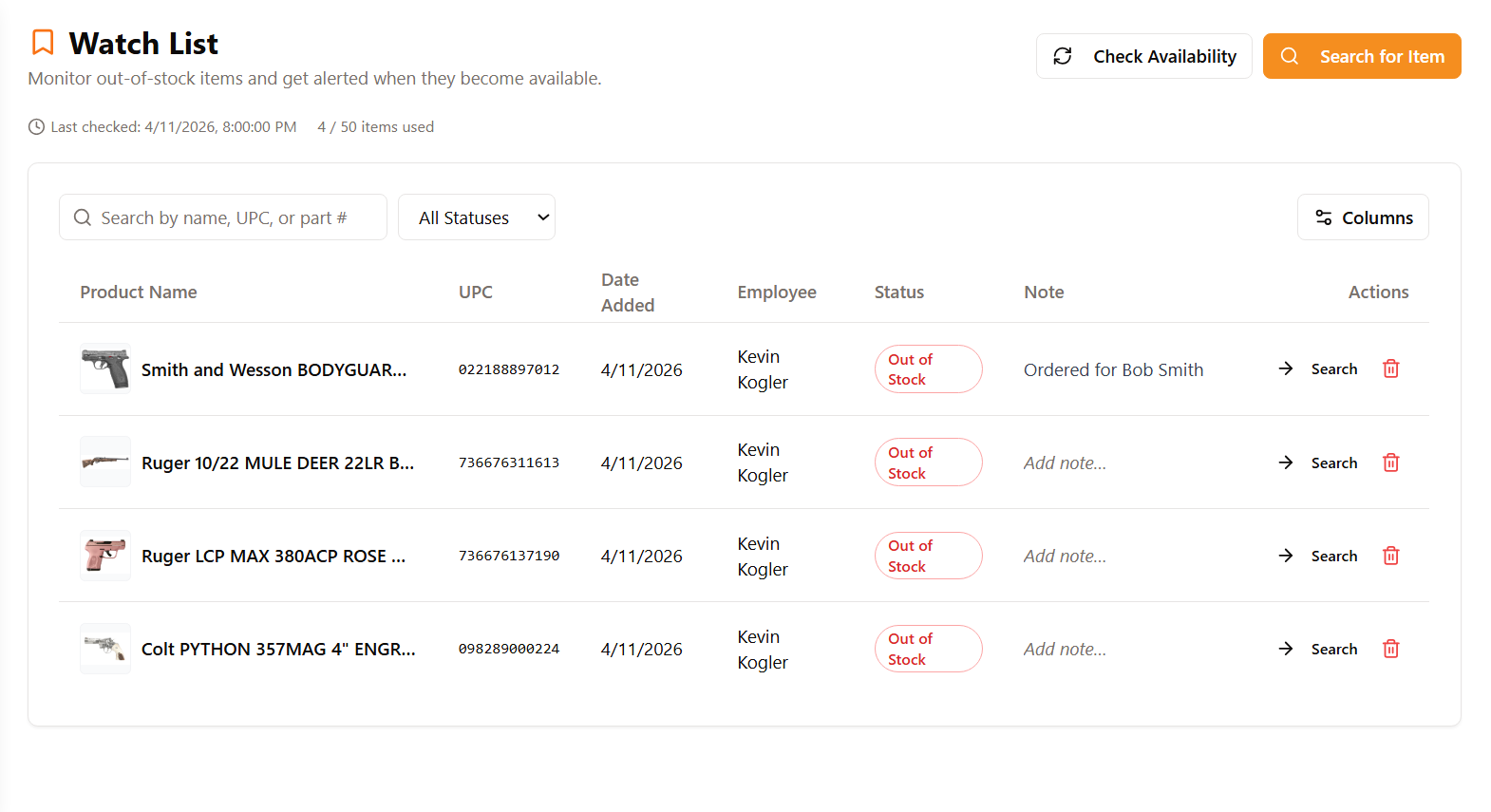
The 'Watch List' is displayed on a separate tab/grid in PriceCompare. The Watch List table displays the desired item, who added it to the list, date added and an optional note (which can be used to display which customer is interested in the out of stock item).
|
|
|
| PriceCompare checks hourly whether the Watch List items are back in stock |
|
|
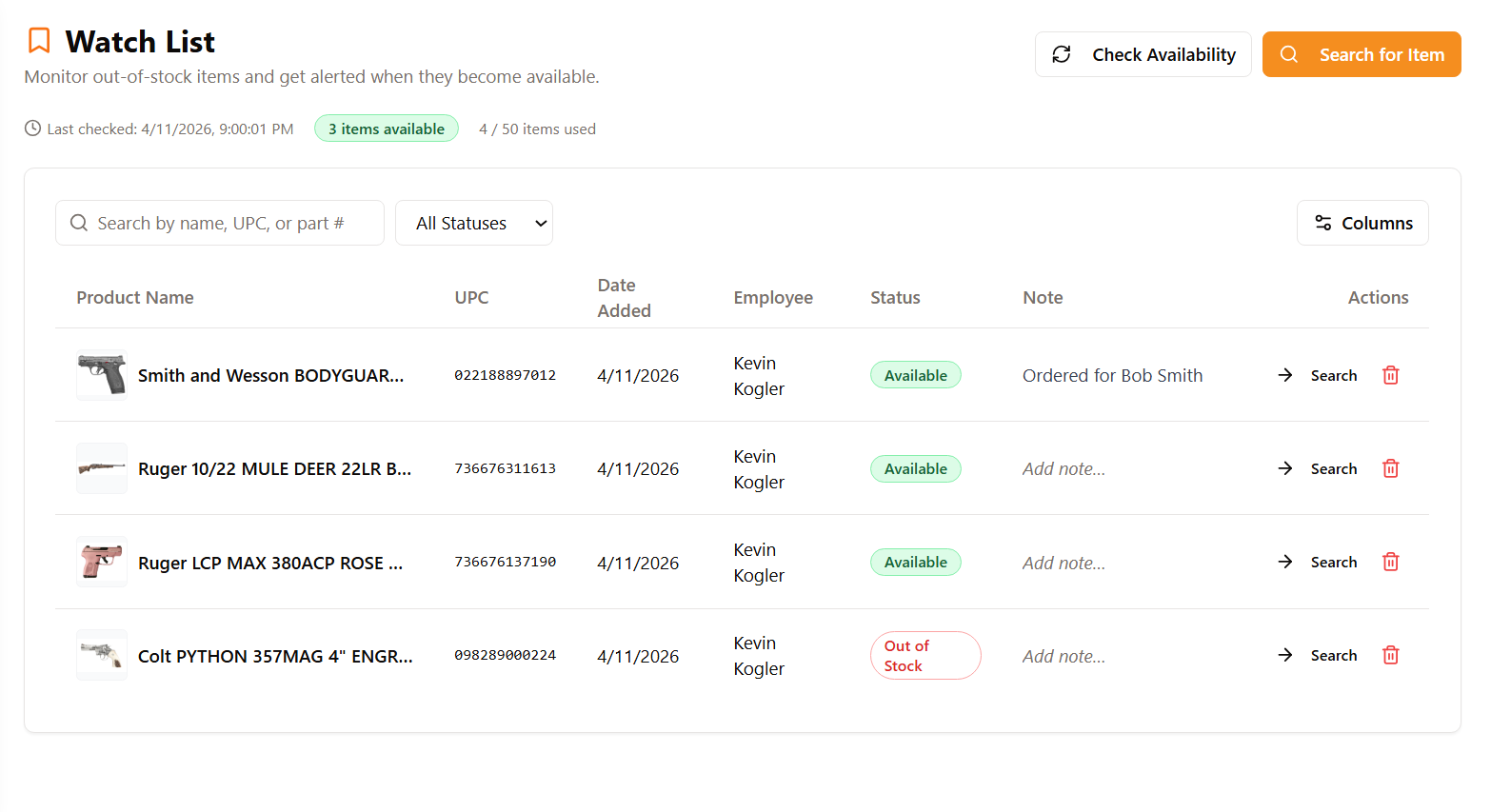
The PriceCompare system will auto sync with all connected vendors every hour to see if any of the items on the Watch List become available from any vendor.
You can also check availability manually and start a new PriceCompare search from the Watch List grid. |
|
|
| If an item becomes available, PriceCompare immediately sends notification |
|
|
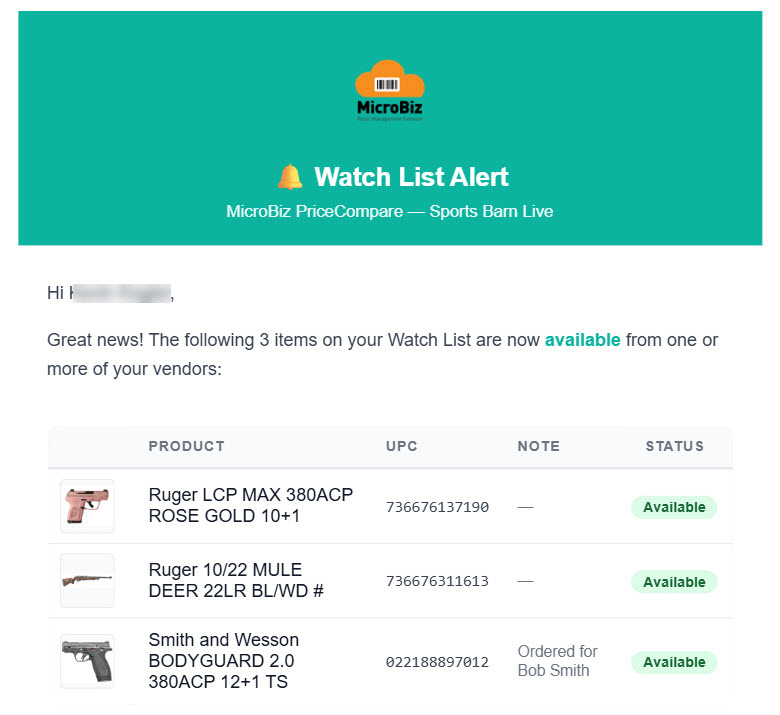
| If an item becomes available, PriceCompare will immediately display the new 'available' status on screen and also send an email message alerting you that the item is back in stock. |
|