This article discusses how to manage FFL transfers where a regulated item was purchased by a customer from another dealer is shipped to a FFL running MicroBiz as the customer pickup location.
Step One - Create Work Order to Manage Transfer
To quickly create a Acquisition and Disposition in FastBound of a Dealer Transferred item, the transaction must be started in MicroBiz as a Work Order. That enables the item being transferred to be managed as a 'service item' and not an 'inventory item'. In MicroBiz the transferred item will not be considered to be 'sold'. You should only 'sell' the FFL transfer fee associated with the transfer - and not the underlying firearm.

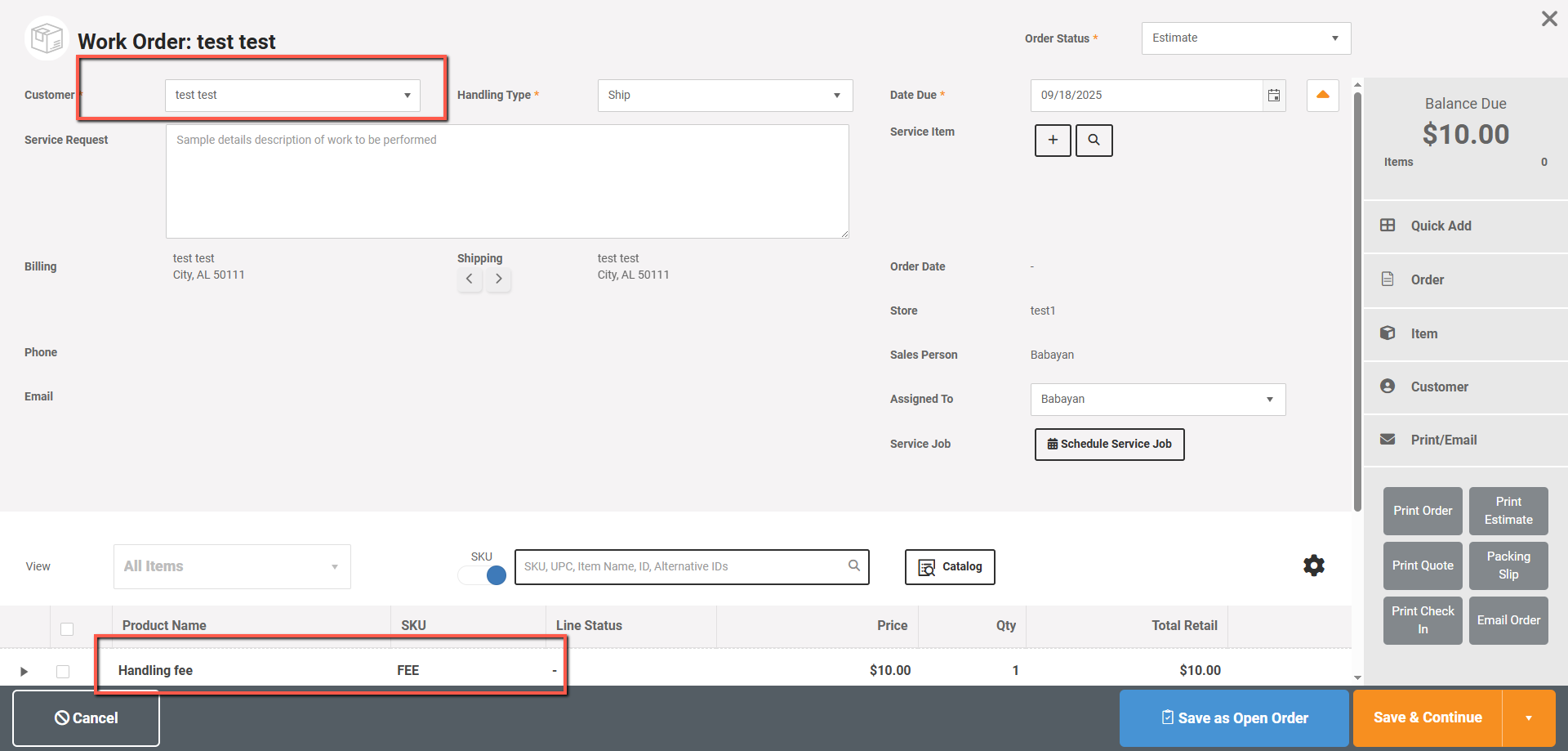
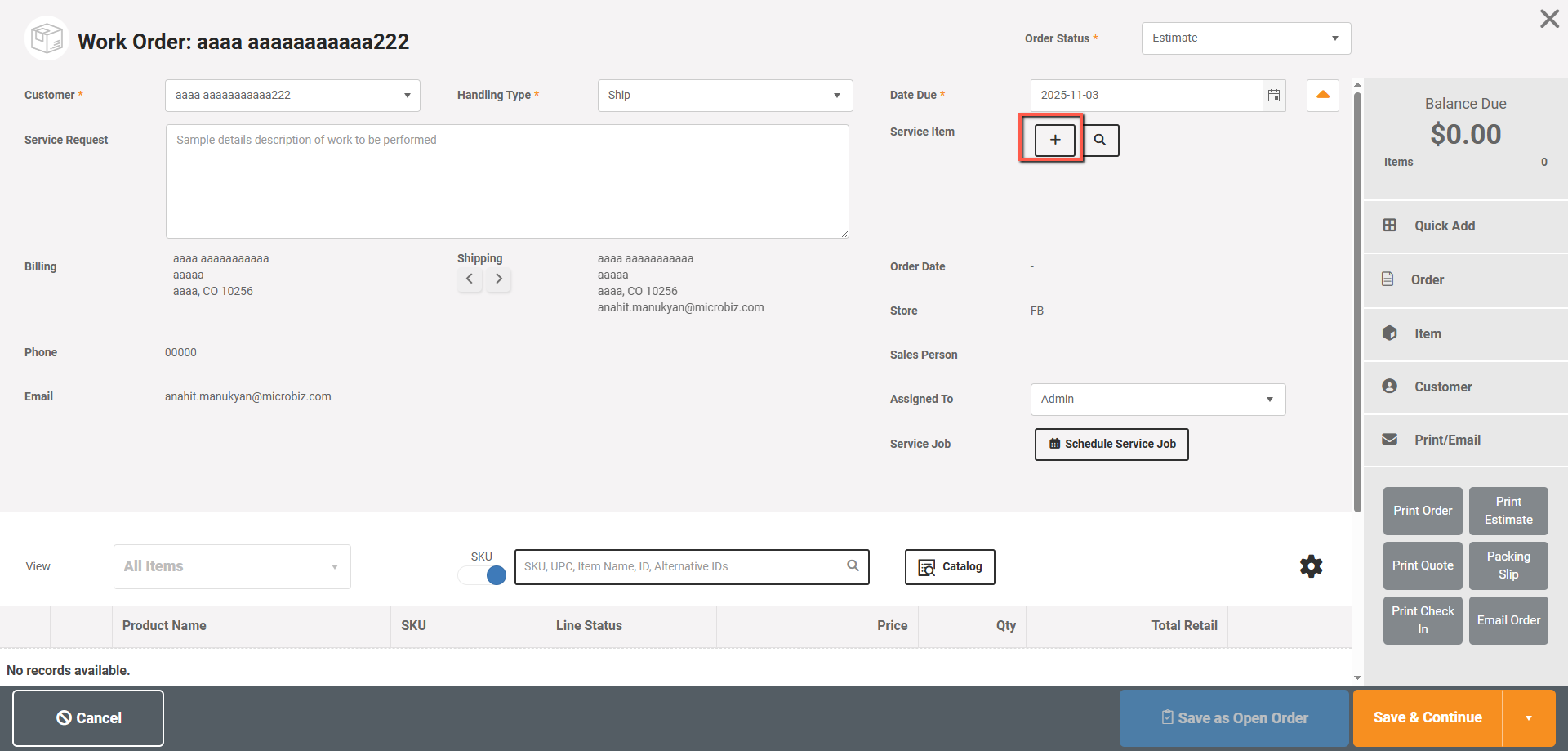
Step Two - Add Transfered Firearm to the Work Order
In the Service Item section of the work order, you can press the 'plus' button to open the service item check-in form, allowing you to enter information on the item being transferred.
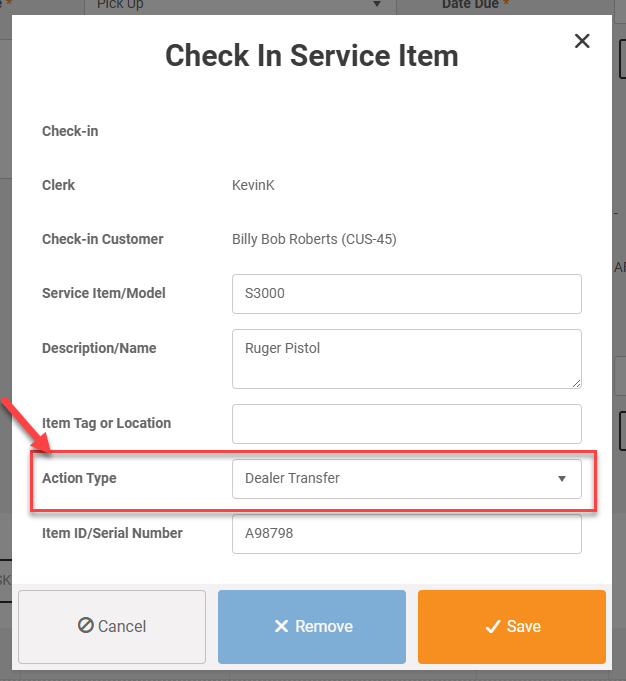
Key fields:
- Service Item/Model - If you have a FastBound subscription, the value in this field. will be pushed to FastBound as the 'model'.
- Description/Name - the value of this field will be displayed on the order invoice.
- Item ID/Serial Number - If you enter a serial number and have an integration with FastBound, the serial number will be synced with FastBound.
Step Three - Add Item or Service to Work Order and Save with Status of Open
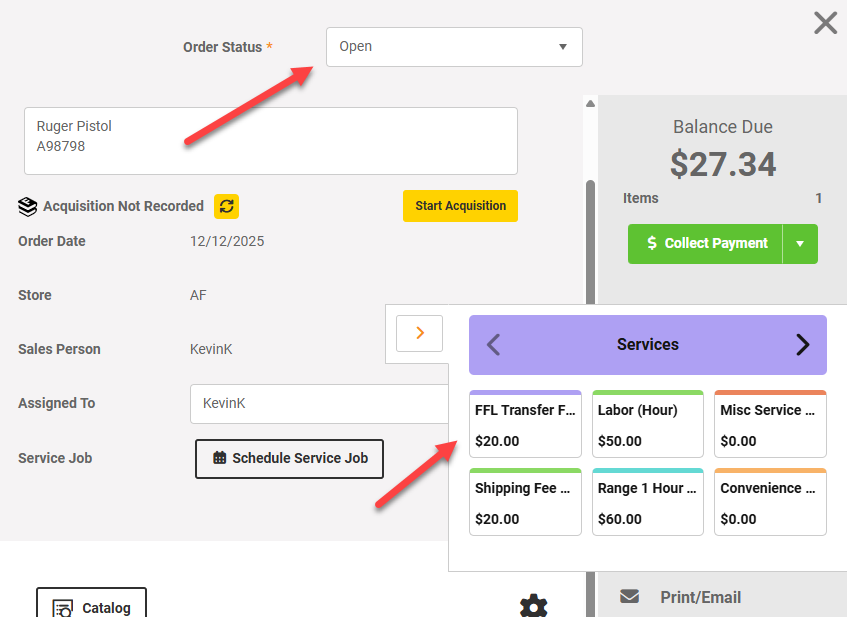
Once you have checked in the transferred item, you'll need to add a service or item to a transaction and then update the order status to 'open'.
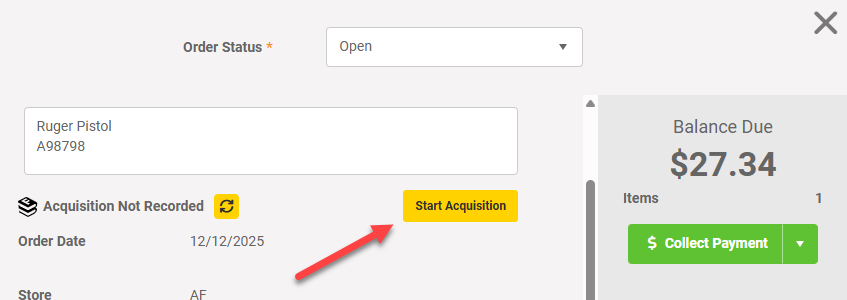
Once a order is marked Open, a yellow Start Acquisition button will also appear. Pressing this button will start the acquisition process in FastBound. Similar to the process when receiving a vendor shipment, this or committed acquisition record in FastBound. For more information on acquiring an item in FastBound, click here.
Transfer Items Already Acquired Automatically by FastBound> FastBound offers a service where an FFLs using FastBound can initiate a transfer to another FFL using FastBound. The transferring FFL sends an electronic transfer to the receiving FFL in FastBound, including the serial number on the transferred item. If you have that set up in your FastBound subscription, MicroBiz has the ability to check on this pending transfer and automatically update the service item status in MicroBiz using this information from FastBound. To check if this transfer is already available from another another FastBound dealer and already exists in your FastBound subscription, click on the yellow 'Refresh' button. MicroBiz will check with FastBound and automatically update the service item status to 'Acquired' so you can start the disposition.
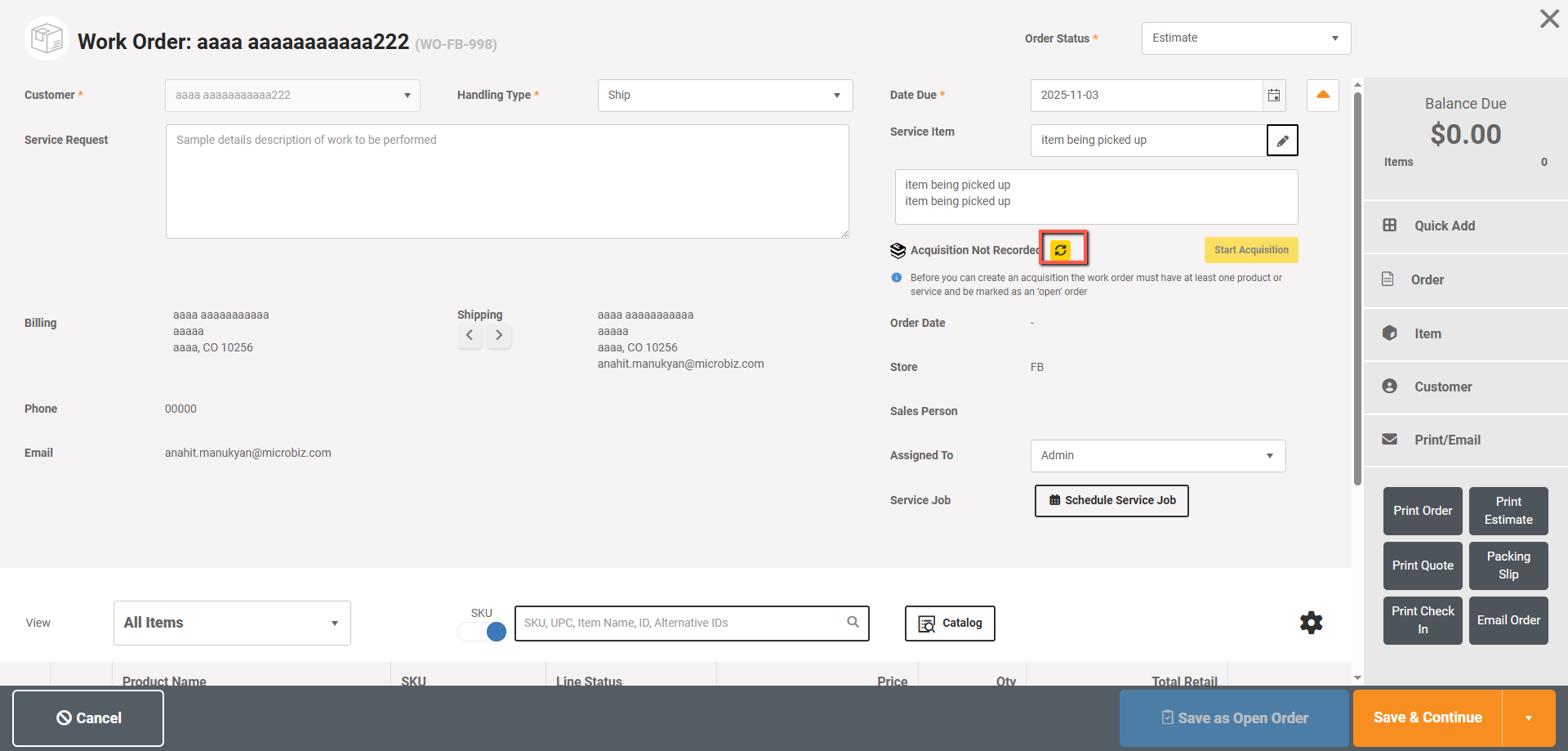
4. If the item is not coming from another FastBound dealer you can record and commit the acquisition once you enter the model and serial on the service item.
*The the dropdown menu that changes a service item from repair→ dealer Transfer allows for different logical workflows in the way the service item interacts with FastBound. The repair flow allows the service item to be acquired then disposed on the same document. Dealer Transfer can act this way as well – but when set to dealer transfer the application looks at FastBound to see if the item is already acquired in FastBound as it may be if the sending dealer is also a FastBound customer. The service item then updates automatically showing the ‘start disposition’ button. The slider setting is also saved so that reopening the work order in MicroBiz shows whether this service item was a repair or dealer transfer.
** Once you click refresh or start an acquisition, the Actions type and Serial number fields will be inactive and won't be available for editing.