Connecting your cash drawer to a receipt printer allows the drawer to open automatically when a transaction is completed.
Here's how to set it up:
What You’ll Need
• A compatible cash drawer with an RJ11 port
• A receipt printer with a “DK” (Drawer Kick) port
• An RJ11 or RJ12 cable (usually included with the drawer)
1. Locate the Ports
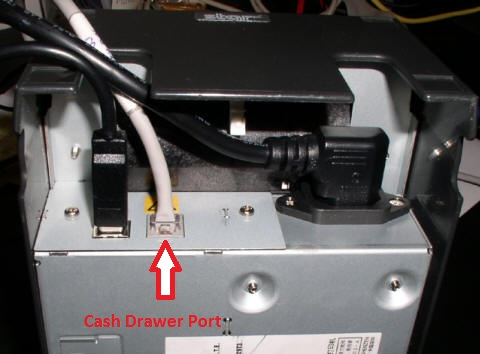
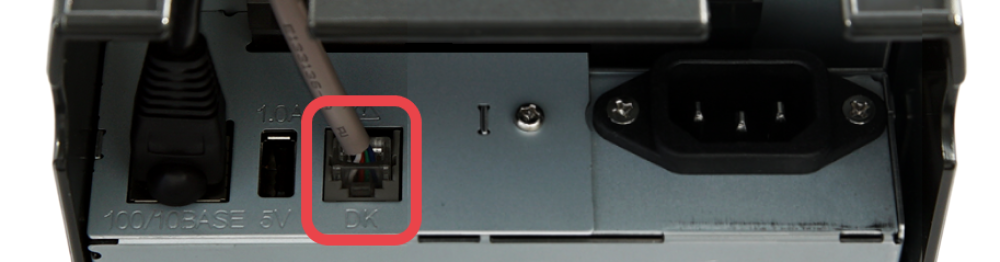
• Receipt Printer: Look for the port labeled “DK”, “Drawer”, or an icon of a cash drawer. This is typically on the back of the printer.
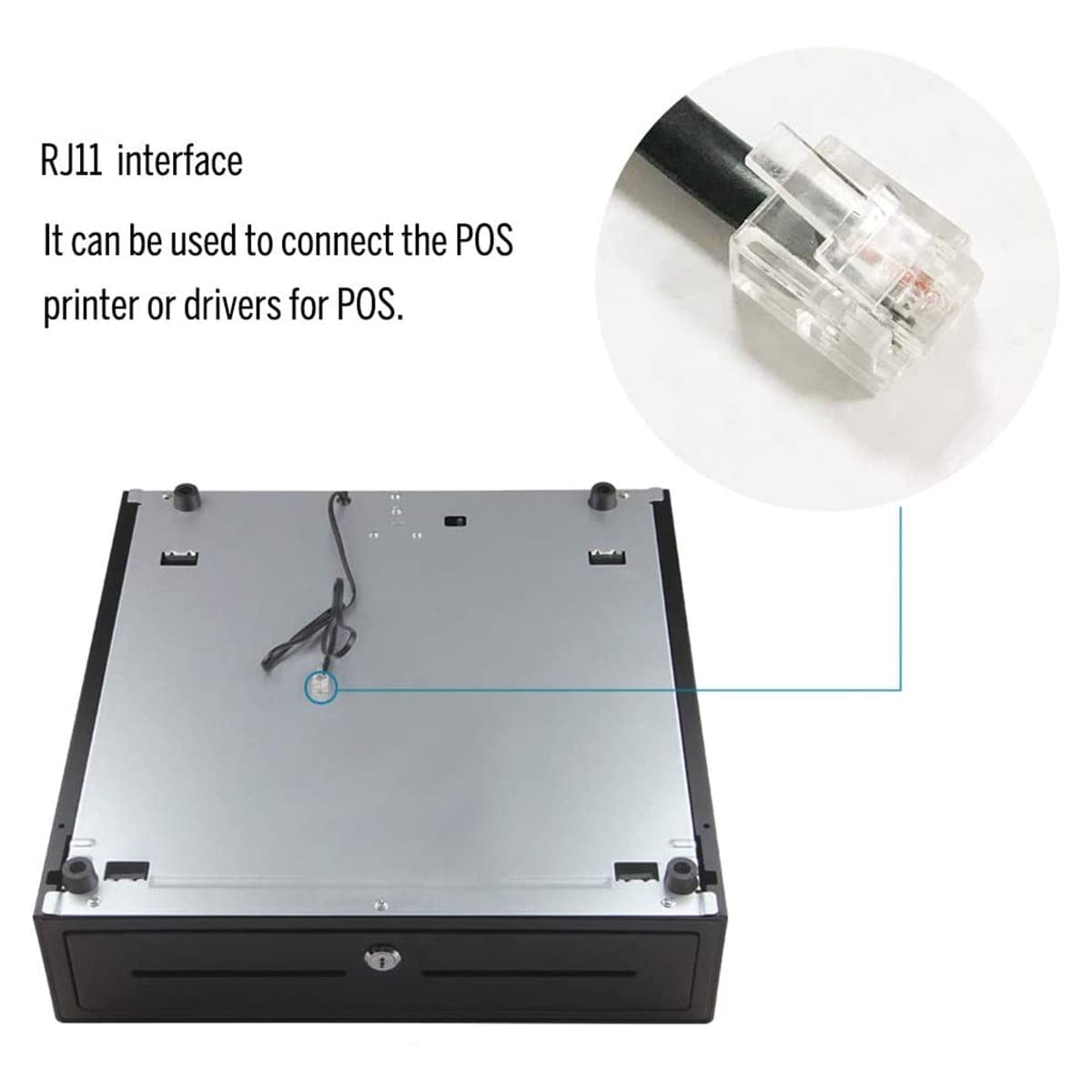
• Cash Drawer: Find the RJ11 port—usually located underneath or at the rear.
2. Connect the Cable
• Plug one end of the RJ11 cable into the DK port on the receipt printer.
• Plug the other end into the RJ11 port on the cash drawer.
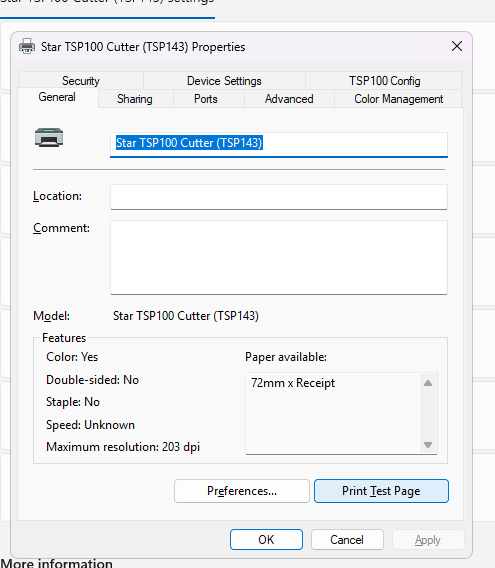
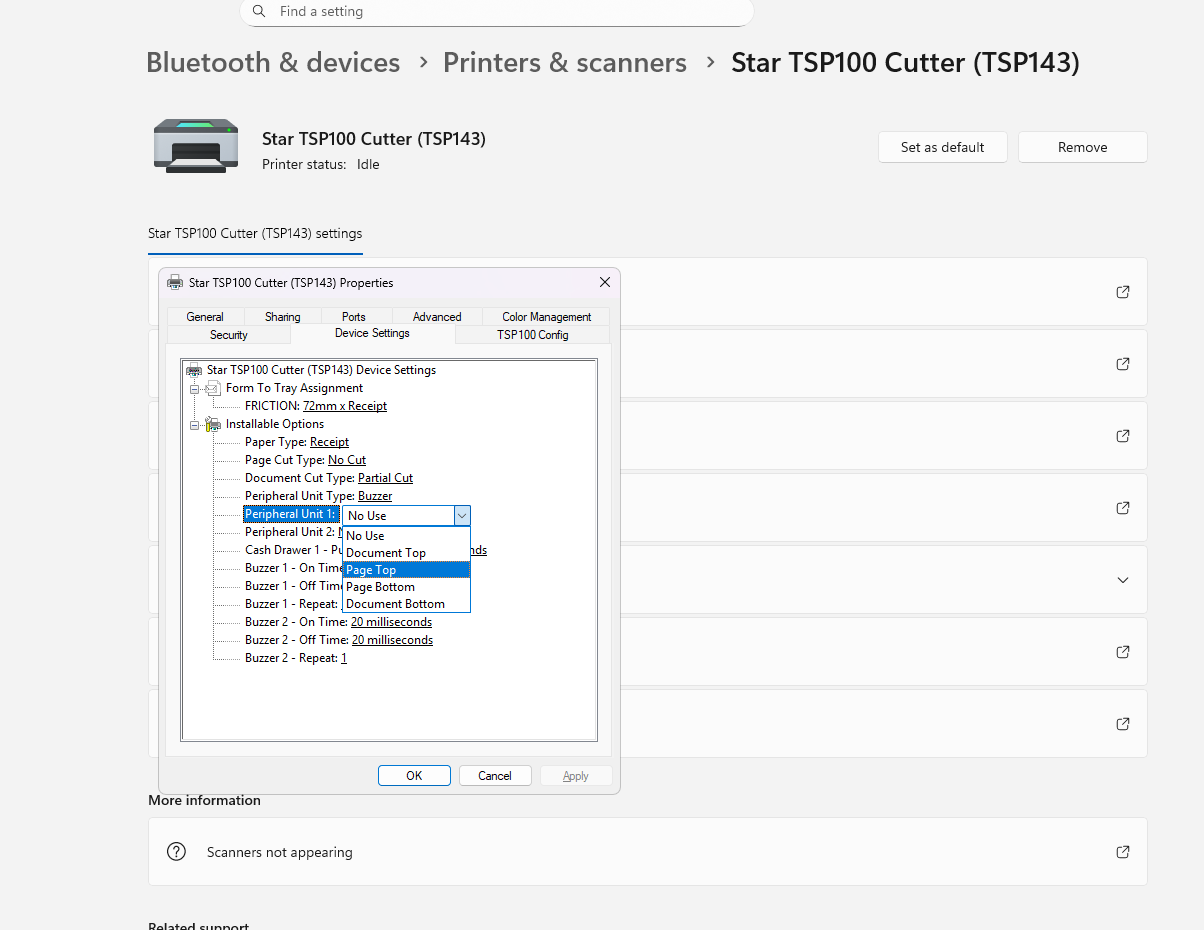
3. Configure Printer Settings (Windows)
For Epson or Star Micronics Printers:
• Go to Devices and Printers
• Right-click your receipt printer → Printer Properties
• Navigate to the Device Settings or Peripherals tab
• Set Peripheral Unit Type to Cash Drawer
• Choose when the drawer opens:
• Document Top → opens before printing
• Document Bottom → opens after printing
• Click Apply and OK
4. Test the Connection
• In Printer Properties, go to the General tab
• Click Print Test Page
• If configured correctly, the drawer should pop open after the test print